Site Management
(taken in part from Lehigh
University's Intermediate Dreamweaver site)
A number of features, such as Templates and Styles, will not be as effective
unless you have your site organized locally as well as on the web.
The Site window lets you see and manage all the files from that window.
You can set up Site Maps as well..
When should I set up Site Management?
As soon as you start work on a new site, set up a separate directory
for it and a site for it.
How to do it:
- From the Site menu, choose New Site.
- In the properties window
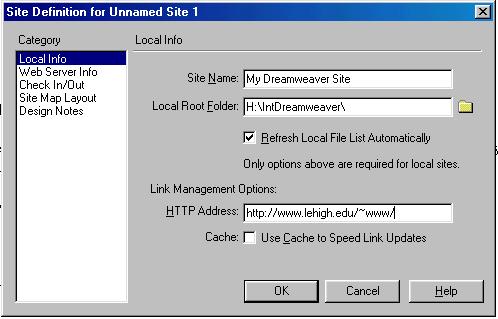 , fill in:
- Site Name (this should be something you will remember);
you will need it to refer to the site
- Local Root Folder (set this to the folder you are going
to save the files to)
- HTTP address (this should be the web directory the
pages will be in when they are updated)
- Click 'Ok'.
- The SITE window will come up and display all the files in
that directory.
From the site window, you can double click on any file to open it in
a new Dreamweaver document window.
Sitemaps
You can view the contents of the site as a map. To do this, you have
to define the root page, so once you've created the main page, go back
into Define sites, choose the site, click Edit, and click on Site Map
Layout.
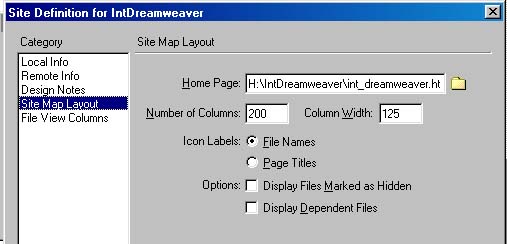
Use the folder icon to select the file that is going to be the home page.
You can also select how wide you want the site map to be and whether it
should display file names or page titles. Then click OK.
In the Site window, click on the sitemap icon to see the site files displayed
as a map: 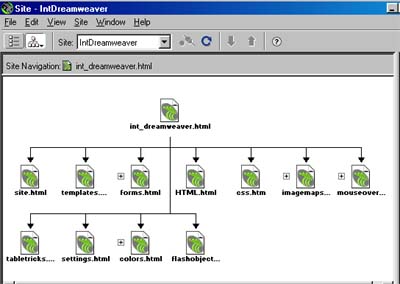
Checking links
From the Site window, you can check the links in your site. From the
Site menu in the Site window, choose 'Check Links Sitewide'. A screen
listing any broken links will be displayed.
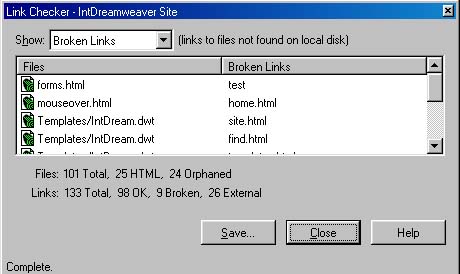
This will only show the links within the site; to see a list of external
links, choose External Links from the drop-down menu.
When you have looked over the links, click Close to close the window.
Changing a link sitewide
You can change a link throughout the site by doing a find and replace
over the entire site, or you can use the Change Links function in the
Site window.
From the Site menu, choose Change Links Sitewide. In the dialog box that
comes up  fill in the
URL of the old link (or use the folder icon to select the old file), then
enter the URL of the link (or select the new file) to change it to, and
click OK.
fill in the
URL of the old link (or use the folder icon to select the old file), then
enter the URL of the link (or select the new file) to change it to, and
click OK.