About setting
page properties
(taken from Dreamweaver's help menu FYI)
For each page you create in Dreamweaver, you can specify layout and
formatting properties using the Page Properties dialog box (Modify > Page
Properties). The Page Properties dialog box lets you specify the default
font family and font size, background color, margins, link styles,
and many other aspects of page design. You can assign new page properties
for each new page you create, and modify those for existing pages
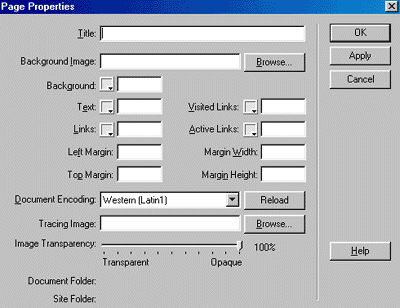
By default Dreamweaver formats text using CSS (Cascading Style Sheets).
You can change the page-formatting preferences to HTML formatting
using the Preferences dialog box (Edit > Preferences). When using
CSS page properties, Dreamweaver uses CSS tags for all properties
defined in the Appearance, Links, and Headings categories of the Page
Properties dialog box. The CSS tags defining these attributes are
embedded in the head section of the page.
Note: The page properties you choose apply only to the active
document. If a page uses an external CSS style sheet, Dreamweaver
will not overwrite the tags set in the style sheet, as this affects
all other pages using that style sheet.
here are some links to further information on setting page properties
from the help menu:
defining default text colors | changing
the document title | setting CSS link underline
styles | setting a background image or
background page color
here's a link you might like even better:
page
properties
Changing the document title
The title of an HTML page helps site visitors keep track of what
they’re viewing as they browse, and it identifies the page
in the visitor’s history and bookmark lists. If you don’t
title a page, the page will appear in the browser window, bookmark
lists, and history lists as Untitled Document.
Note: Giving the document a filename (by saving it) is not
the same as giving the page a title.
To locate all untitled documents in your site, use the Site > Reports
command.
To change the title of a page:
- With the document open, do one of the following:
- Select Modify > Page Properties.
- Select View > Toolbar > Document (if it isn’t
already selected).
- Right-click (Windows) or Control-click (Macintosh)
in an empty area in the document, then select Page
Properties.
- In the Title text box, enter the title for the page,
then press Enter (Windows) or Return (Macintosh).
- If you’re editing the title in the Page Properties
dialog box, click OK.
The title appears in the title bar of the Document
window (and in the Document toolbar, if it’s
showing). The filename of the page and the folder
the file is saved in appears in parentheses next to
the title in the title bar. An asterisk indicates
the document contains changes that have not yet been
saved.
back to menu
Setting CSS link underline styles
If you are using the default CSS Page Properties dialog box, Dreamweaver
makes it easy to specify special CSS link styles. Using the CSS link
options, you can choose to never underline links, underline links
only when the pointer passes over the link, or turn off links when
the pointer passes over them.
To set a CSS link style:
- Select Modify > Page Properties, or select Page Properties
from the context menu in the Design view of the Document
window.
- Select the Links category in the CSS Page Properties
dialog box.
- From the Underline Style pop-up menu, select the underline
style you would like to use as the default for your page.
- Click OK.
back to menu
Setting a background image or background
page color
To define an image or color for the page background, use the Page
Properties dialog box.
If you use both a background image and a background color, the color
appears while the image downloads, and then the image covers up the
color. If the background image contains any transparent pixels, the
background color shows through.
To define a background image or color:
- Select Modify > Page Properties, or select Page Properties
from the context menu in the Design view of the Document
window.
- Select the Appearance category in the Page Properties
dialog box.
- To set a background image, click the Browse button, then
browse to and select the image. Alternatively, enter the
path to the background image in the Background Image box.
Dreamweaver tiles (repeats) the background image if
it does not fill the entire window, just as browsers
do. (To prevent the background image from tiling, use
Cascading Style Sheets to disable image tiling.
-
To set a background color, click the Background color
box and select a color from the color picker.
back to menu
Defining default text colors
Define default colors for regular text, links, visited links, and
active links in the Page Properties dialog box, or select a preset
color scheme to define the page background and text colors.
Note: The active link color is the color that a link changes
to while it’s being clicked. Some web browsers may not use the
color you specify.
To define default text colors, do one of the following:
Note: If you define these settings using the Page Properties
dialog box, using the default CSS tags, the Color Scheme command will
not affect your page’s appearance. This is because CSS tags
take priority over HTML tags.
back to menu