|
adding fonts
the assets window
cascading style sheets
find and replace
fixing images
forms
go back buttons
hotspots
inserting Flash text
inserting Flash buttons
the library
navigation bar
page properties
rollovers
site
management
tables
|
|
Find and Replace
(taken in part from Lehigh
University's Intermediate Dreamweaver site)
Dreamweaver includes a very sophisticated Find/Replace utility that
lets you run searches and do global replacements on the text of documents,
the HTML code, specific tags, or even text associated with specific
tags, within the page or across multiple pages in a site or folder.
To use this function, go to the Edit menu and choose Find and Replace.
Choosing Find/Replace from the Edit menu brings up the basic Find/Replace
window:
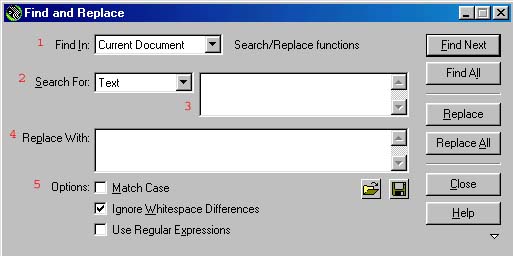
- Find In: lets you set the area to search-- you
can search only the current document, or the entire site,
a folder, or specific documents in the site.
- Search For: lets you search for text from the
document, code, specific tags, or (in Text Advanced) text
in conjunction with some tag.
- Next to the Search For entry is a window for entering
the text/code to search for.
- Replace with: enter the text/code/etc to insert
in place of the found text if you use Replace or Replace
All
- Options let you specify whether to match only
searches capitalized the same way, treat spaces between
words, etc. differently, etc.
To simply find the item, click Find. Once you've found it, you can
replace it by clicking Replace. To replace every instance of the item
in the chosen area, click Replace All.
Searching Code
You can change the settings so that you can do a search and replace
in the HTML code of the document.
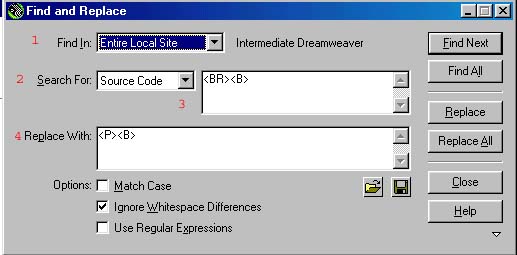
- Find in is still the area to search. Above it has been
set to the whole site.
- Search for is changed to Source Code
- In the box next to Source Code, enter the HTML code to
search for
- In Replace With: enter the code to replace it with, if
you are going to replace it.
If you make changes to the document which are not compatible with
HTML structure, the offending tags will appear on the page in yellow
until you fix the problem.
Searching by Tag
You can also choose to search for specific tags and their attributes,
either to make changes to the attributes or to the tags.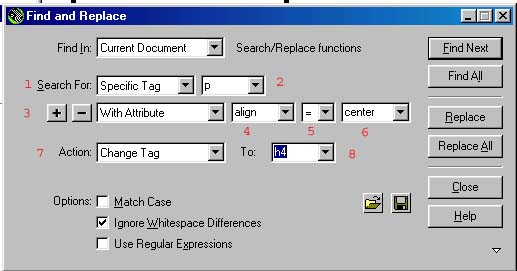
- Change the Search For to Specific Tag
- Next to Specific Tag, type or select an HTML tag to look
for.
- In the next line you can specify qualities to look for
with the tag: you can look for tags with or without a specific
attribute, Tags containing or not containing specific text,
tags inside or not inside specific other tags. Using the
+ and - buttons, multiple qualities can be specified.
- Here the attribute, text, or other tag is specified.
- If you are looking for a specific attribute, you need
to specify its value, using =, <,>, or != (not equal
to)
- The specified attribute value should be chosen, typed
or pasted here. If the value does not matter, choose [any
value]
- The Action taken when the replacement is done
can be Replacing the tag and its contents, replacing the
contents only, removing the tag & contents, Stripping
out the Tag,Changing the Tag, Setting or Removing the Attribute,
or adding things Before or After the Start or End Tag.
- Next to the Action is a field, depending on the Action,
where the tag, attribute, text, etc. can be specified.
This makes it possible to look for every instance of, say, Font=Arial
within a list item, and change it to Font=Arial, Helvetica, sanserif.
|