 |
 |
|
|
|
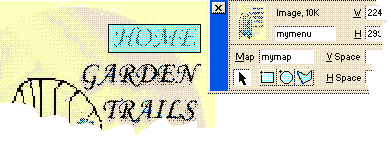
Creating an Image map (hot spots)Words and images taken from DevelopingWebs.net. Mr. Evenski gratefully acknoweldges the original 1. Insert your image into your document. 2. Highlight your image so the image properties panel is available.
3. Click the downward arrow on the lower right hand corner of the image properties panel to open up the panel to the image mapping features.
4. Name your image map. Make sure there are no spaces in the name. You may only have one image map with that name.
5. Use the rectangle, oval OR the polygon tool on the toolbar to draw hotspots over sections of your iamge. 6. When you complete the hotspot, the hotspot properties panel appears. Drag or browse for the file you are linkging to, or type it in. Set the ALT tag by typing in what the link is for. Select the window you want it to load in, if needed.
7. Click the drawing tool for the next hotspot and draw it on the image. Select the link, target and type in the ALT. 8. Continue this until it is complete. Click elsewhere on your document and continue with your page. Here's an example.
|
|