Assets
(taken in part from Lehigh
University's Intermediate Dreamweaver site)
,Dreamweaver includes a function for asset management for the site which
helps you keep track of the images, URLs, colors, movies, scripts and
Templates you use in the site.
As you use these things, they are automatically entered in the correct
category of the Asset window, so that you can find them again if you
need them. If you are going to use an item regularly, you can put in
your 'Favorites' in your Asset window, and give it a meaningful label.
The Assets Window
To view the asset window for your site, choose 'Asset' from the Window
Menu:
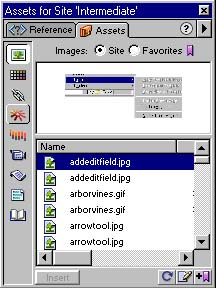
The menu down the side of the window displays the different kinds
of assets you can list, such as Images  , Colors
  , URLs/Links
  ,
Movies, Scripts and Templates. Click on the icon for the type of asset
you want to display.
,
Movies, Scripts and Templates. Click on the icon for the type of asset
you want to display.
Site vs. Favorites: At the top, you can see a choice between listing
all the assets in the Site, or only listing those you want to put in
your Favorites list: 
When you click on an item in the lower part of the asset window, it
(or its properties) will be displayed in the upper part of the window.
Refreshing Assets: If you are not seeing assets for the site listed
in your asset window, even though you have Site Selected, click on
the Reload/refresh button in the lower left hand corner: 
To add an asset to the Favorites listing, click on it, then click
the Add to Favorites icon in the lower left corner:  , or right click on it and choose Add to Favorites from the drop down
menu:
, or right click on it and choose Add to Favorites from the drop down
menu: 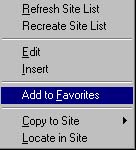 .
.
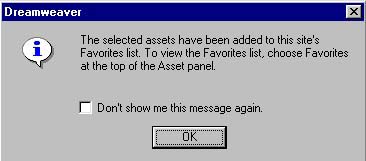
A dialog box will come up to say that the item has been added to Favorites--
click 'OK'.
Editing favorites: When you have Favorites selected, you will see
the list of favorites-- if you widen the window, you can see the size,
type and path (or other attributes, depending on the item) as well
as the Nickname: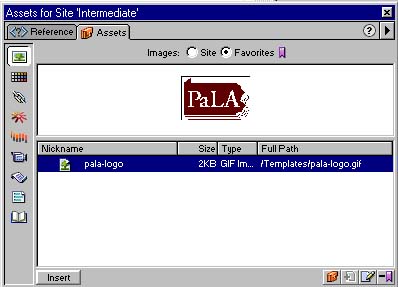
To change the Nickname (this doesn't change the file name), right-click
on the name and choose 'Edit Nickname': 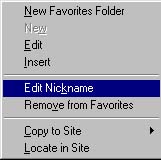 When the edit box is
displayed on the Nickname, change the nickname.
When the edit box is
displayed on the Nickname, change the nickname.
Using an asset: To use an asset, click on it and click the Insert
button in the lower left side of the window:  .
.
URLs in the Asset window
URLs work a little bit differently in the Asset window.
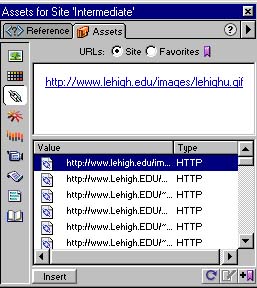
First of all, if you want to use a URL, you have two choices. If you
simply click where you want the link and click the Insert button, a
link with the URL as the text (as well as the link URL) will be inserted: http://www.lehigh.edu/images/lehighu.gif.
If you want to add a URL to specific text, highlight the text. The
Insert button becomes an Apply button and when you click it, the URL
is added to the properties of the text: Lehigh Mark . When you have
placed a URL in favorites and edited the Nickname, if you choose that
asset from Favorites and click Insert, the text of the link will be
the Nickname instead of the URL.
Additionally, you can add URLs/Links to the Favorite assets without
having to already have used them in the site. Right click in the list
and choose New URL, then fill in the nickname and URL: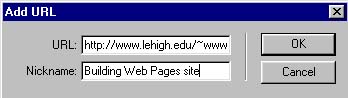
and click OK.