 |
 |
|
|
|
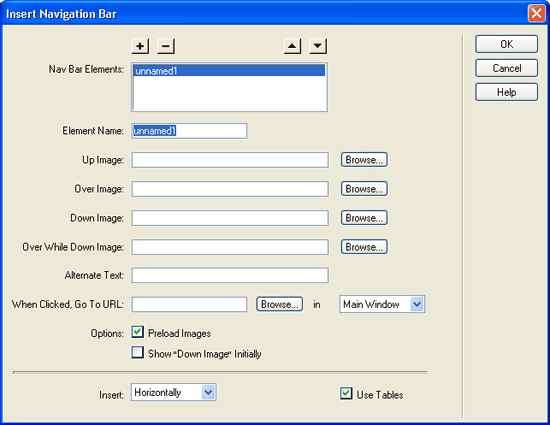
Navigation Bars(from Dreamweaver's help menu) A navigation bar consists of an image (or set of images) whose display changes based on the actions of a user. Before using the Insert Navigation Bar command, you must create a set of images for the display states of each navigation element. (It can be helpful to think of a navigation bar element as a button, because when clicked, it takes the user to another page.) Once you create a navigation bar for a document, you can add or remove images them from the navigation bar using the Modify Navigation Bar command. Use this command to change an image or set of images, to change which file opens when an element is clicked, to select a different window or frame in which to open a file, and to reorder the images. This section covers the following topics: Inserting a navigation bar | Modifying a navigation bar Inserting a navigation barWhen you insert a navigation bar, you name the navigation bar elements and select images to use for them. Tip: You can create a navigation bar, copy it to other pages in your site, use it with frames, and edit the page behaviors to show different states as pages are accessed. To create a navigation bar:
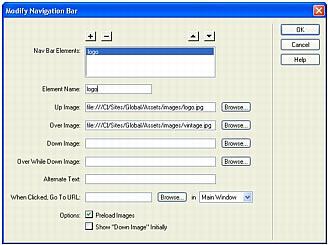
Modifying a navigation barOnce you create a navigation bar for a document, you can add images to or remove them from the navigation bar by using the Modify Navigation Bar command. To modify a navigation bar:
|
|