|
|
 |
|
Background
|
Tables can be a useful way to organize and construct a web page layout. Inserting a table into FrontPage is easy, but using one effectively can be much more challenging. Go to the menu and Choose "Table" and then "Insert" and then "Table." The Tables dialogue box appears.
The Tables Window
Select how many rows (spaces top to bottom) and columns (spaces side to side) you want in your table. Use border size, cell padding, and cell spacing to control the thickness of your borders, the amount of space between cell walls and cell data, and the space between cells respectively.
Click "OK." The table appears in your document.
Once the table is in your page, you can use the mouse to adjust the size of the cells and the table. Simply move the pointer over one of the cell walls. When it turns into a double headed arrow, click and drag. Table TipsUse tables to arrange your page layout. By dividing a page into several columns, you can include a left-hand menu bar, main page content, and other page sections as well.
Try splitting and merging cells to create tables with non-uniform cell sizes.
To split or Merge cells
Highlight the cell or cells you wish to split or merge.
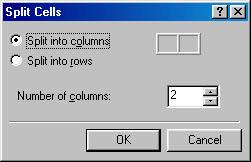
Right-click and choose either Split or Merge Cells. If you choose "Merge," the cells will merge and become one large cell. If you choose "Split," the Split Cells dialogue window will open.
Splitting Cells
You have a choice. Choose to either split the cells into columns (side to side) or rows (top to bottom). You may also choose how many rows or columns to add.
When you hit "OK," the cell is split and new cells are added to your table.
Table Properties
Right-click inside a table and choose "Table Properties" from the menu for a dialogue window with options for modifying your table.
The Table Properties Window
The table properties window allows you to change the background picture or colour of a table, the colour of the text inside a table, the table's width and height, border colours and sizes, alignment, and numerous other things. Deleting a TableDeleting a table can be slightly tricky, because if you're not careful you may wind up deleting only the data inside a table, and not the table itself.
To delete a table
Place the cursor inside a cell of the table by left clicking.
Go to the menu. Choose "Table" and then "Select" and then "Table."
The table should turn black, indicating that you've selected it. Now, simply press the "Delete" key on the keyboard or go to the menu and choose "Edit" and then "Delete." |