|
|
 |
|
|
Making a MarqueeThe Marquee tool allows you to create a cycling text message, much like a stock or news ticker. To add a Marquee:
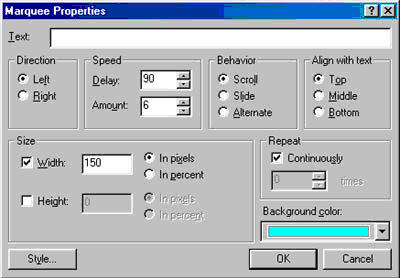
1. Go to the menu. Choose "Insert" and then "Components" and then "Marquee." 2. The Marquee dialogue box will open.
The Marquee Dialogue Window
In the text box, type your message. You can change some of the Marquee properties by changing the values in the various buttons and text boxes provided. The Marquee above is set to the default settings. Pick your own settings and find something you like.
Click "OK" to accept and add the Marquee to your page. Use the "Preview" tab to see your marquee in action. If you don't like it, return to the normal view to edit it.
Changing Marquee settings:
Right-click on the marquee in the normal FrontPage view. Choose "Marquee Properties" from the drop-down menu.
The Marquee dialogue window will open. You can change your settings here. Clicking on "OK" will apply them. |