
|
NP Computer Hardware page Understanding Hard
Disks Source : PowerQuest Corporation |
The way a computer boots from a hard disk depends on the
way the hard disk is
partitioned and on the operating system being booted.
When you turn on the power to your computer, the CPU
(central processing unit)1
takes
control. The CPU immediately executes the instructions
built into the computer’s ROM
BIOS, a program that contains the startup procedures. The
last part of the BIOS
instructions contains the boot routine. This routine is
programmed to read the master boot
record from the first sector of the first physical hard
disk.
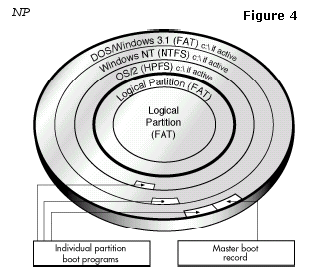
Hard disk with master boot record
and three partition (OS-specific) boot records
The MBR (master boot record) contains a master boot
program and a partition table that
describes all of the hard disk’s partitions. The BIOS boot
routine executes the master boot
program, which then continues the boot process. The master
boot program looks at the
partition table to see which primary partition is active.
If there is only one primary
partition, that partition’s OS is loaded and booted into
operation.
If the hard disk has more than one primary partition, each
bootable partition (that is,
containing an OS) has its own boot record stored in its
first sector. This boot record holds
a boot program designed specifically to start that
partition’s installed OS. This
OS-specific boot record is usually written to the partition
when the partition is logically
formatted, but can also be added later with an OS-specific
utility (for example, the DOS
SYS utility).
After identifying the active partition, the master boot
program starts that partition’s boot
program. In turn, the boot program loads the necessary OS
files and starts the OS.
Most operating systems, including DOS, and Windows
3.x/95/98/Me/NT/2000/Xp rely on the
active primary partition when they boot from a hard disk.
However, different operating
systems rely on the active primary partition in different
ways.
• DOS, Windows 3.x, and Windows 95/98 must boot from
an active primary partition
on the first hard disk drive.
• Windows NT/2000/ can boot from a logical partition,
but the Windows NT/2000 boot
program must be in the active primary partition on the
first hard disk.
• OS/2 can be booted from a logical partition;
however, the extended partition
containing the logical partition must be contained within
the first 2 GB of the hard
disk. Additionally, the Boot Manager utility provided with
OS/2 must be present on
the hard disk in order to install OS/2.
The following sections introduce you to concepts and
activities that help you use disk
partitioning to your best advantage.
When you create multiple primary partitions to hold
different operating systems, you must
tell the computer which primary partition to boot from. The
primary partition from which
the computer boots is called the active partition. If
there is not an active primary partition
on the first physical hard disk, your computer will not be
able to boot from your hard disk.
WARNING!
Before you make a primary partition active, make sure that
it is a bootable
partition. Bootable partitions are logically formatted and
have the necessary
OS files installed. Partitions without an OS cannot be
booted.
There are three good reasons for creating an extended
partition and dividing it into logical
partitions:
• You can access logical partition files from
multiple OSs.
• Logical partitions help you make efficient use of
disk space.
• Logical partitions physically separate groups of files
for easier organization or
increased security.
Multiple logical partitions do not need to be hidden like
primary partitions. You can have
many logical partitions visible at the same time.
Therefore, you can access data stored in a
logical partition from multiple OSs installed in different
primary or logical partitions,
provided that the logical partition uses a file system
that the OSs recognize.
For example, refer to the partitioned hard disk shown
below. Because DOS/Windows,
Windows NT, and OS/2 all recognize FAT partitions, any of
those three primary partitions
could be active and still be able to recognize and use the
files saved within either of the
logical partitions.
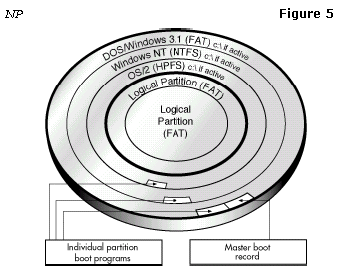
Both
logical FAT partitions can be accessed by any of the three primary partition
OSs.
If you have a large hard disk and want to use the FAT file
system on all or most of the
disk, you can prevent wasted space by using several small
FAT partitions.
All data on a FAT partition are stored in allocation units
called clusters. Each cluster is
made up of a fixed number of disk sectors.
The FAT file system supports disk or partition sizes up to
2 GB, but only allows a
maximum of 65,525 clusters. Therefore, whatever the size
of the hard disk or partition,
the number of sectors in one cluster must be large enough
so that all available space can
be included within 65,525 clusters. The larger the
available space, the larger the cluster
size must be.
However, using a large cluster size wastes disk space.
Even if a data file (or the last
portion of a data file) is much smaller than the cluster
size, the computer must still use a
complete cluster to store the data. The rest of the
cluster space goes unused.
The following table shows the minimum cluster size and
typical wasted space for various
partition sizes.
Partition Sizes
Cluster Size
% Wasted Space
(approx.)
16-127 MB 2 KB 2%
64K clusters are only available in Windows NT and Windows
2000. Other operating
systems cannot use 64K clusters, no matter how large the
partition.
You can prevent wasted disk space by using smaller
partitions, because smaller partitions
use smaller cluster sizes. For example, a 1,024,047 MB
partition has a cluster size of 32
KB. If you saved a 2 KB file to this partition, an entire
32 KB cluster would be used to
save the file, wasting 30K of space. However, if you
divide your storage space into 120
MB partitions, these partitions would only use 2K
clusters. When you save the same 2K
file, the file would fit neatly into a 2K cluster with no
wasted space.
If you have a large hard disk, placing all your files and
subdirectories under one root
directory quickly results in a large and complex directory
structure. The larger and more
complex the root directory, the harder it is for you to
keep track of your files. Organization
becomes difficult, forcing you to sort through numerous
directories and subdirectories just
to find the files you want.
Smart use of logical partitions can help you avoid this
problem. Simply separate your files
into groups, storing each group in an individual logical
partition. When you need a
particular group of files, you can easily switch to the
corresponding logical partition. The
complexity of your directory structure is minimized,
allowing you to access desired files
much more quickly.
128-255 MB 4 KB 4%
256-511 MB 8 KB 10%
512-1023 MB 16 KB 25%
1,024-2,047 MB 32 KB 40%
2,048-4,096 MB 64 KB 50%
You can also use additional partitions to enhance security
for sensitive files. For example,
if you wish to limit access to a particular group of
files, you can store those files on a
logical partition and then hide that partition from
access.
If you use multiple OSs, you could also format a logical
data partition with the file system
of the OS that provides the best security features. The OS
could then be used to limit
access to the data partition.
Logical partitions can also be used to store additional
copies of critical files. For example,
if you put copies of your critical files on a FAT logical
partition, this partition could be
accessed by any of your OSs that recognize FAT. If one OS
crashed or became corrupted,
you could boot another OS and still have access to the
critical files.
When resizing a partition, space must be allocated for any
increase in the required cluster
size. Therefore, there must be unused space available
inside the partition. If the partition is
almost full, there may not be enough space to allow you to
resize the partition. If this is
the case, you can create unused space by either deleting
files from the partition or by
moving files to a different partition.
The following table approximates the amount of unused
space necessary to resize a
partition within the listed size ranges. The actual amount
of unused space needed can
vary, depending on the number and sizes of the files in
the partition.
Partition Size
(within this range)
Required
% Wasted
Space
Unused Space
Needed for
Resize
128-255 MB 4 KB 4% 5.1 MB
256-511 MB 8 KB 10% 25.6 MB
PartitionMagic, Drive Image, BootMagic, and ServerMagic
etc... programs allow you to hide a partition
from OS detection. When you hide a partition, that
partition is not assigned a drive letter
during OS boot up. Therefore, the partition is invisible
to the OS and all connected
applications. Subsequent partitions that are still visible
to the OS are assigned a new drive
letter.
Hiding a partition is useful when you need to protect
sensitive data from other users or
you want to prevent others from inadvertently deleting
critical files. You can hide any
primary or logical FAT, FAT32, NTFS, or HPFS partition.
Of course, PartitionMagic, Drive Image, BootMagic, and
ServerMagic etc… programs also allows you to
unhide any partitions that you have hidden. Making a
partition visible allows the booted
OS to detect the partition, and therefore assign it a
drive letter. Once a partition is
unhidden, subsequent partitions are again assigned a new
drive letter.
IMPORTANT!
Partitions can only be detected by OSs that recognize the
partition’s file
system. Unhiding a partition with an unrecognized file
type will not make
the partition visible to the OS.
WARNING!
You must be careful when unhiding primary partitions. In
general, you
should not make two primary partitions visible at the same
time, as this can
cause data loss in some OSs.
512-1023 MB 16 KB 25% 128.0 MB
1,024-2,047 MB 32 KB 40% 409.6 MB
2,048-4,096 MB 64 KB 50% 1024.0 MB
