
|
NP Computer Hardware page Understanding Hard
Disks Source : PowerQuest Corporation |
All file systems consist of structures necessary for
storing and managing data. These
structures typically include an operating system boot
record, directories, and files. A file
system also performs three main functions: 1) tracking
allocated and free space, 2)
maintaining directories and file names, and 3) tracking
where each file is physically stored
on the disk.
Different file systems are used by different operating
systems. Some OSs can recognize
only one file system, while other OSs can recognize
several. Some of the most common
file systems are the following:
• FAT (File Allocation Table)
• FAT32 (File Allocation Table 32)
• NTFS (New Technology File System)
• HPFS (High Performance File System)
• NetWare File System
• Linux Ext2 and Linux Swap
The FAT file system is used by DOS, Windows 3.x, and
Windows 95 (in most
installations). The FAT file system is also accessible by
Windows 98/Me/NT/2000, and by
OS/2.
The FAT file system is characterized by the use of a file
allocation table (FAT) and
clusters. The FAT is the heart of the file system; for
safety, the FAT is duplicated to protect
its data from accidental deletion or corruption. Clusters
are the FAT system’s smallest unit
of data storage; one cluster consists of a fixed number of
disk sectors. The FAT records
which clusters are used, which are unused, and where files
are located within the clusters.
The FAT file system supports disk or partition sizes up to
2 GB, but only allows a
maximum of 65,525 clusters. Therefore, whatever the size
of the hard disk or partition,
the number of sectors in one cluster must be large enough
so that all available space can
be included within 65,525 clusters. The larger the available
space, the larger the cluster
size must be.
TIP:
In general, large clusters tend to waste more space than
small clusters. For more
information on managing cluster size, see “Making
Efficient Use of Disk Space”.
The FAT file system also uses a root directory. This
directory has a maximum allowable
number of entries and must be located at a specific place
on the disk or partition. OSs that
use the FAT file system represent the root directory with
the backward slash character (\)
and initially display this directory at boot-up.
The root directory stores information about each
sub-directory and file in the form of
individual directory entries. For example, a file’s
directory entry holds information such
as the file name, the size of the file, a date and time
stamp that indicates when the file was
last changed, the starting cluster number (which cluster
holds the first portion of the file),
and the file’s attributes (for example, hidden or system).
FAT32 is a file system that can be used by Windows 95 OEM
Service Release 2 (version
4.00.950B), Windows 98, Windows Me, Windows 2000 and
Windows Xp. However, DOS, Windows
3.x, Windows NT 3.51/4.0, earlier versions of Windows 95,
and OS/2 do not recognize
FAT32 and cannot boot from or use files on a FAT32 disk or
partition.
FAT32 is an enhancement of the FAT file system and is
based on 32-bit file allocation
table entries, rather than the 16-bit entries used by the
FAT system. As a result, FAT32
supports much larger disk or partition sizes (up to 2 terabytes).
The FAT32 file system uses smaller clusters than the FAT
file system, has duplicate boot
records, and features a root directory that can be any
size and can be located anywhere on
the disk or partition.
The NTFS (New Technology File System) is accessible only
by Windows NT/2000/Xp.
NTFS is not recommended for use on disks less than 400 MB
because it uses a great deal
of space for system structures.
The central system structure of the NTFS file system is
the MFT (Master File Table).
NTFS keeps multiple copies of the critical portion of the
master file table to protect
against corruption and data loss.
Like FAT and FAT32, NTFS uses clusters to store data
files; however, the size of the
clusters is not dependent on the size of the disk or partition.
A cluster size as small as 512
bytes can be specified, regardless of whether a partition
is 500 MB or 5 GB. Using small
clusters not only reduces the amount of wasted disk space,
but also reduces file
fragmentation, a condition where files are broken up over
many noncontiguous clusters,
resulting in slower file access. Because of its ability to
use small clusters, NTFS provides
good performance on large drives.
Finally, the NTFS file system supports hot fixing, a
process through which bad sectors are
automatically detected and marked so that they will not be
used.
The HPFS (High Performance File System) is the preferred
file system for OS/2 and is
also supported by older versions of Windows NT.
Unlike the FAT file systems, HPFS sorts its directory
based on file names. HPFS also uses
a more efficient structure to organize the directory. As a
result, file access is often faster
and space used more efficiently than with the FAT file
system.
HPFS allocates file data in sectors instead of clusters.
To keep track of which sectors have
or have not been used, HPFS organizes a disk or partition
into 8 MB bands, with 2 KB
allocation bitmaps between the bands. This banding
improves performance because the
read/write heads don’t have to return to track zero each
time the OS needs to access
information about available space or a needed file’s
location.
The Novell NetWare operating system uses the NetWare File
System, which was
developed specifically for use by NetWare servers.
The Linux Ext2 and Linux Swap file systems were developed
for the Linux OS (a
freeware version of UNIX). The Linux Ext2 file system
supports a maximum disk or
partition size of 4 terabytes.
After a disk has been physically formatted, it can be
divided into separate physical
sections or partitions. Each partition functions as an
individual unit, and can be logically
formatted with any desired file system. Once a disk partition
has been logically formatted,
it is referred to as a volume.
As part of the formatting operation, you are asked to give
the partition a name, called the
“volume label.” This name helps you easily identify the
volume.
Many hard disks are formatted as one large partition. This
setup, however, doesn’t always
provide the best possible use of your disk space or
resources. The alternative is to separate
your hard disk into partitions. Using multiple partitions,
you can:
• Install more than one OS on your hard disk;
• Make the most efficient use of your available disk
space;
• Make your files as secure as possible;
• Physically separate data so that it is easy to find
files and back up data.
The following sections discuss partitions in greater
detail, helping you create and use
partitions to get the most out of your hard disk.
There are three kinds of partitions: primary, extended,
and logical. Primary and extended
partitions are the main disk divisions; one hard disk may
contain up to four primary
partitions, or three primary partitions and one extended
partition. The extended partition
can then be further divided into any number of logical
partitions.
A primary partition may contain an operating system along
with any number of data files
(for example, program files or user files). Before an OS
is installed, the primary partition
must be logically formatted with a file system compatible
to the OS.
If you have multiple primary partitions on your hard disk,
only one primary partition may
be visible and active at a time. The active partition is
the partition from which an OS is
booted at computer startup. Primary partitions other than
the active partition are hidden,
preventing their data from being accessed. Thus, the data
in a primary partition can be
accessed (for all practical purposes) only by the OS
installed on that partition.
If you plan to install more than one operating system on
your hard disk, you probably
need to create multiple primary partitions; most operating
systems can be booted only
from a primary partition.
The extended partition was invented as a way of getting
around the arbitrary four-partition
limit. An extended partition is essentially a container in
which you can further physically
divide your disk space by creating an unlimited number of
logical partitions.
An extended partition does not directly hold data. You
must create logical partitions
within the extended partition in order to store data. Once
created, logical partitions must
be logically formatted, but each can use a different file
system.
Logical partitions can exist only within an extended
partition and are meant to contain
only data files and OSs that can be booted from a logical
partition (OS/2, Linux, and
Windows NT).
The illustration below shows a hard disk that contains
four main partitions: three primary
partitions and one extended partition. The extended
partition has been further divided into
two logical partitions.
Each primary partition has been formatted to use a
different file system (FAT, NTFS, and
HPFS). The two logical partitions have both been formatted
to use the FAT file system.
Although Figure 3 shows all partitions on a single side of
one platter, in actual use the
partitions would probably be spread across the sides of
several platters
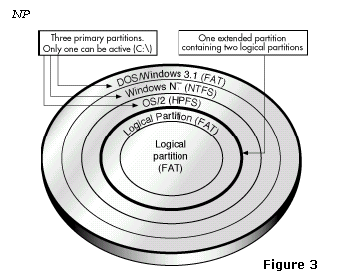
Partitioned and formatted hard disk
