
 What is IRC? Network Structure IRC Clients PIRCH98 Commands and Services Responsibilities Netiquette Security IRC "Extras" Resources Introduction (Home)
PIRCH98
The following is a quick guide to connecting to ShadowFire using Pirch98
From Pirch Main Window, choose Menu item IRC | Server List,
This will Bring up the Network Explorer window...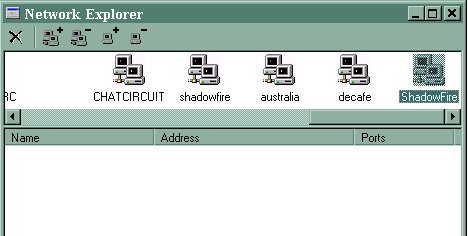
Click on the larger plus sign {+) to ADD NETWORK. Type ShadowFire into the upper pane of this window(in the highlighted text of the new network). 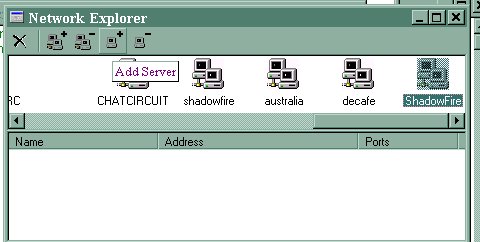
Click on the smaller plus sign {+) to ADD SERVER, which will bring up the Server Properties window: Here is where you enter the server information from the current servers list.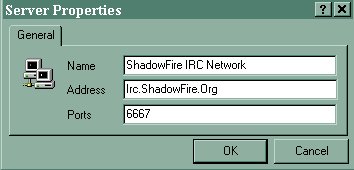
Name: Enter a name for this server connection, such as ShadowFire Random Server; Address: Irc.ShadowFire.Org, Ports: 6667 ; Click OK to close. Click either X to close the Network Explorer window.

Click the Login button to bring up the Server Connection window.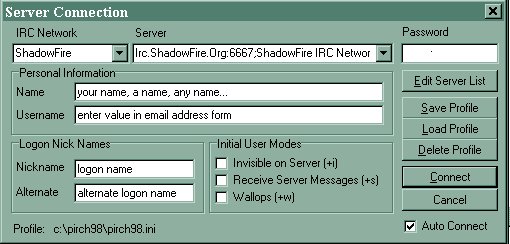
Choose ShadowFire from the dropdown list of IRC networks. Complete the Personal Information and Log On Nick Names in the Server Connection window.
Name: Give yourself a name. It is not wise to list your complete name or any form of your real name. Don't make yourself an easy target for someone who may wish to harass you.
User Name: place an email address here, It is common to use a fictitious one.
Nickname: Enter the nickname you wish to you use during your session on IRC, Be prepared to have to change it (ShadowFire supports registration of nicknames, the name may be "owned" by another user)
Alternate: Enter an alternate choice for a nickname should your first choice be in use. Often people add a special character (such as ^, -, or _ ) to their nick. Just as often, individuals choose to have a completely different alternate. It is merely personal preference.
Invisible: This hides you from people doing a blanket search for people connected to the network (when the box is checked), however you remain visible to those that search for your exact nickname.
Click Connect, and a Server Window should appear to connect you to ShadowFire :)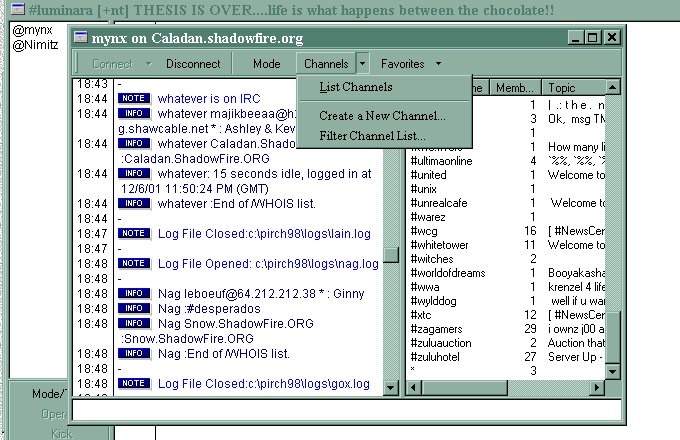
To start chatting, you need to find a channel first. The command /list or the channels menu | list channels command from the server window will show you a list of the available channels on the server, with the number of individuals in each and the topic of each channel. To join a channel, you can type /join #channelname. Additionally, you can also join channels on Pirch through the channel list you obtained with the previous command. After you highlight a channel in the list, double click it to join the channel.
(Channels on ShadowFire, by default, start with the character #.) When you wish to leave a channel, the command is /part #channelname. Also, it would suffice to use the close "x" (standard MS Windows feature) on the channel window to close the channel window and thus leave the channel.
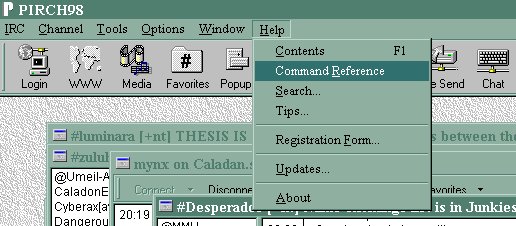
IRC contains many more commands than these few. In the IRC Commands section, I will identify some of the common commands needed in everyday use on ShadowFire. In the main PIRCH window, the Help menu contains a command reference of all the text commands PIRCH recognizes and the syntax required for each.
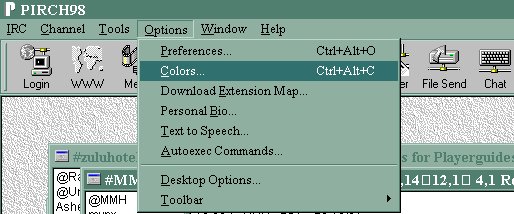
To customize the look of PIRCH, you can select Colors from the Options Menu.
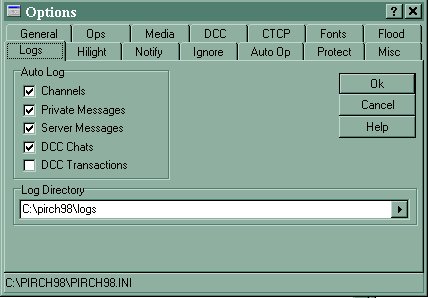
Generally, when using an IRC server you will want to configure your client to perform certain functions for you. From the menu bar, select the Prefs button. For ShadowFire, I would recommend at least the following configurations, including turning full logging and CTCP flood protection on. Go through the option tabs and see what will work best for you. 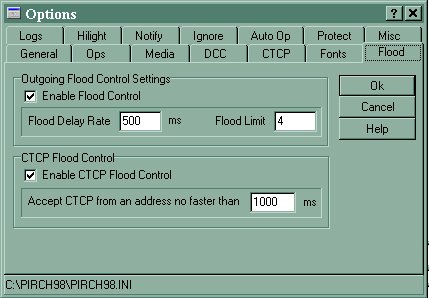
Back to the top
Designed by: mynx
Viewable with Internet Explorer 5.5 at 800x600.