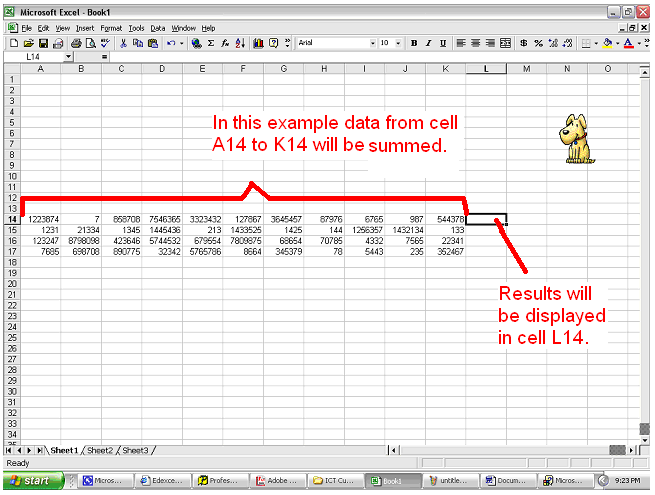
Functions are more powerful than simple formulas. For instance if you wanted to add a range of numbers such as cells A14 through K14 you would have to type =A14+B14+C14...+K14. To do this more simply you could use a function =SUM(A14:K14), this would tell Excel to sum all of the data from cells A14 through K14.
Manually Entering the SUM Function
Automatically Entering the SUM Function
Manually Entering the AVERAGE Function
Automatically Entering the AVERAGE Function
Copying Functions Using the Fill Handle
Copying Functions using Copy and Paste
Showing Formulas and Functions

Manually Entering the SUM Function
Follow these instructions if you want to add all of the numbers in a range together.
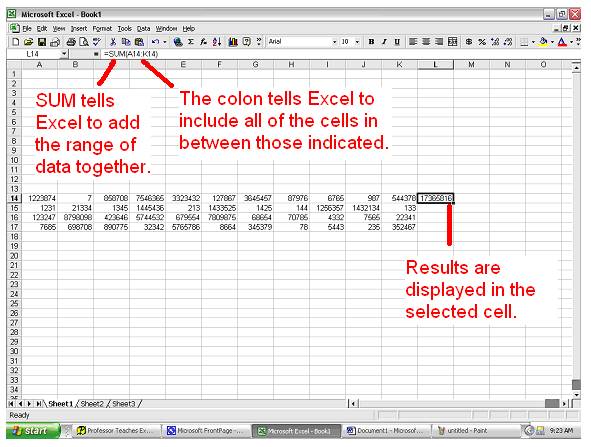
SUM tells Excel to add the numbers from the cells in the brackets. By typing a colon (:) between the cell references you are telling excel to include all of the cells between these cell references.
If you want to add several numbers together that are not close to each then you use commas in between the cell references. For example, if you wanted to total B14, F14, and J14, you would type =SUM(B14,F14,J14)
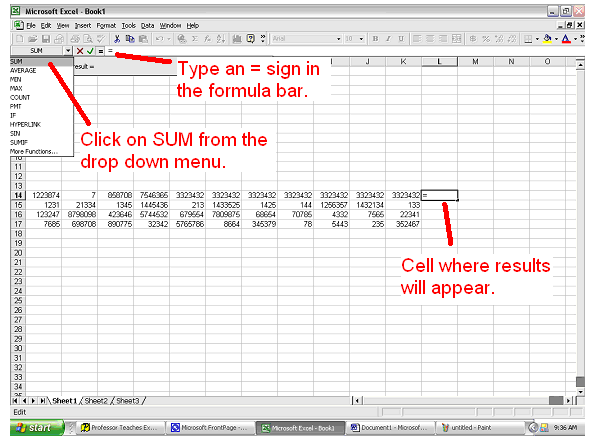
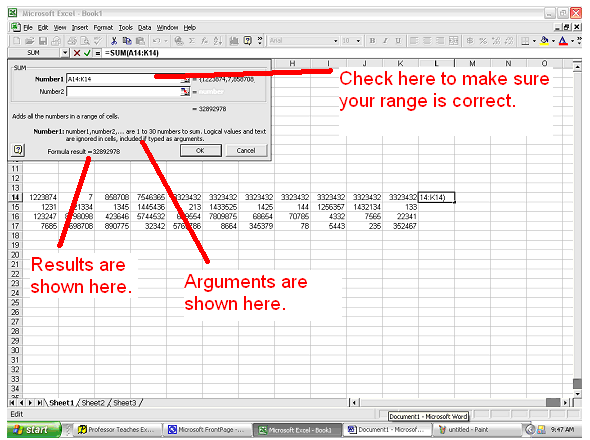
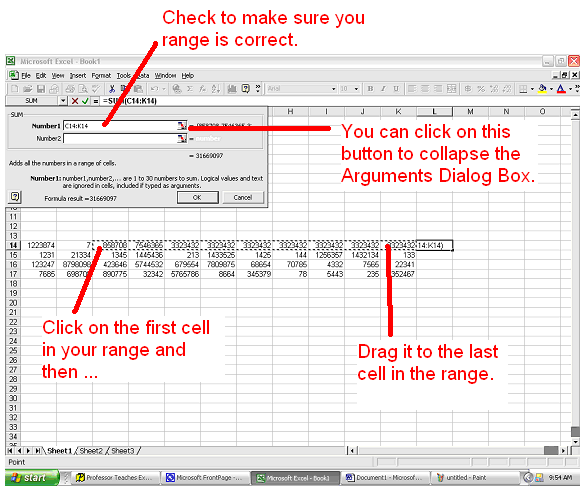
Automatically Entering the SUM Function
Manually Entering the AVERAGE Function
Sometimes you may want to total or find the average of a long list of numbers. In order to do this you will need to use a function.
See the example below:
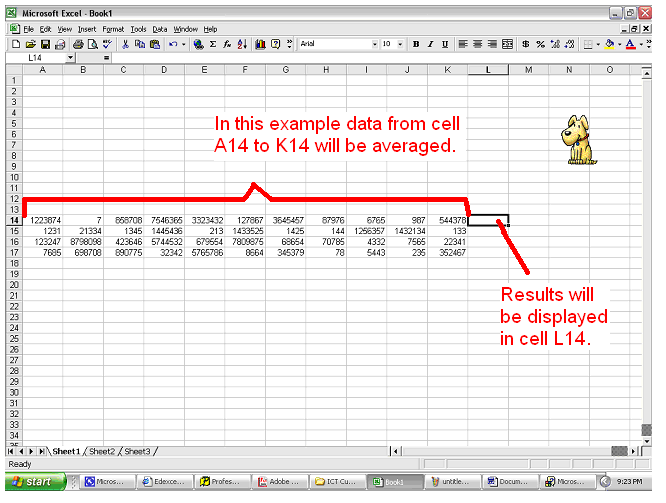
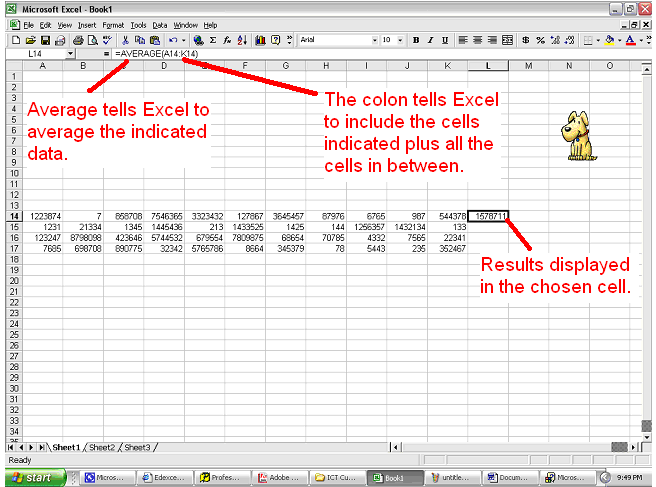
AVERAGE tells Excel to average the numbers from the cells in the brackets. By typing a colon (:) between the cell references you are telling excel to include all of the cells between these cell references.
Automatically Entering the AVERAGE Function
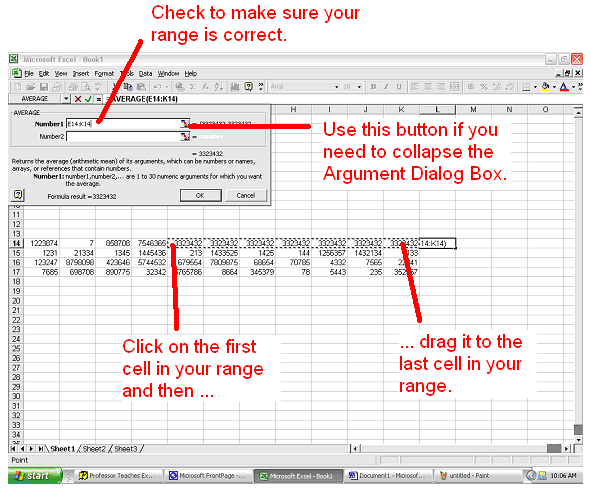
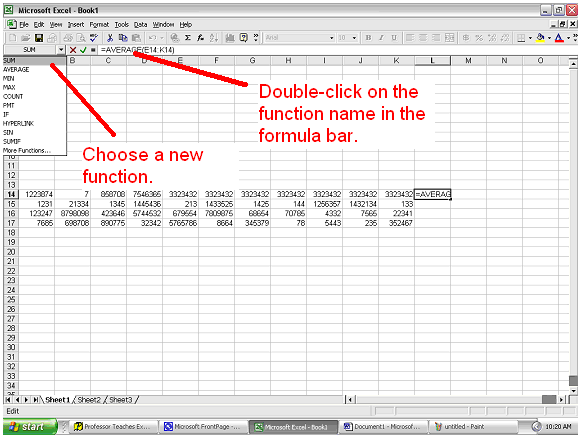
If you want to change the function you have chosen but not your range then do this:
Other Functions
Other functions are entered in much the same way as SUM and Average, therefore only explanations of the other functions will ensue.
COUNT: counts the number of pieces of data in a range.
MAX: tells you the largest number in your range.
MIN: tells you the smallest number in your range.
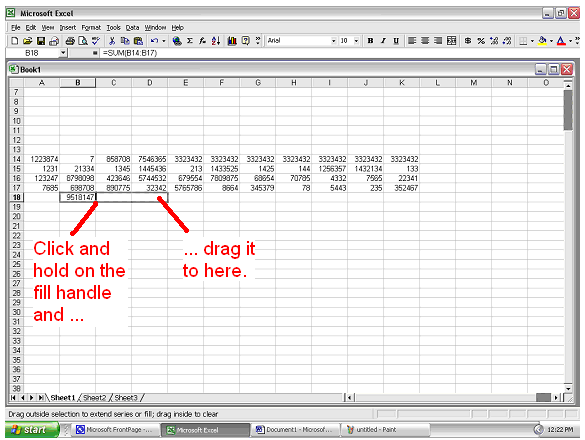
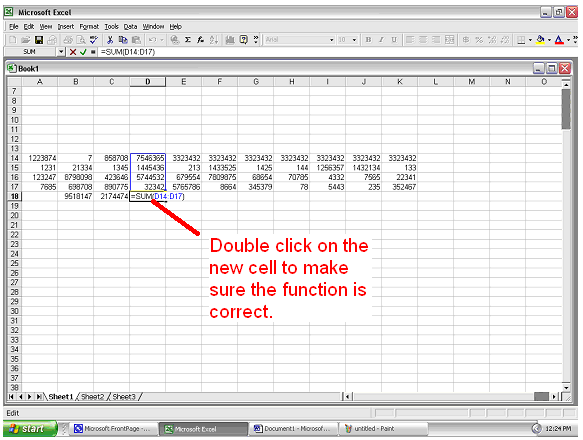
Copying Functions Using the Fill Handle
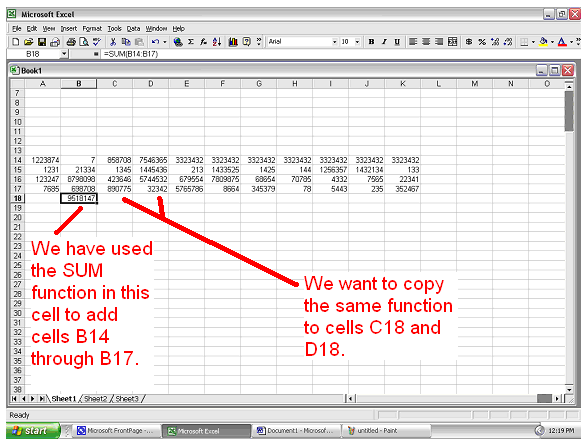
If you want to use the same formula with different cell references in a new cell then follow these instructions.
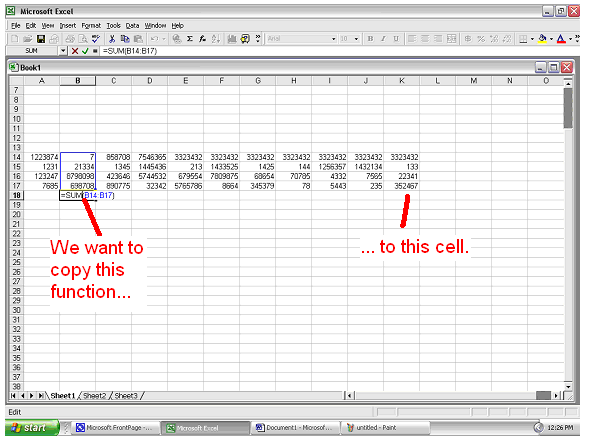
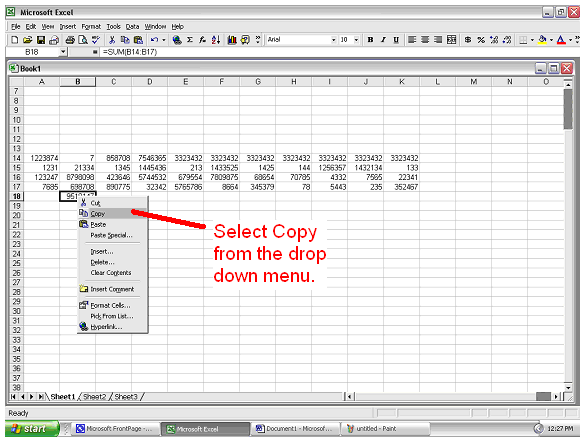
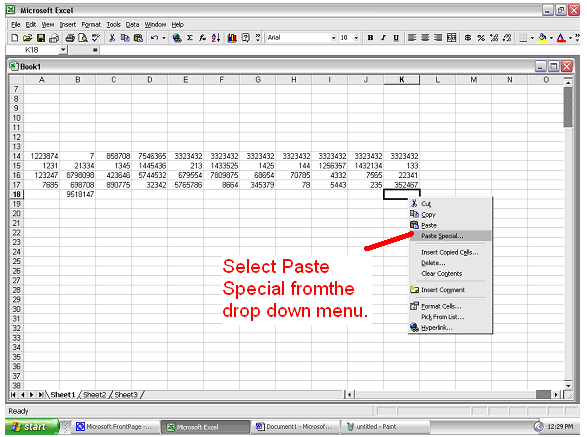
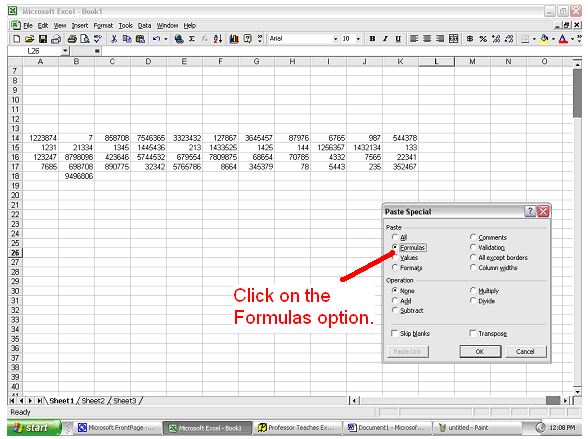
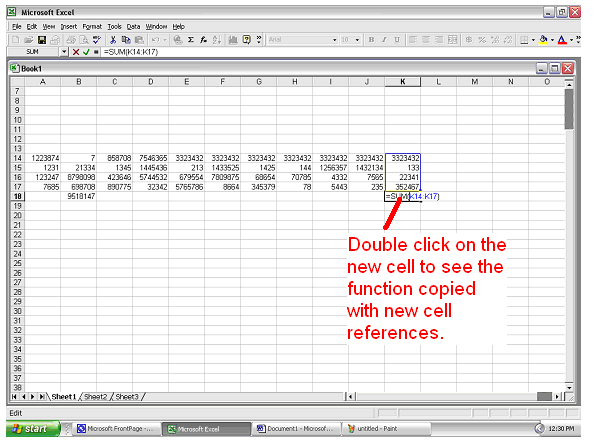
Copying Functions using Copy and Paste
Sometimes you may want to copy functions
to cells that are not adjacent to each other. For
example,
You will find several cases in which you may have to use more than one calculation at a time. For example you may want to add a column of numbers and then multiply it by ten.
When you do this you have to make sure that you are following the order of operations. When you have a long calculation you need to complete whatever is in brackets first, then any exponents, then any division or multiplication, then addition or subtraction.
A good way to remember this is by using the acronym BEDMAS.
B: Brackets first
E: then Exponents
D: then Division
M: or Multiplication
A: then Addition
S: or Subtraction
For example in the equation:
| (4+5)^2*8-2= | We do whatever is in the brackets first. |
| 9^2*8-2= | Then we take care of the exponent. |
| 81*8-2= | Then we do the multiplication. |
| 648-2= | Then we do the subtraction. |
| 646 |
Showing Formulas and Functions
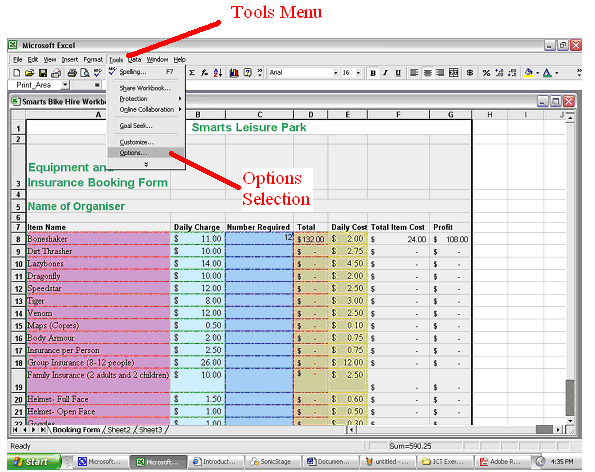
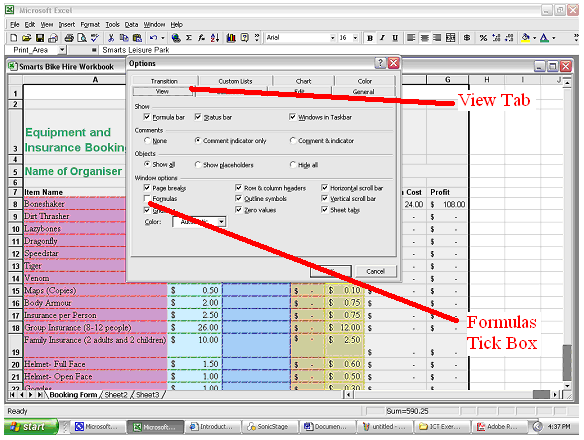
To show all the formulas on a spreadsheet do this: