[ Home ] [ Up ] [ Introduction to Excel ] [ Entering a Range of Data ] [ Formatting Cells to Match Data Types ] [ Cut, Copy, Paste and Move Data ] [ Inserting and Deleting Rows and Columns ] [ Entering and Replicating Formulas ] [ Using Simple Functions ] [ Producing Charts with Labels ] [ Printing Selected Areas ]
Viewing and Printing Selected Areas of a
Worksheet
Splitting the Worksheet
into Two Panes
Printing
a Selected Area

Splitting the Worksheet
into Two Panes
For large worksheets you can split the
sheet into two panes so that you can scroll through the worksheet in two
different places.
- Click and hold on the split box at the
top of the vertical scroll bar.
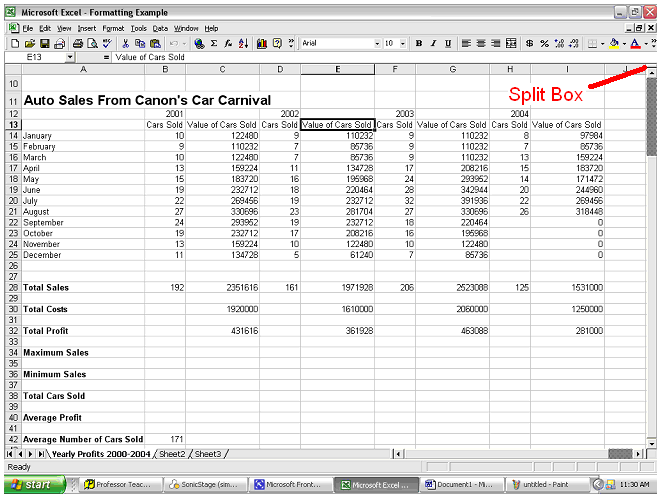
- Drag the split box to the point at
which you want the sheet to be split.
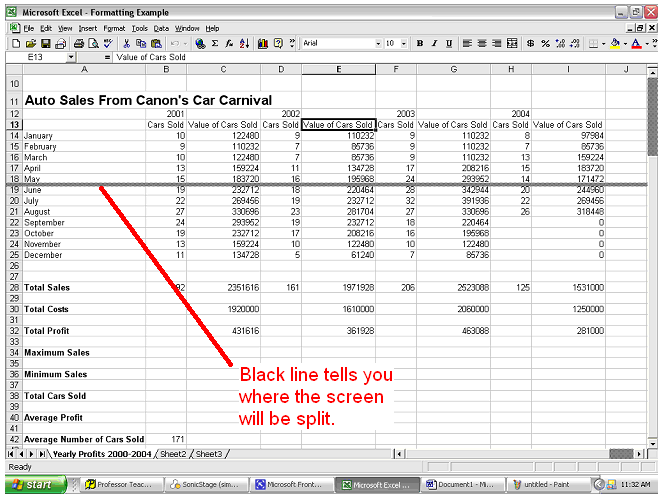
- Release the mouse button and the
worksheet will be split into two separate panes with two scroll
bars.
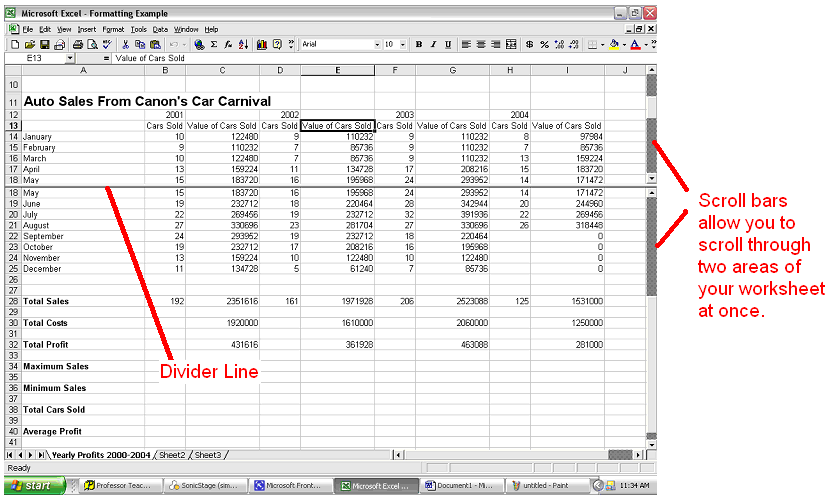
*You can also split the
screen vertically as well by using the split box on the horizontal scroll
bar. 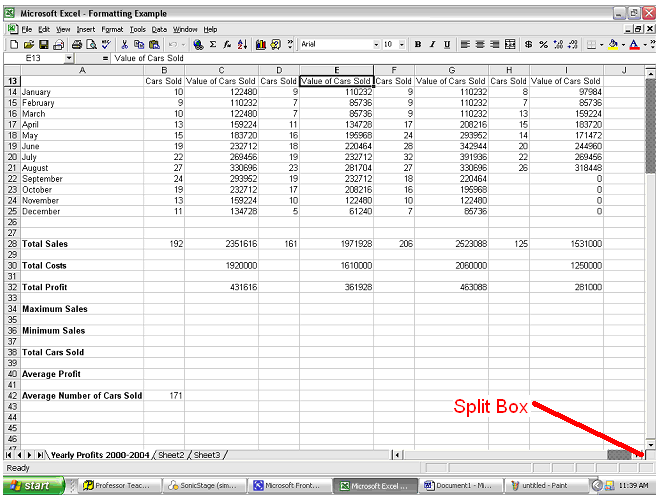
Printing
a Selected Area
If you wish to print a certain area of
the spreadsheet then do this:
- Open the file menu of your spreadsheet
move to Print Area, ,and select Set Print Area.
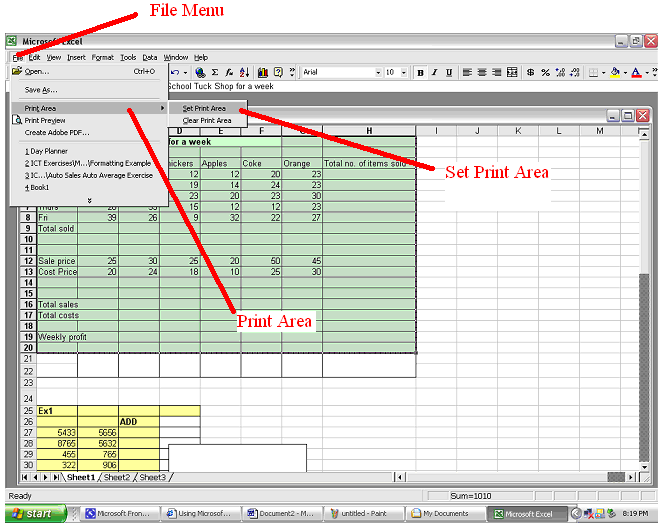
- Select
the area to be printed.
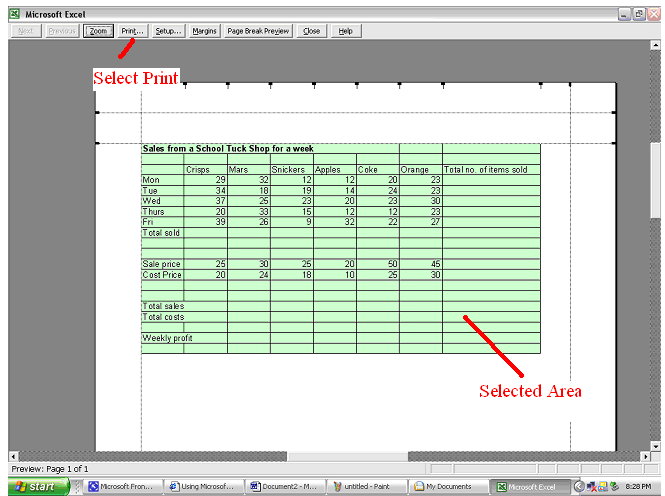
- Open the File Menu and select Print
Preview.

- Check to make sure you have selected
the correct area and then click on print.
- If the entire area is not on the page
then select the Setup
tab.
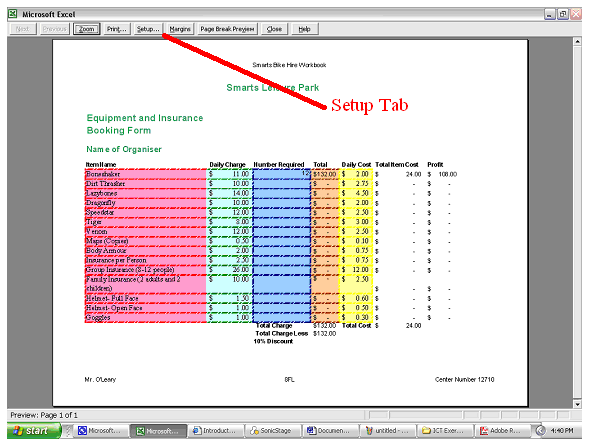
- Change your layout to Landscape or
Portrait and set how many pages you want the print out to fit
on.


