[ Home ] [ Up ] [ Introduction to Excel ] [ Entering a Range of Data ] [ Formatting Cells to Match Data Types ] [ Cut, Copy, Paste and Move Data ] [ Inserting and Deleting Rows and Columns ] [ Entering and Replicating Formulas ] [ Using Simple Functions ] [ Producing Charts with Labels ] [ Printing Selected Areas ]
Entering a Range of Data
Entering
Text
Tips
on Entering Column and Row Labels
Entering
Values
Copying/Filling
the Same Data to More than One Cell
Entering
a Series of Numbers

Entering
Text
- Select
the cell you wish to use by
double clicking
on it with your mouse button. You will see a black border
around the cell you selected and it is now called active.
- Type the text you wish to enter.
You will see it appear in your cell and the formula
bar.
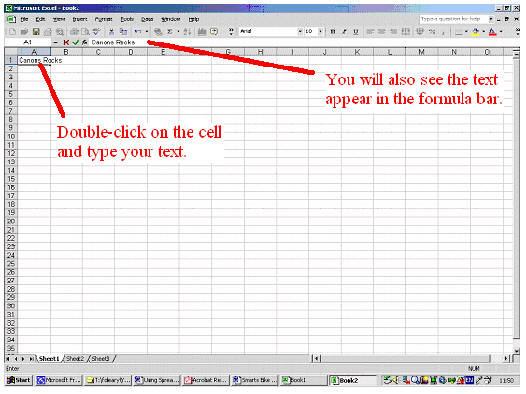
- Press enter: the text appears in the
cell, and the cell selector moves down one
cell.
- If your entry doesn't fit see changing
column widths.
- If you want to enter numbers
as text (post codes for example), place an apostrophe in front of
your entry.
- If you want the cell selector to move
horizontally rather then vertically press Tab
instead of enter.
*You can also click the
formula bar and enter the data here.
Tips
on Entering Column and Row Labels
- Column
labels tell
you what type of information can be found in that column. Column
labels usually give intervals of time (months, days, hours, for example).
- Row labels
tell you what type of information can be found in a particular row.
Row labels usually tell you what type of data you are dealing with (employee
names, income, expenses, etc.)
Entering
Values
- Click on
the cell where you wish your value to be.
- Type your value.
If you wish to enter a negative number type
a minus sign (-), or surround your number with parenthesis.
- Press the enter
or tab key. The value will appear in the cell and the cell
selector will move to the next cell.
Copying/Filling
the Same Data to More than One Cell
If you need to enter the exact same data
into more than one column or row then you can use the fill
feature.
- Enter data into a cell.
- Click on
the cell with the data you wish to copy.
- Click and hold
the fill handle.

- Drag the
fill handle until all the required cells are full.
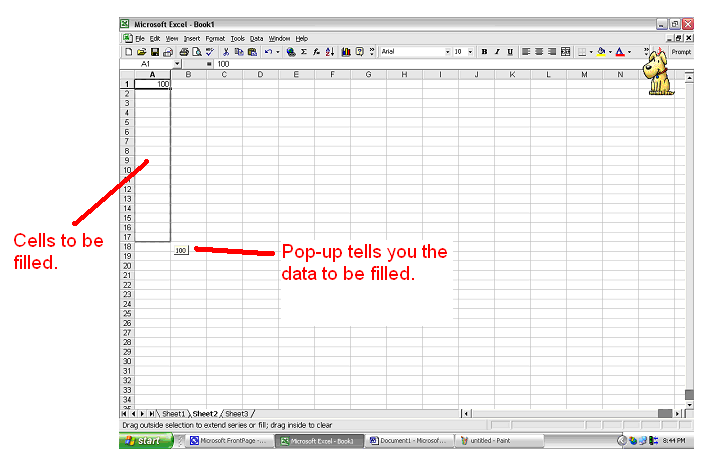
- Release the mouse button and all the
cells should have the same data in
them.

Entering
a Series of Numbers
If you want to enter data which runs in a
series (e.g. January, February, March or 1,2,3) follow these steps:
- Enter
data into a cell.
- Click on
the cell with the data you have entered.
- Click and hold
the filling
handle.
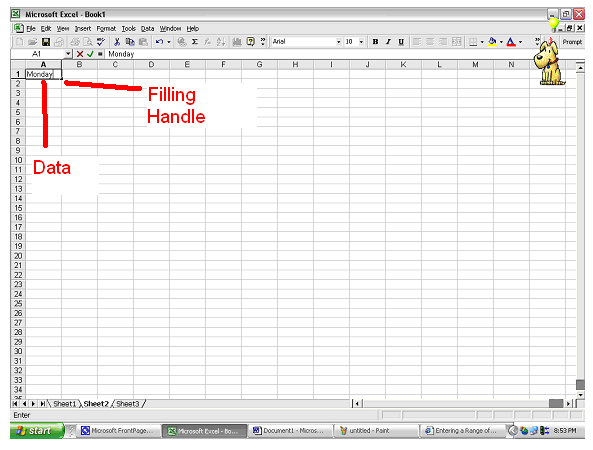
- Drag the
filling handle until the desired cells are fill.
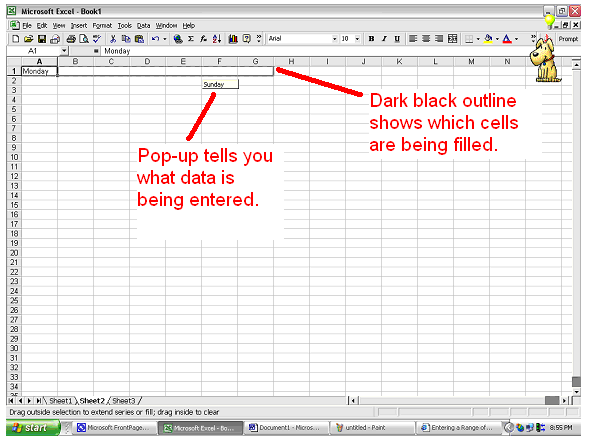
- Release
the cell button and your series should be complete.


