[ Home ] [ Up ] [ Introduction to Excel ] [ Entering a Range of Data ] [ Formatting Cells to Match Data Types ] [ Cut, Copy, Paste and Move Data ] [ Inserting and Deleting Rows and Columns ] [ Entering and Replicating Formulas ] [ Using Simple Functions ] [ Producing Charts with Labels ] [ Printing Selected Areas ]
Formatting Cells to Match Data Types
Adjusting Column and Row Widths Using AutoFit
Changing the Width of a Single Column
Changing the Height of a Row
Using Text Wrapping
Merging Cells
Merge
and Center
Changing Text Orientation
Currency and Percent Formatting
Adding Colour to Your Worksheet
Adding
Borders to Your Cells
Using AutoFormat
Formatting Text
Justifying
Text

Adjusting Column and Row Widths Using AutoFit
After entering a large amount of data you may notice that some
of your data may not fit properly in your
cells.
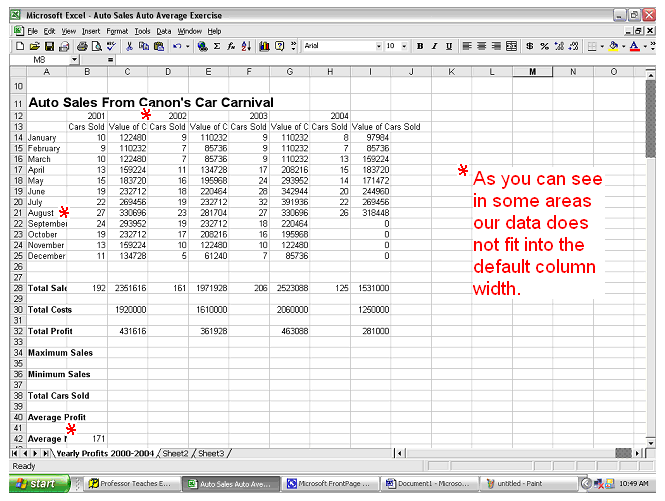
There is a simple way of fixing everything all at once.
- Click the Select All button at the top left hand corner of
the page.
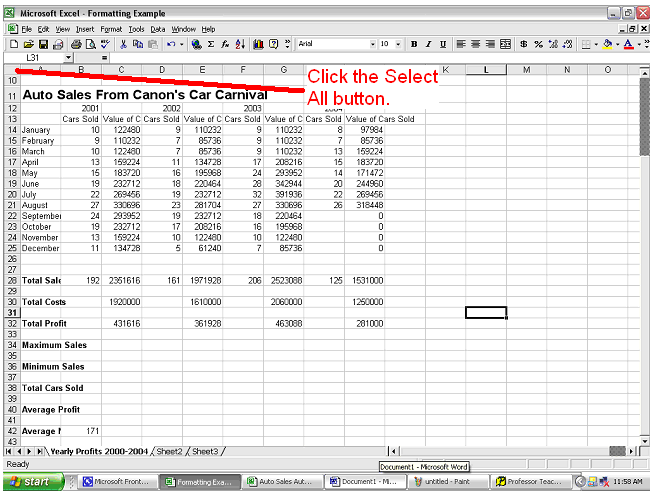
- Click Format on the menu bar navigate to Column and then
select AutoFit Selection.
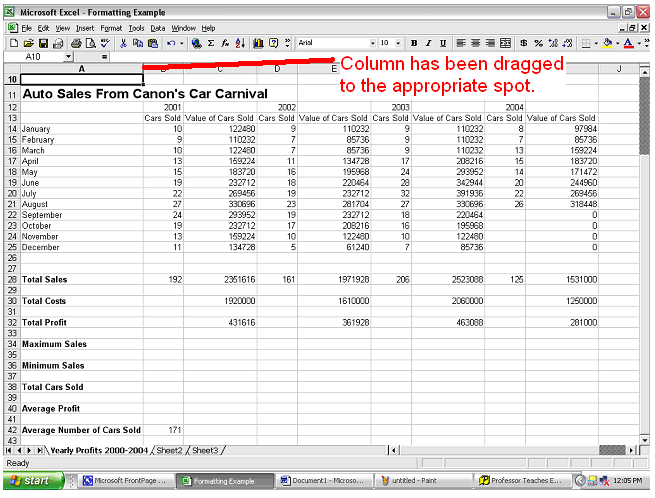
- As you can see the column widths have been changed to fit
the longest data entry for each cell.
Changing the Width of a Single Column
In the example above we changed all of the
columns and rows at the same time. You may find that some of the column or
rows are now too big. To change the width of a single column do this:
- Place your cursor on the border of the
column heading you want to change and the column next to it. The
cursor will change shape to let you know it is in the right place.
- Double click on the
column border to automatically make the text fit into the column.
*You may have noticed in the above example
that the "Auto Sales From
Canon's Car Carnival"
title
has not been decreased in size. Because there is nothing in cell B11 the
large data entry in A11 can overflow over top of cell B11.
Changing the Height of a Row
- Place your cursor on the bottom border of the row heading
you want to change.
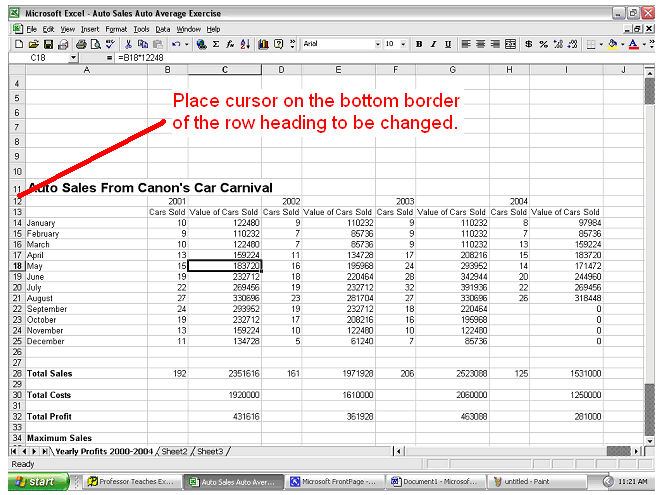
- Click hold and drag the row heading until the desired
height is achieved.
Using Text Wrapping
Sometimes you may want to keep your column widths quite small
but still fit a large data entry into a cell. To do this:
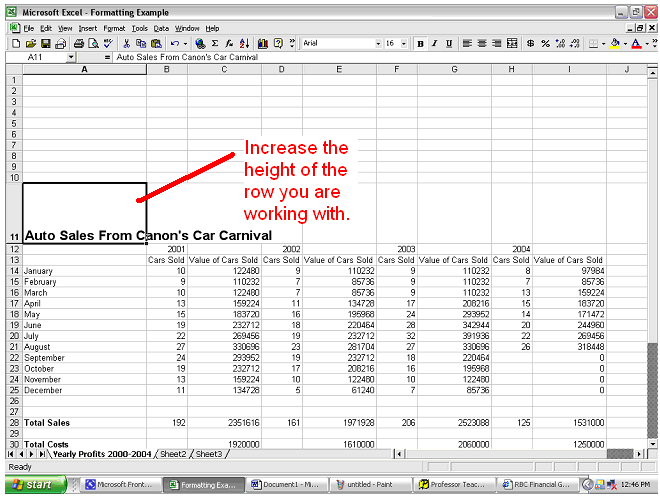
- Increase the height of the cell. See Changing the Height of a Row
if you do not know how to do
this.
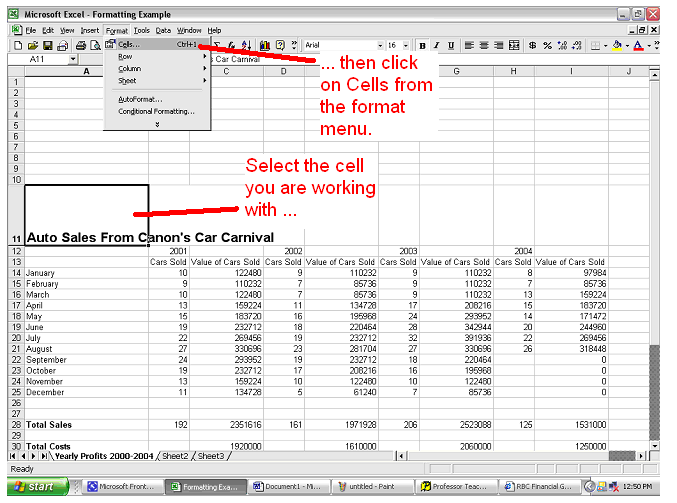
- Click on the cell you are working then open the Format menu
and click on Cells.
- Click on the Alignment Tab and tick the Wrap Text box.
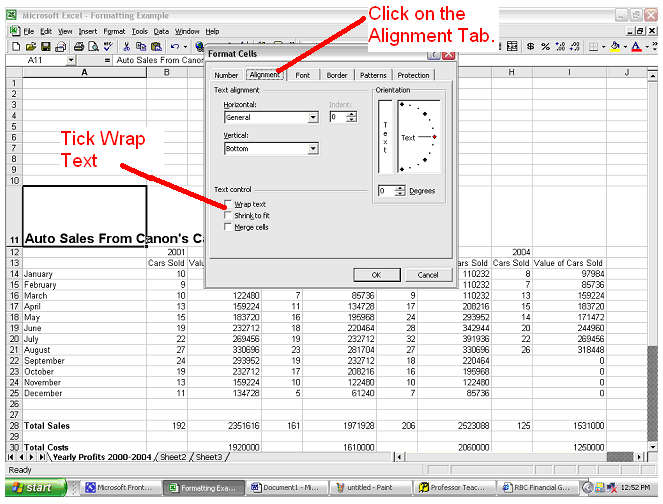
- Text should now wrap around inside the cell.

Merging Cells
If you want to create one cell from several cells then follow
these instructions.
- Select the cells you are working with.
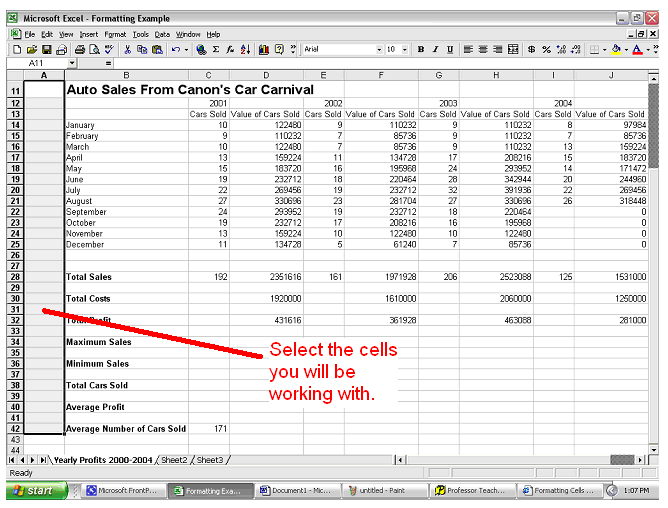
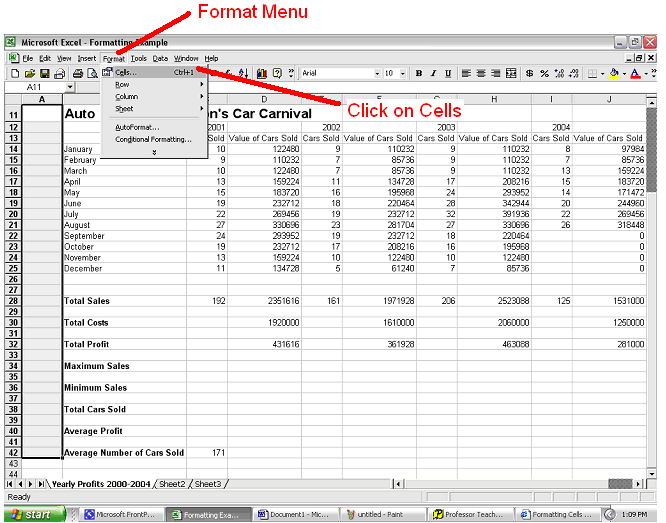
- Open the Format Menu and select
Cells.
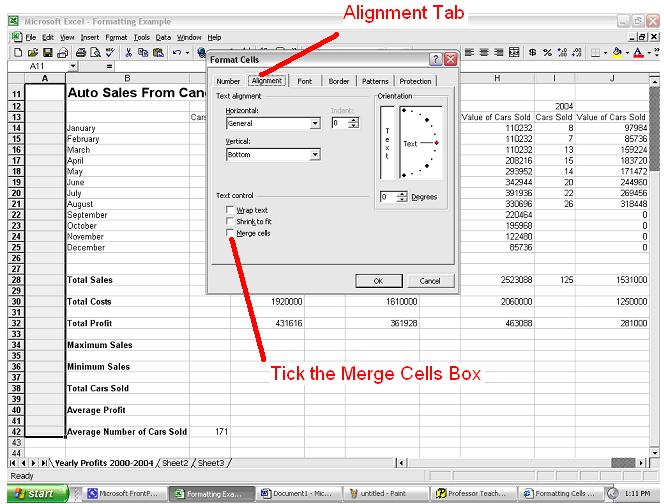
- Click on the Alignment Tab then tick the Merge Cells
box.
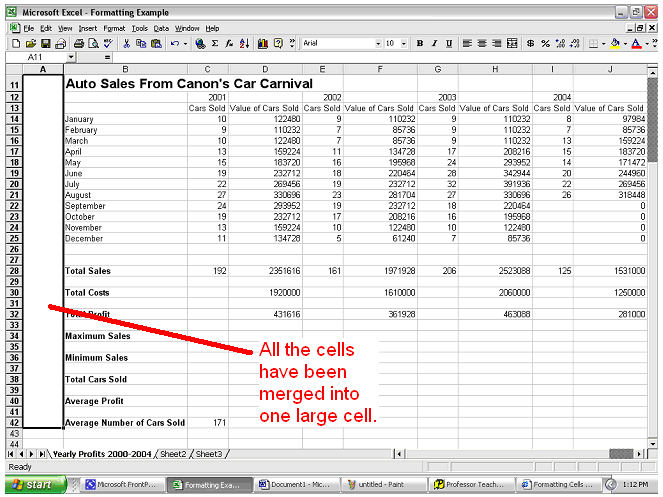
- All the selected cells will be merged into one large
cell.
Merge
and Center
If you want to merge a group of cells
together and center the data in it then do this:
- Select the cells you want to
merge.
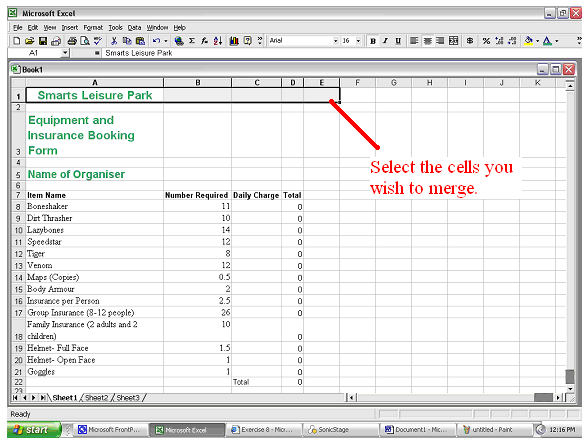
- Click the merge and center button on
the formatting
toolbar.

Changing Text Orientation
There are times when you will want to change the direction
your text faces. For example: In order to do this complete these steps:
- Select the cell with the text you will be working with.

- Open the Format Menu and select
Cells.
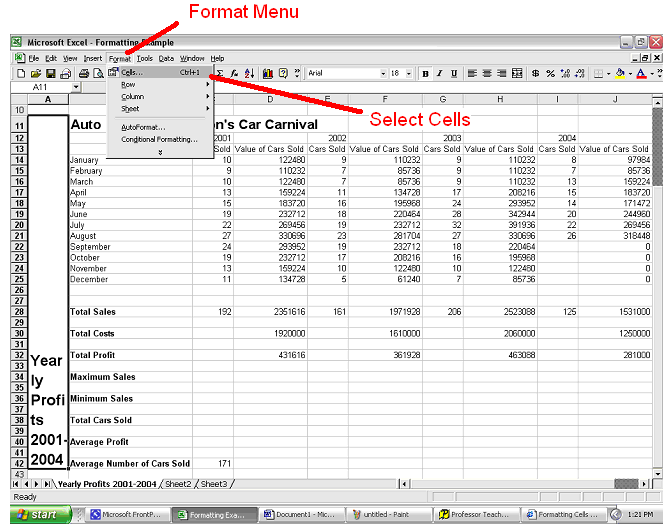
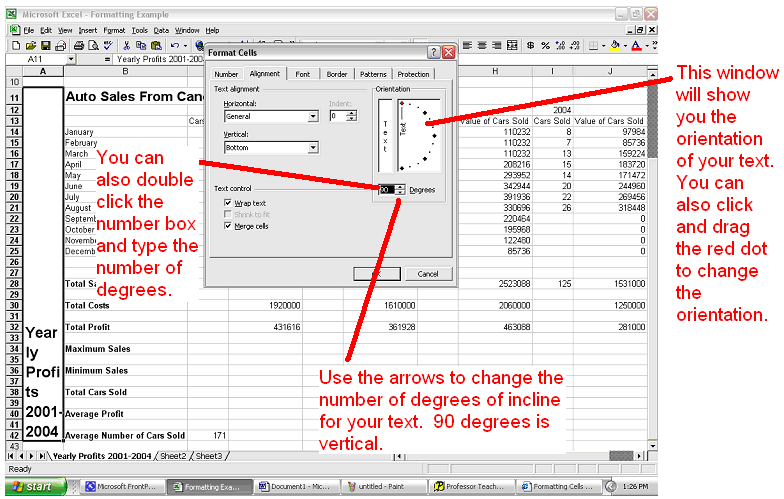
- Use the arrow keys beside the to change the number of
degrees of incline or decline at which your text will sit. The window
above the Degrees box will give you an idea of what your text will look
like.
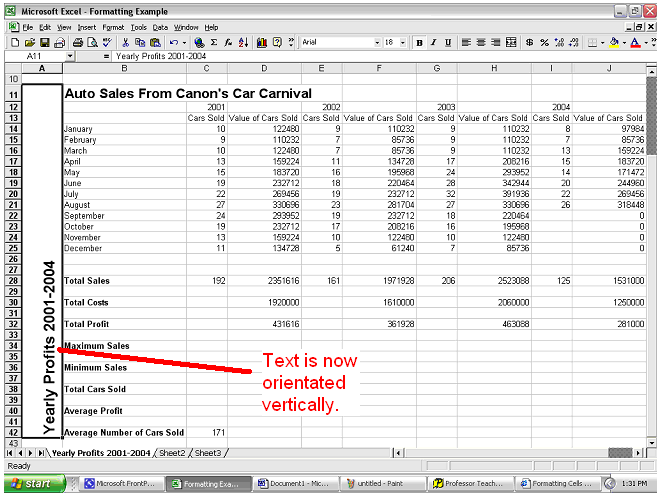
- Your text will now be orientated in whatever direction you
chose.
Currency and Percent Formatting
If you want to add currency symbols or percent symbols to a
column or row then do this:
- Select the row you are working
with.
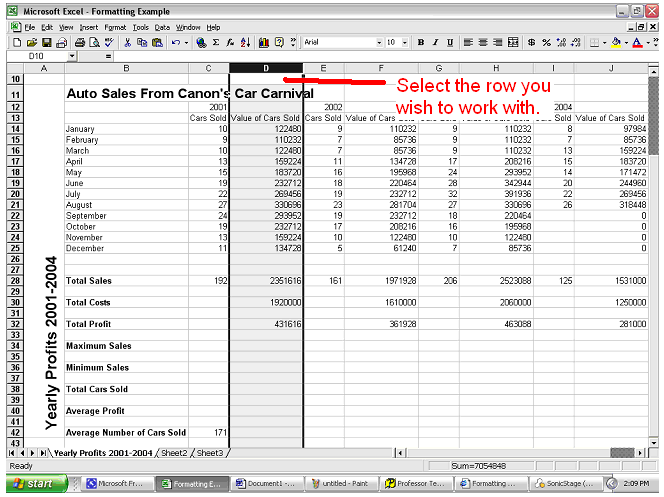
- Click on the Currency or Percent Button on the Formatting
Toolbar.

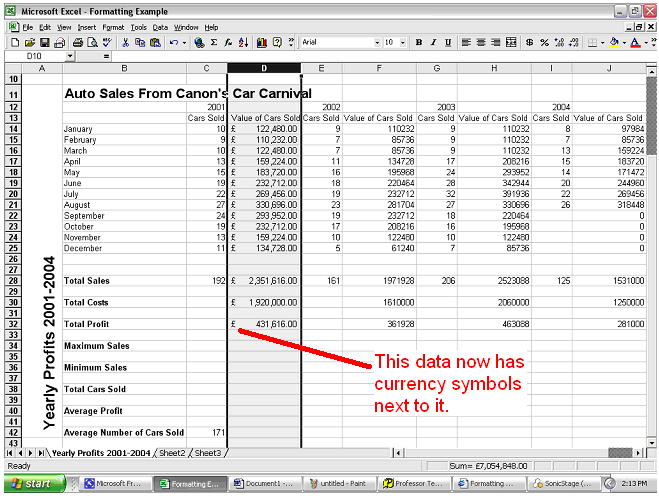
- The numerical data in your column will now have a currency
or percent symbol next to it.
Adding Colour to Your Worksheet
It is often useful to add colour to a worksheet to set
different sets of data apart. 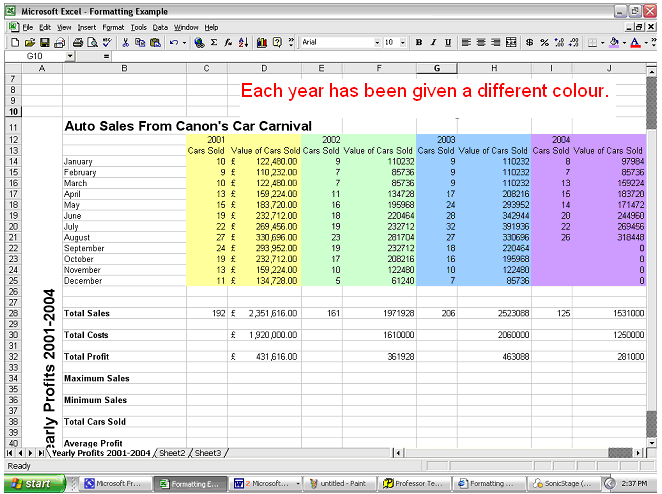
To do this follow these steps:
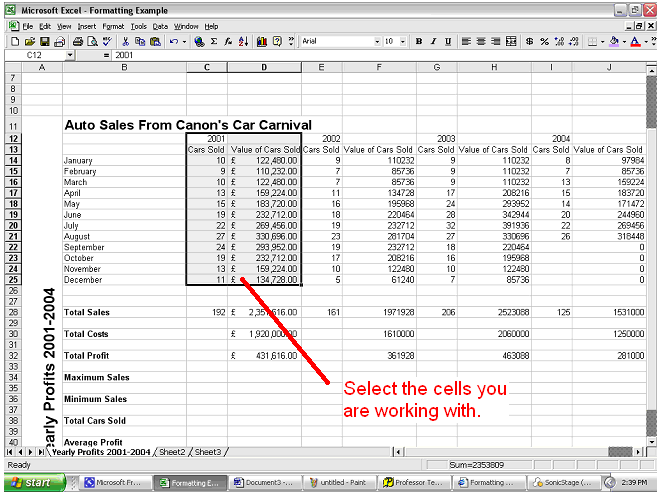
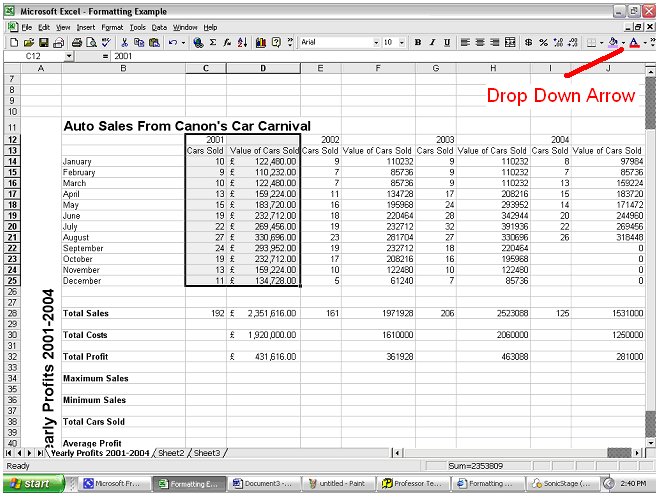
- Select the cells you wish to add colour
to.
- Click the drop down arrow by the Background Fill Button on
the Formatting Toolbar.
- Select the colour you wish to
use.
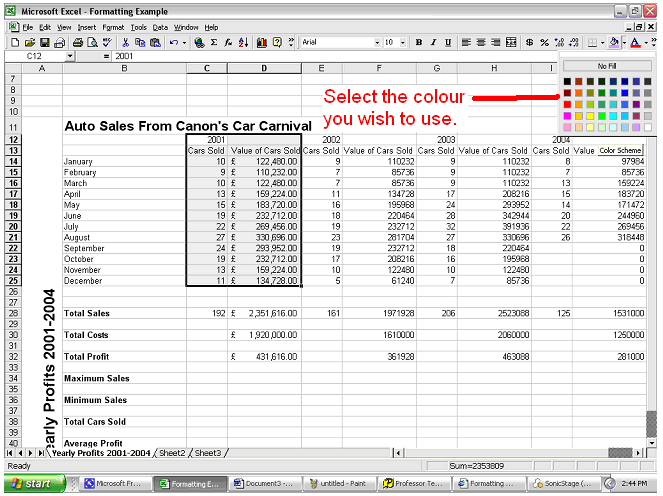
- Your cells will now have a new background
colour.

Adding
Borders to Your Cells
To add a border around your cells follow
these instructions:
- Highlight the cells you want to add a
border
to.
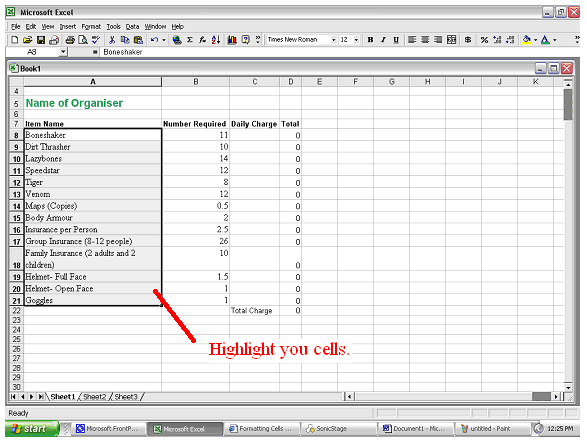
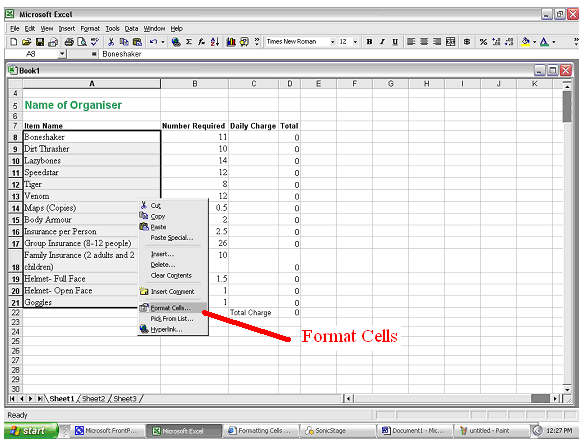
- Right-click on the highlighted cells
then select Format
Cells.
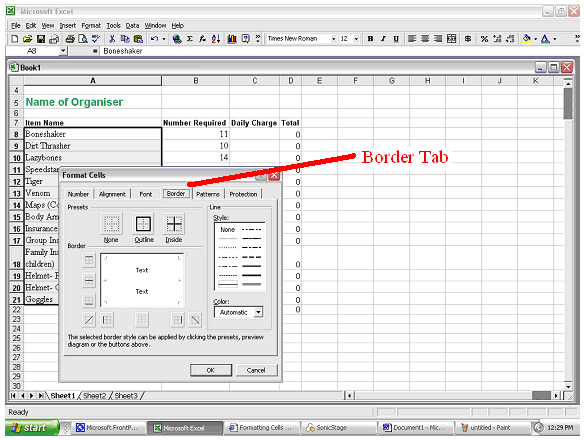
- Click on the borders tab on the
dialogue box which pops
up.
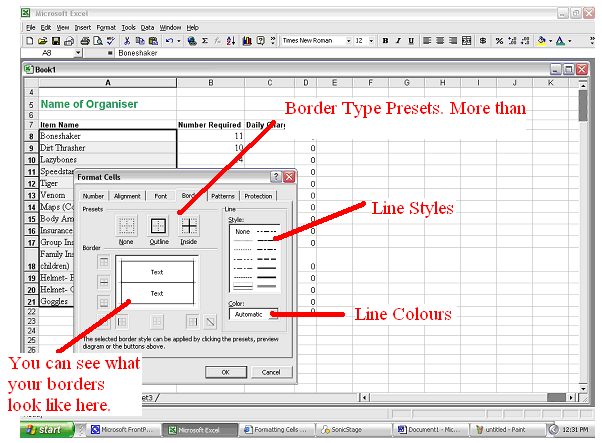
- Select the type of border you want
from the presets, select a line style from the style section, and select a
colour for your border from the colour menu.
Using AutoFormat
Excel can provide you with several formats
which will be applied to your worksheets automatically. If you want to use
AutoFormat follow these instructions:
- Click any cell on your worksheet.
- Open the Format Menu and click on
AutoFormat.

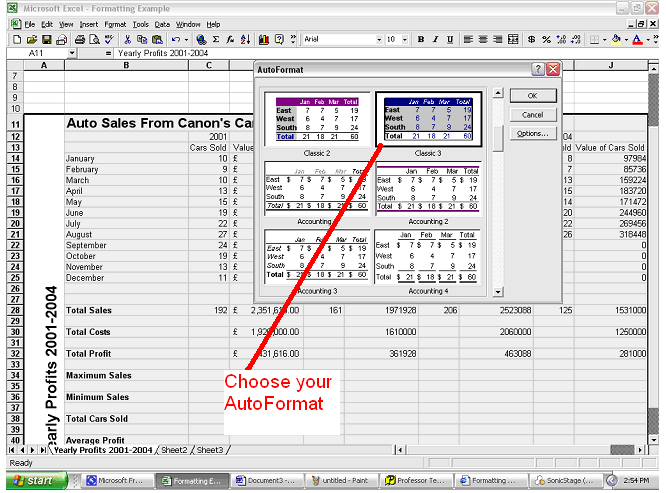
- Choose the type of AutoFormat you
want.
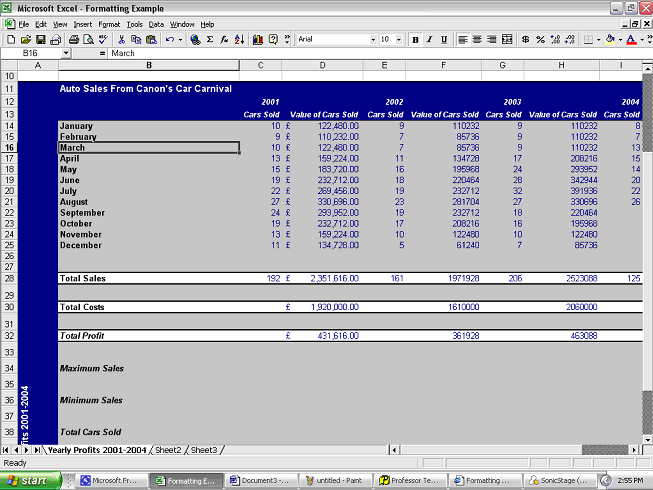
- The AutoFormat will be applied to your Excel worksheet.
Formatting Text
If you want to change the font, font
size, or colour of the data in your cells then do this.
- Click on the cell you wish to
format. Do not highlight the data in the cell.
- Format the text just as you
would in Microsoft
Word.
Justifying
Text
If you want to justify your text; i.e.
align right, align left, or center your text then do this,
- Click on the cell you wish to justify.
- Click whichever justify button you
want.