[ Home ] [ Up ] [ Introduction to Excel ] [ Entering a Range of Data ] [ Formatting Cells to Match Data Types ] [ Cut, Copy, Paste and Move Data ] [ Inserting and Deleting Rows and Columns ] [ Entering and Replicating Formulas ] [ Using Simple Functions ] [ Producing Charts with Labels ] [ Printing Selected Areas ]
Cut, Copy, Paste and Move Data Between
Cells, Rows and Columns
Selecting Data
Selecting the Whole Sheet
Selecting an Entire
Column or Row
Selecting
Groups of Data Not Adjacent to Each Other
Moving the Contents of a
Single Cell
To Move an Entire Row or
Column
To Cut and Paste and
Entire Cell, Column, or Row
Copying Information from
One Cell, Row or Column to Another
Copying
and Pasting a Spreadsheet into another Document

Selecting Data
If you wish to select a range of data
follow these instructions:
- Click and hold
on the first cell in the range.
- Drag the
mouse to the last cell in the range.
- Release
the mouse mouse button.
Selecting the Whole Sheet
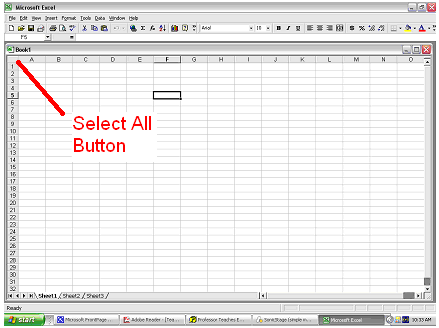
You can select the whole worksheet in a
couple of ways:
- Click on
the select all button at top left hand corner
of the worksheet.
- Press control
+ A.
Selecting an Entire
Column or Row
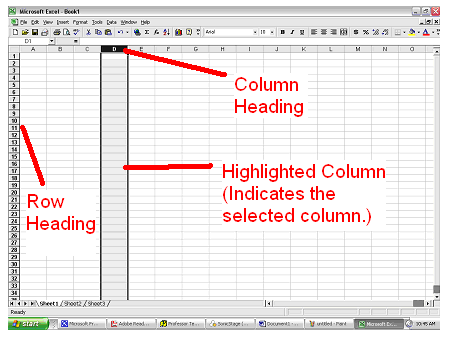
To select an entire
row or column simply:
- Click
whichever row or column heading you want.
- The selected row or column will be highlighted.
Selecting
Groups of Data Not Adjacent to Each Other
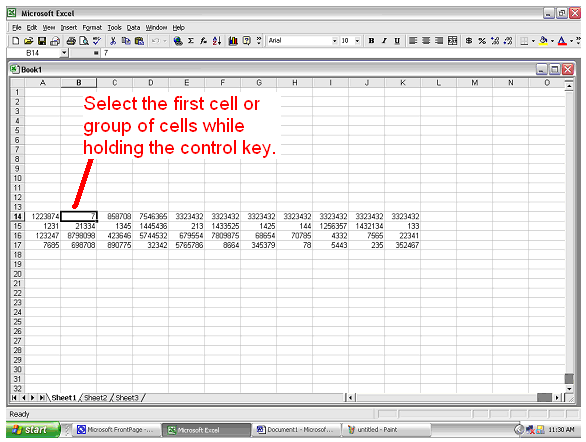
- Press and hold
the Control key on you keyboard.
- Select a
group of data from your worksheet continue holding the
Control key.
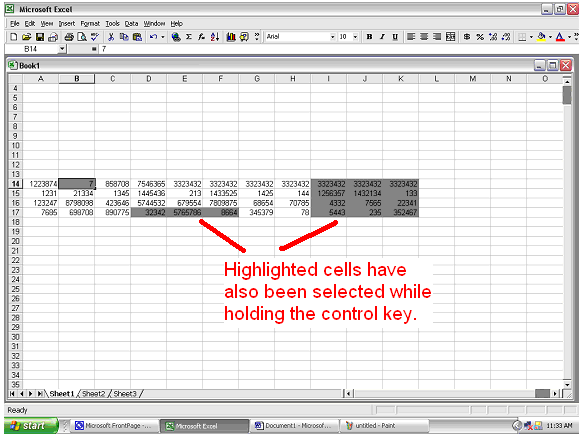
- Select
other groups of data while still holding the control
key.
- Release
the Control key when finished.
Moving the Contents of a
Single Cell
To move the content of a cell to a new
cell do this:
- Click on
the cell you wish to move.
- Place the
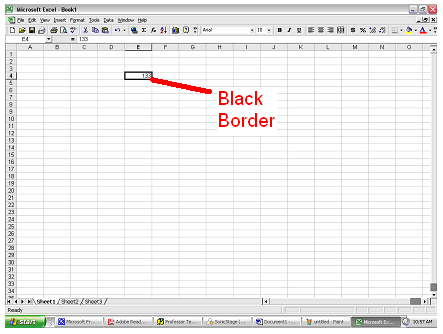
cursor over the black border of the cell.
Make sure the cursor looks like an arrow not a cross.
- Click, hold, and
drag the cell to it's new location.
- Release
the mouse button.
To Move an Entire Row or
Column
If you want to move an entire row or
column to a new location then follow these instructions:
- Highlight
the entire row or
column.

- Place the
cursor over the black border of the row or
column. Again make sure the cursor is an arrow
not a cross.
- Click, hold, and
drag the row or column to it's new location.
To Cut and Paste and
Entire Cell, Column, or Row
Use this option if you want to cut a
cell, column, or row and paste the information into a new location on your
worksheet.
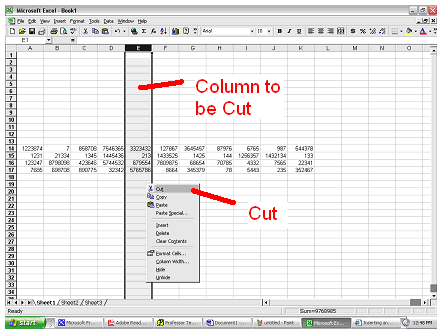
- Click on the cell, row heading, or
column heading that is to be cut then pasted.
- Right click on the item to be cut and
select Cut from the menu.
- Click on the cell, row heading, or
column heading where your item is to be pasted.
- Right click on the cell, highlighted
row, or highlighted column and select Paste from the menu.
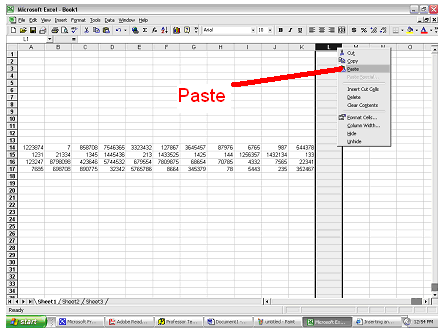
- The data will then be cut from the old
location and pasted into the new.

Copying Information from
One Cell, Row or Column to Another
Use this option if you want to copy data
from one cell and move it to another with out losing the data from the original
cell.
- Select the cell, column, or row you
wish to copy.
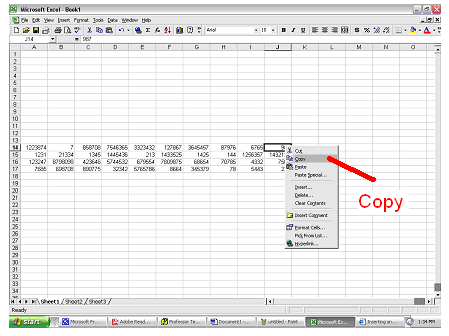
- Right click on the cell, column, or
row and select Copy from the menu.
- Select the cell, column, or row you
wish to copy to.
- Right click on the cell, column, or
row you wish to copy to and select Paste from the menu.
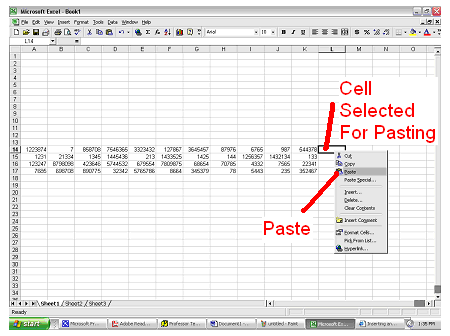
- You can continue pasting this data
into as many cells, rows, or columns you wish.
Copying
and Pasting a Spreadsheet into another Document
- Select
the area of the spreadsheet to be copied.
- Right click on the selected area and
select Copy.
- Open your other document.
- Place the cursor where you want your
spreadsheet pasted, right click, and select Paste Special.
- Select Microsoft Excel Worksheet
Object.

