 -Thugie -InKane -Chaotic Kid -Shaggy 2 Dope -Short Stuff -Pain |
 -Starter -Positioning -Move -Screen shake -Overlapping |
 -Arenas -Props -Links -Banners -Contact |
 -PSP -Photoshop 4 -Gif Movie Gear -SFPWXP |
SFPWXP Animation tutorial:
This tutorial was written by Short Stuff and can't be used by anyone else unless they credit me.
1: Download the hacked zsnes emulator and SFPWXP rom combo here
2: Download the hacked version of photoshop 4 here
3: Download the 30 day trial of Gif Movie Gear here
4: Unzip the combo and photoshop.
5: They will make new folders for themselves automaticly.
6: Run the file zsnes.exe.
7: Click game->load->s.smc.
8: Click config->input #1 and configure the controls.
9: Click config->input #2 and configure the controls, make no controls the same as input 1.
10: Click one night dream match.
11: These settings are easy:
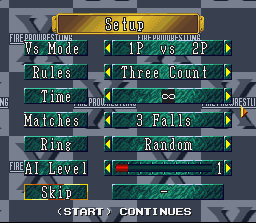
12: Select the people you want.
13: When it comes to this screen:
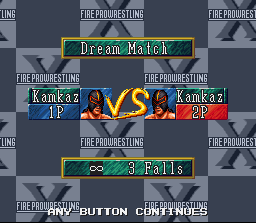
Press the keys you configured (the a,b,x,y keys) not just any keys on the keyboard.
14: Press 1,2, and 3 on the keyboard.
15: Wrestle...(I have a move faq if you are stuck)
16: When you want to take the snapshots,
a) Press the button to do the move.
b) Quickly press F1
c) Click snapshot/incr frm
d) If the next frame is the same click incr frame only
17: When the move is finished hit Esc, and the game menu will drop down.
18: Click quit.
19: In the folder that the emulator is in there will be lots of .pcx files.
20: Photoshop doesn't support .pcx files but MS Paint and Imaging do. Open the .pcx files in one of them.
21: The files will look like this:

22: Open Adobe photoshop.
23: Copy a background and paste it into a new file.
24: Use the Crop tool to make the document smaller.
25: Paste the bg again and delete the first one.
26: Paste the sprites in.
*Note* Use the rubber tool to erase the ref.*
27: Select the magic wand tool.
28: Have the settings like this:
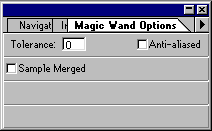
29: With the magic wand click on the black. Hit the backspace key to delete the black.
30: Select everything with the sqare marquee tool and hit edit->Copy merged.
31: Open Gif Movie Gear and paste in the frame.
32: Repeat steps 26 to 31 until all the frames are in GMG. You may like to read my positioning faq now.
33: Don't be alarmed if they paste before the current frame. When all the frames are there click Frame-> Reverse order.
34: Click the optimise button.
35: Click file->Save as Gif Animation
36: It might help to make a new folder to keep all your animations in.