See also:
Step-by step guide to creating a photo album.
Methods of displaying static images
Other methods for displaying popups
Step-by step guide to creating a photo album.
Methods of displaying static images
Other methods for displaying popups
Limitations
Limitations noted here previously no longer exist in SiteSpinner Version 2.50f.
There is still some unevenness in the borders of each popup image, worst when viewing with Netscape and Opera. But until I find evidence to the contrary, I will blame browser differences.
Click on each of the images below for a larger version.
Limitations noted here previously no longer exist in SiteSpinner Version 2.50f.
There is still some unevenness in the borders of each popup image, worst when viewing with Netscape and Opera. But until I find evidence to the contrary, I will blame browser differences.
Click on each of the images below for a larger version.

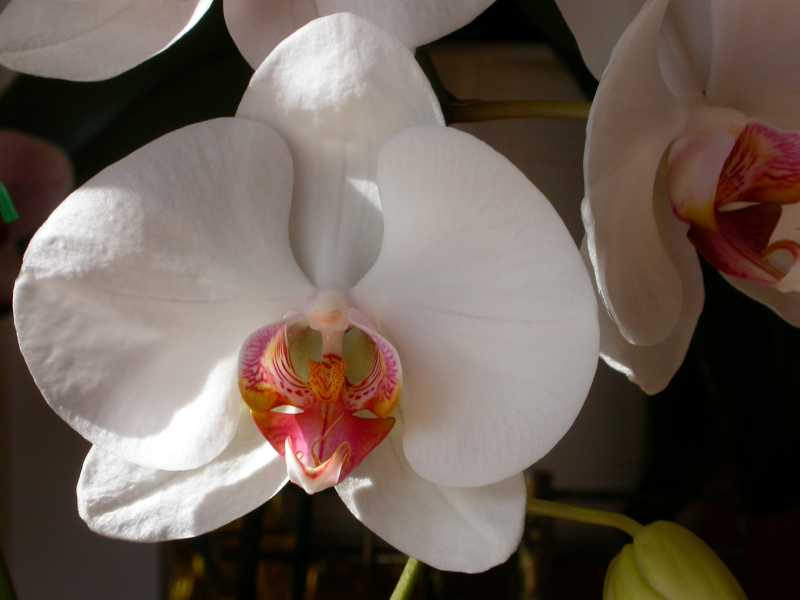
640x480 (29K)
400x300 (18K)
100x391 (4K)
740x310 (12K)

Bruceee's Sandpit
Web Design with SiteSpinner
Web Design with SiteSpinner
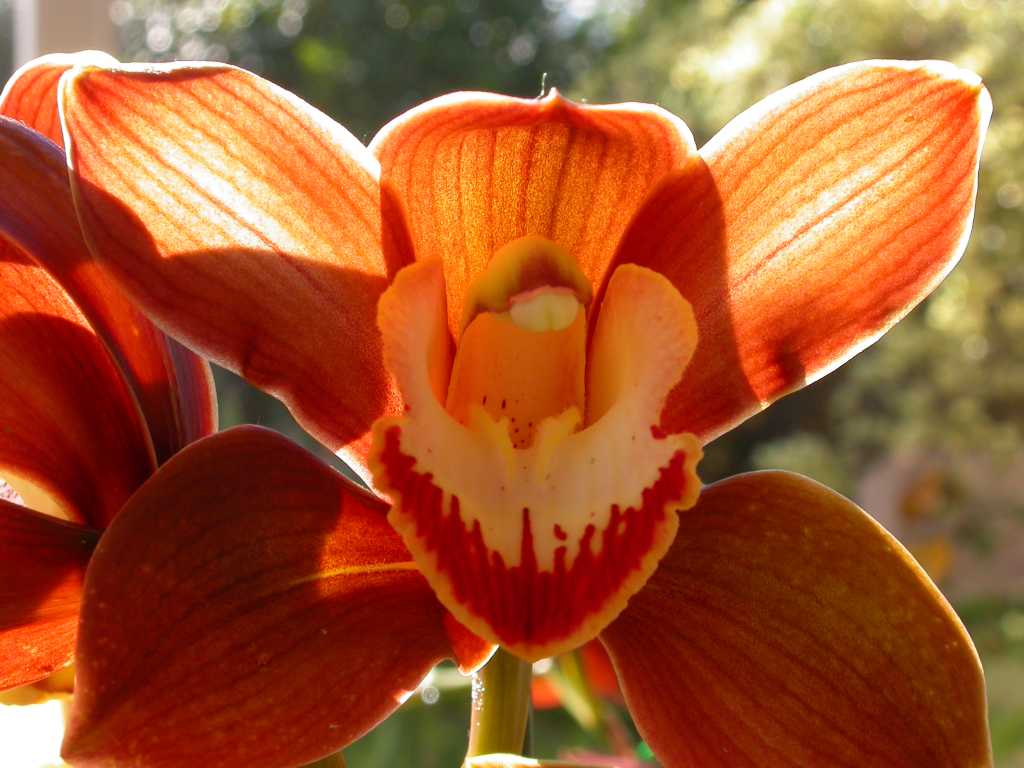
1024x768 (61K)


home
home
home
800x600 (23K)
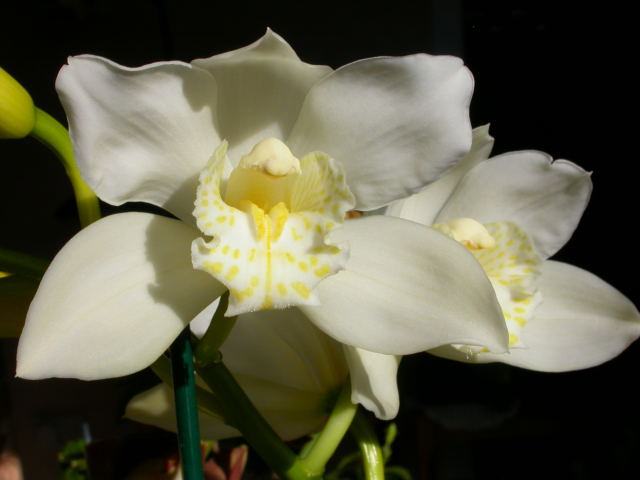

Nice Feature
A nice feature of this popup is that it does not stop the rest of the page loading if you are impatient and click on a popup before the rest of the page is loaded. Also if you run background music on a page with popups, the music will continue uninterrupted while you pop.
A nice feature of this popup is that it does not stop the rest of the page loading if you are impatient and click on a popup before the rest of the page is loaded. Also if you run background music on a page with popups, the music will continue uninterrupted while you pop.
Click > above to start the music
images
images
images
The Built-in Popup Function
This page deals with displaying popup images using the built-in function in SiteSpinner.
Use a popup image to display a larger image if the viewer clicks on a small image (called a 'thumbnail'). The advantage of this is page loading speed -- your viewer does not download a lot of images they do not want. On the other hand, they download only the images they do want. Because your viewer downloads all the thumbnail images, even the ones they are not interested in, you should make your thumbnail images small in terms of file size.
Here are typical examples of popups -- click on an image:
Use a popup image to display a larger image if the viewer clicks on a small image (called a 'thumbnail'). The advantage of this is page loading speed -- your viewer does not download a lot of images they do not want. On the other hand, they download only the images they do want. Because your viewer downloads all the thumbnail images, even the ones they are not interested in, you should make your thumbnail images small in terms of file size.
Here are typical examples of popups -- click on an image:
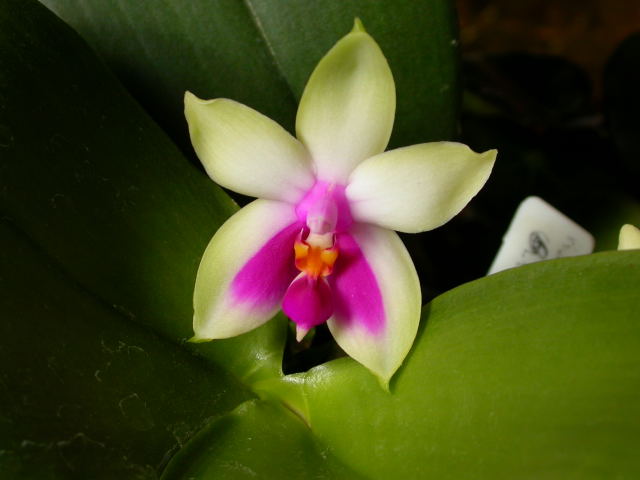
Phalaenopsis Violacia
|
Cymbidium
|
Versions of SiteSpinner before V2.50b did not have a popup function built-in. However later versions do have the function as described above. While popups were possible with earlier versions, they were not so easy to create that way. However the old techniques do still work and may be useful if you find the newer version does not do exactly what you want. See other popups.
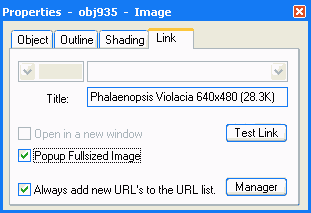
This built-in popup function is very easy to use. I cover it in greater detail in the photo album page. But here is a summary:
- Find the full-size image to display
- Place the the full size image on your workpage (Mona Lisa icon)
- Resize the image down to thumbnail size
- In the Quick Editor > Link tab for the scaled down image, check the box "Popup Fullsized Image". Add a title too. Your Quick Editor link tab should look something like this: