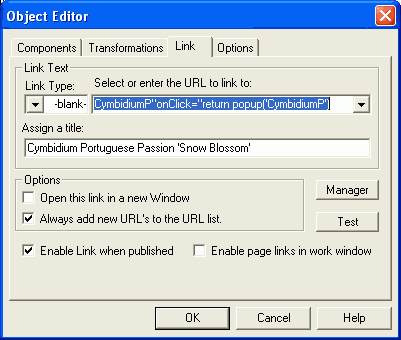
Small image link properties - no return value
If for some reason, you don't want a return value, use link text like this:
javascript:void popup('MyPicture')
This pops up the same as the earlier version, but this time the music will likely stop. (At least it does in IE6; other browsers may differ). Again the filename is case sensitive. Again, omit the jpg extension which the Javascript assumes.
If for some reason, you don't want a return value, use link text like this:
javascript:void popup('MyPicture')
This pops up the same as the earlier version, but this time the music will likely stop. (At least it does in IE6; other browsers may differ). Again the filename is case sensitive. Again, omit the jpg extension which the Javascript assumes.
Javascript popup Function
Below is the Javascript which controls either type of popup. Include it in your SiteSpinner project file as a Code object near the top of your page. Use the 'Send to Back' button on the bottom toolbar to ensure this. This ensures that the popup code will always be available even if the viewer tries a popup before a big page is fully loaded.
The popup code makes certain assumptions:
Below is the Javascript which controls either type of popup. Include it in your SiteSpinner project file as a Code object near the top of your page. Use the 'Send to Back' button on the bottom toolbar to ensure this. This ensures that the popup code will always be available even if the viewer tries a popup before a big page is fully loaded.
The popup code makes certain assumptions:
- the images live in the images folder one level below the html pages. i.e. a picture MyPicture.jpg would exist as images/MyPicture.jpg.
- the image has a jpg extension
- the default image size is 640x480 pixels
If you want basic popups, the later versions of SiteSpinner (V2.50b and later) have a built-in facility to make them more easily than described here. See this page. I had thought the built-in feature would make this page obsolete, but it has not turned out that way.
You might still use these other ways for a number of reasons:
You might still use these other ways for a number of reasons:
- You want different images in the thumbnail and full-size versions
- You want to modify the popup Javascript to include extra features such as sound
- You want a border around the images
- You want to popup an image from a remote site
Click > above to start the music

Bruceee's Sandpit
Web Design with SiteSpinner
Web Design with SiteSpinner
Where to from Here?
If you want a sound, say a pop or a click, as each popup window opens see Sounds.
You could also place the sound code just before the end of the javascript popup function. Just ahead of the line that says return false.
If you are going to use these popups on more than one page, consider including the Javascript function in a separate include file. See the common Javascript file page.
If you want a basic popup without anything fancy, consider using the built-in popup feature in the latest versions of SiteSpinner.
For some other ideas, check out the code in the function 'vmpopup' that SiteSpinner uses for its built-in popup function. From your browser on a page with a SiteSpinner popup, use View > Source and search for the phrase function vmpopup.
There are many other popup functions available on the web. You could completely replace the javascript function I used above with one of your own choosing.
If you want a sound, say a pop or a click, as each popup window opens see Sounds.
You could also place the sound code just before the end of the javascript popup function. Just ahead of the line that says return false.
If you are going to use these popups on more than one page, consider including the Javascript function in a separate include file. See the common Javascript file page.
If you want a basic popup without anything fancy, consider using the built-in popup feature in the latest versions of SiteSpinner.
For some other ideas, check out the code in the function 'vmpopup' that SiteSpinner uses for its built-in popup function. From your browser on a page with a SiteSpinner popup, use View > Source and search for the phrase function vmpopup.
There are many other popup functions available on the web. You could completely replace the javascript function I used above with one of your own choosing.
Small image link properties - return value
Set the link properties for the small image like this:
Link Type: -blank-
Link Text: MyPicture"onClick="return popup('MyPicture')
This property setting returns the value returned by the popup function.
Instead of MyPicture, substitute the name of your image. You'll notice there are two references to MyPicture:The second one must exactly match the name of the image file. Omit the jpg extension as the Javascript automatically adds it. This one is case-sensitive so make sure that where you have capitals in your file name, the text uses capitals too.Here is the object editor link for the second picture above:
Set the link properties for the small image like this:
Link Type: -blank-
Link Text: MyPicture"onClick="return popup('MyPicture')
This property setting returns the value returned by the popup function.
Instead of MyPicture, substitute the name of your image. You'll notice there are two references to MyPicture:
- The first
|
Phalaenopsis Violacia

|
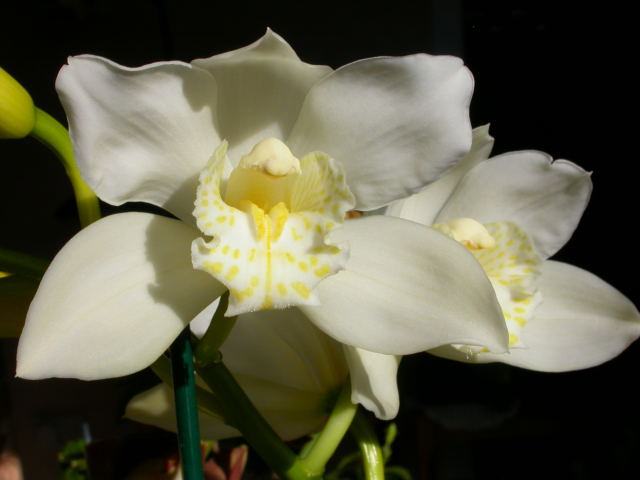
Cymbidium
|
|
Phalaenopsis Violacia
|
Cymbidium
|

CymbidiumP"onClick="return popup('CymbidiumP')

home
home
home

Folder on your site
When you publish your project, SiteSpinner generates the html files, one for each page or your project. It puts those in the 'root' folder of your site. Also, it will put supporting files in folders such as /geometry, /image and /media, which in turn also live in the root folder.
If you look at the root folder of your published site you will see the layout. Or look in your SiteSpinner preview folder -- probably C:\Program Files\Virtual Mechanics\sitespinner V2\preview\ -- and you'll see a much messier folder. But you should see a /geometry folder. Go one level down, into the geometry folder, and you will find images, old and new, that SiteSpinner has generated.
For images that you have created or obtained elsewhere, it is a good idea to make a special, similar folder. Originally I used /images. This is not good choice as SiteSpinner now creates an /image folder as well. So I suggest another name -- like '/myimages'. Make that folder in the same place as the html files, and place (copies of) all your full-size images into it. (Remember to modify the images folder name in the Javascript -- see above.)
If you make a /myimages folder in your preview folder, you will be able to preview your pop-ups. Eventually, you will need to duplicate the /myimages folder on your site -- that is part of the publish procedure.
When you publish your project, SiteSpinner generates the html files, one for each page or your project. It puts those in the 'root' folder of your site. Also, it will put supporting files in folders such as /geometry, /image and /media, which in turn also live in the root folder.
If you look at the root folder of your published site you will see the layout. Or look in your SiteSpinner preview folder -- probably C:\Program Files\Virtual Mechanics\sitespinner V2\preview\ -- and you'll see a much messier folder. But you should see a /geometry folder. Go one level down, into the geometry folder, and you will find images, old and new, that SiteSpinner has generated.
For images that you have created or obtained elsewhere, it is a good idea to make a special, similar folder. Originally I used /images. This is not good choice as SiteSpinner now creates an /image folder as well. So I suggest another name -- like '/myimages'. Make that folder in the same place as the html files, and place (copies of) all your full-size images into it. (Remember to modify the images folder name in the Javascript -- see above.)
If you make a /myimages folder in your preview folder, you will be able to preview your pop-ups. Eventually, you will need to duplicate the /myimages folder on your site -- that is part of the publish procedure.
The same block of code is good for many images so long as they are all in the same folder and have the same image type.
Everything to do with files is case-sensitive. Folder name, file name and extension are all case-sensitive. If you have a popup that does not work, the first thing to check is that the name in the link and the default settings exactly matches the name of the file as it appears on your disk.
Everything to do with files is case-sensitive. Folder name, file name and extension are all case-sensitive. If you have a popup that does not work, the first thing to check is that the name in the link and the default settings exactly matches the name of the file as it appears on your disk.
Changing the Javascript
There are some parameters at the head of the Javascript you may want to modify.
There are some parameters at the head of the Javascript you may want to modify.
- Image width and height. The default width and height are set for images of 640 pixels wide x 480 high. If your images are mainly some other size, change these values to suit your normal size. You can always specify a special size for a particular image. More on this in Different sized images.
- Folder location. This can be any folder on your site, relative to the folder where the html file is located. Or it can be an off-site folder.
- File extension. Mine is set up for jpg, but if your images are gif, change it to 'gif'
You don't need to modify the code for different filenames. You already control the actual image file name (the aFileName part of the code) by the name you use when you set up the link from the thumbnail.
images
images
images




Two parts
The popup mechanism consists of two parts:
Here are two thumbnail images in a table created using SiteSpinner. Start the music then click on either thumbnail for a larger popup 640x480 image. The music should continue.
The popup mechanism consists of two parts:
- A link from a thumbnail to a larger image. This link invokes a Javascript function named 'popup'. (The equivalent one built into SiteSpinner is called 'vmpopup'.)
- The Javascript 'popup' function that you place in any page where you want a popup
Here are two thumbnail images in a table created using SiteSpinner. Start the music then click on either thumbnail for a larger popup 640x480 image. The music should continue.
Music stops
When I first started using popup windows I soon found that if I was playing background music on a page, the music would stop. Also, if I was impatient and clicked on a thumbnail before the page was fully loaded, the rest of the page would stop loading.
Popup function must return false
A search of the Internet revealed that to prevent this problem, the function which does the popup has to return false, effectively fooling Windows into thinking that nothing has happened. This turns out to be easy enough to do when you know how -- the code included here takes care of this issue. But it remains a trap to be aware of if you are experimenting with your own popups.
When I first started using popup windows I soon found that if I was playing background music on a page, the music would stop. Also, if I was impatient and clicked on a thumbnail before the page was fully loaded, the rest of the page would stop loading.
Popup function must return false
A search of the Internet revealed that to prevent this problem, the function which does the popup has to return false, effectively fooling Windows into thinking that nothing has happened. This turns out to be easy enough to do when you know how -- the code included here takes care of this issue. But it remains a trap to be aware of if you are experimenting with your own popups.
Different sized images
So far we have worked with a default size of 640x480 images. However, you can have any size you want (within reason!), just by specifying the image size in the the link. If your images are mostly a different size, just specify a different default size at the head of the Javascript. This allows you to avoid repeatedly specifying a size the in the link if the images are all or mostly the same size.
So far we have worked with a default size of 640x480 images. However, you can have any size you want (within reason!), just by specifying the image size in the the link. If your images are mostly a different size, just specify a different default size at the head of the Javascript. This allows you to avoid repeatedly specifying a size the in the link if the images are all or mostly the same size.
The way you create the link from within SiteSpinner is similar to before. For images that are 640x480, you can use exactly the same link. If you don't specify the image dimensions, the javascript assumes 640 pixels wide and 480 high anyway.
The following image shows an example of the new SiteSpinner Link. The only additions are the parameters ,640,480. These are actually not necessary in this case, as omitting them will give 640x480 anyway. However, I use this example to highlight the change here from before.
The following image shows an example of the new SiteSpinner Link. The only additions are the parameters ,640,480. These are actually not necessary in this case, as omitting them will give 640x480 anyway. However, I use this example to highlight the change here from before.
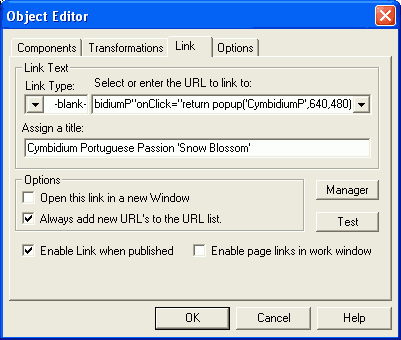
CymbidiumP"onClick="return popup('CymbidiumP',640,480)
New width and height parameters
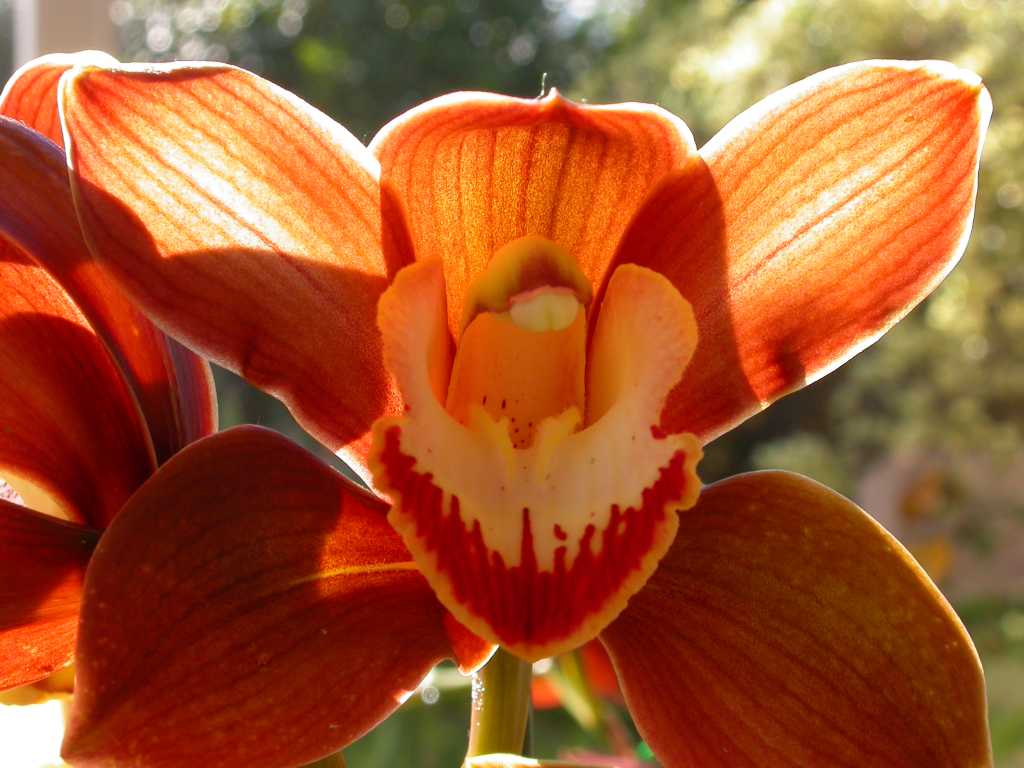

1024x768 (61K)
800x600 (23K)
640x480 (29K)
400x300 (18K)
740x310 (12K)
100x391 (4K)
Here is a selection of various sized images. This same set is duplicated on the SiteSpinner popup page
All these images have the same style of link. Just adjust the last two parameters of each link to match the size of the image.
<SCRIPT LANGUAGE=JAVASCRIPT>
DefaultWidth=640; //The normal width of your images
DefaultHeight=480; //The normal height of your images
ImageLocation='images/'; //The folder or URL holding your images
ImageExtn = 'jpg'; //The file extension of your images
function popup(aFileName, aWidth, aHeight) {
lFileName = ImageLocation + aFileName +'.' + ImageExtn;
//Allow for border and calculate screen position
if (aWidth==undefined) lWidth=DefaultWidth
else lWidth=aWidth;
if (aHeight==undefined) lHeight=DefaultHeight
else lHeight=aHeight;
HorBorders=27;
VertBorders=20;
lWidth=lWidth+VertBorders;
lHeight=lHeight+HorBorders;
lTop = Math.round((screen.availHeight - lHeight)/2);
lLeft = Math.round((screen.availWidth - lWidth)/2);
if (lLeft<0) lLeft=0;
if (lTop<0) lTop=0;
parameters = 'left='+lLeft+',top='+lTop+',width='+lWidth+',height='+lHeight+
',toolbar=0,scrollbars=0,location=0,statusbar=1,menubar=0,resizable=1';
//Open the window
day = new Date();
id = day.getTime();
eval("page" + id + " = window.open(lFileName, '" + id + "', parameters);")
return false;
}
</SCRIPT>
DefaultWidth=640; //The normal width of your images
DefaultHeight=480; //The normal height of your images
ImageLocation='images/'; //The folder or URL holding your images
ImageExtn = 'jpg'; //The file extension of your images
function popup(aFileName, aWidth, aHeight) {
lFileName = ImageLocation + aFileName +'.' + ImageExtn;
//Allow for border and calculate screen position
if (aWidth==undefined) lWidth=DefaultWidth
else lWidth=aWidth;
if (aHeight==undefined) lHeight=DefaultHeight
else lHeight=aHeight;
HorBorders=27;
VertBorders=20;
lWidth=lWidth+VertBorders;
lHeight=lHeight+HorBorders;
lTop = Math.round((screen.availHeight - lHeight)/2);
lLeft = Math.round((screen.availWidth - lWidth)/2);
if (lLeft<0) lLeft=0;
if (lTop<0) lTop=0;
parameters = 'left='+lLeft+',top='+lTop+',width='+lWidth+',height='+lHeight+
',toolbar=0,scrollbars=0,location=0,statusbar=1,menubar=0,resizable=1';
//Open the window
day = new Date();
id = day.getTime();
eval("page" + id + " = window.open(lFileName, '" + id + "', parameters);")
return false;
}
</SCRIPT>
Off-site folder
By providing the full URL of a folder location, you can popup images from an off-site location. To do this, change the variable ImageLocation at the head of the javascript. Like this: ImageLocation='http://www.mysite.com/myimages/';
By providing the full URL of a folder location, you can popup images from an off-site location. To do this, change the variable ImageLocation at the head of the javascript. Like this: ImageLocation='http://www.mysite.com/myimages/';