
Home |
Section One |
Section Two |
Section Three |
Section Four |
Section Five |
Glossary |
Let's start with the normal <body> tag. As noted in the first page, the <body> tag starts the document and governs the body of information therein. For example, say you wanted to create a document with green writing, to make the text colored you must add a special attribute. The attribute added is in the format text="enter the color".
In a notepad it looks like this:
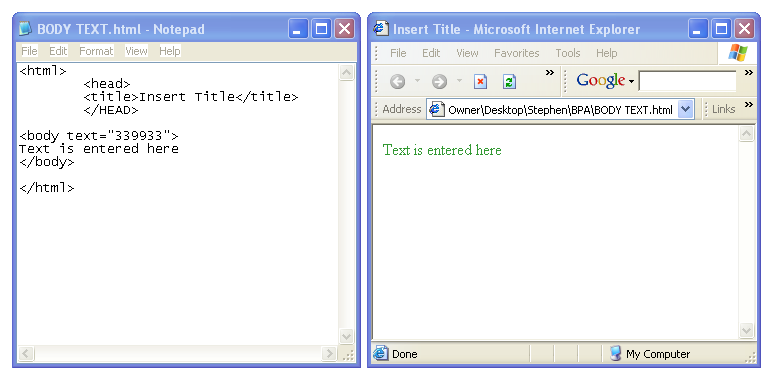
The text you enter can be any color you want. All you have to do is enter in the proper hexadecimal key. A list of colors is given at this site.
These colors are also used for a number of other attributes in the body tag. Background color, link color, active link color, and visited link color are all determined by the <body> tag. By default the color for background is white, the links are blue, active links are red, and visited links are maroon. However, you can have any part of the text be colored with these attributes: BODY BGCOLOR="FFFFFF" TEXT="000000" LINK="0000FF" ALINK="FF0000" VLINK="FF00FF". In most cases links are blue since they go somewhere and are activated. Make sure you put all of this information in tags to get it to function.
A simpler way to use color in your websites at the beginning is to simply type in the English name of the color you want. The possible predefined colors are: aqua, teal, yellow, olive, white, black, silver, gray, maroon, red, brown, orange, green, lime, navy, blue, purple, and fuchsia. If there is no other color specified, most browsers will default to black and white.
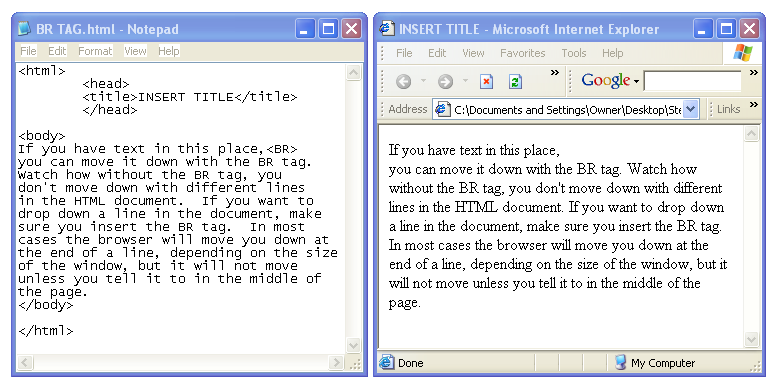
The <BR> tag is basically your enter key. It allows you to move text down one line on the page. For an example look to the
picture below. Notice how when the BR tag is inserted in between the words in the text, it moves down one line.
A very similar tag, the <P> tag, is also like the enter key in documents. The <P> tag moves down but it also begins a new
paragraph. The <P> tag is a much simpler way to enter paragraphs than entering multiple <BR> tags. Neither tag automatically indents the first line of a paragraph.

Finally, the <HR> tag is also a spacing tag, but with a twist. At the top of the page there is the title and the summary of what is going to be covered in this section. Then, before I went into my description, I added a special tag that made a
line. That tag is the <HR> tag. The HR stands for Horizontal Rule. Strategically setting
these tags around a document can quarter off different sections and designate areas for certain things. An example is
shown below.

Now that you know how to space your document, you need to know how to size the text in it. Look at the top of the page.
Notice how the letters are much larger than the normal size. This is done through the <h> tags.
Here are the sizes of letters you can have.

As you can see, text sizes depend on the number next to the h in the tag. Sizes go from large at one to small at six. Also, when you close these tags , you don't need to write out the entire tag again, you can simply put a </h1-6> with the respective number by the h. This property applies to any major tag set with attributes in the starting tag.
Top |
Home |
Section One |
Section Two |
Section Three |
Section Four |
Section Five |
Glossary |

