
 Drawing
in Flash: the eraser tool
Drawing
in Flash: the eraser tool
The Ink Bottle tool lets you change
the stroke color, line width, and style of lines or shape outlines.
Using the Ink Bottle tool, rather than
selecting individual lines and objects, makes it easier to change the
stroke attributes of multiple objects at one time.
1. Select the Ink Bottle tool.
2. Choose a stroke color as described in Using the Stroke and Fill
controls in the toolbox.
Color Tools:

3. Choose line style and line width from the Stroke panel.
Stroke Panel : Window > Panels > Stroke
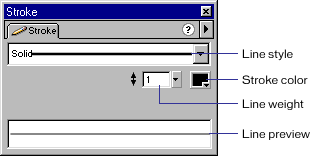
4. Click an object on the Stage to apply the stroke modifications.
You can use the stroke tool to apply
outlines even for things that were initially made without outlines.
For example, if you initially created a rectangle with no outline,
then later decided you wanted an outline, simply use the Ink Bottle
tool as described above and a new outline will be applied.
toolbox | pencil
tool | brush
tool | oval tool | rectangle
tool | line tool | eraser | eye
dropper| ink bottle | pen
tool | Flash
menu | main menu | schoolnotes
