
 |
 |
 |
 |

| Using the text template |
| Overview |
This guide contains information about how to use the Framemaker customized templates and how to perform Framemaker tasks. These templates were designed for creating customized documentation. This template guide has been written for use with Framemaker 6.
We create our source documentation in Framemaker using the customized Framemaker template(s) and then convert these files to HTML via Webworks Publisher and create PDFs for printing purposes.
| Installing the templates |
You can copy the templates in the Templates folder to your work folder. If you do this, periodically update your copy by recopying the original template because the template may have been revised.
You can copy the templates to your personal templates folder. Create a new folder for your templates in the Adobe Framemaker templates folder. To use the templates in this folder, select File menu-New-Document and select a template and click New. Save the file under a new name. If you reinstall or upgrade Framemaker, this folder is overwritten and your templates will be lost.
| Location of Framemaker templates |
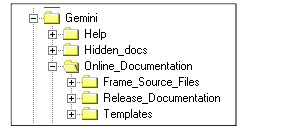
In each release folder, you will find the Online_Documentation folder. Each release folder contains a Templates folder which contains the Framemaker templates. For example, if you are working on the documentation for the 6.1 release, the directory path would be:
\root directory\documentation\project name\Online_Documentation\Templates
| Important | It's okay to make a copy of the templates for your own use. But, make sure that you don't alter or move the templates in the Templates folder as these are the master templates and are shared by the Documentation Dept. |
At the current time, we have the following different template versions:
| Framemaker setup |
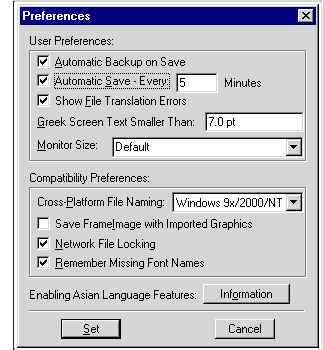
Check that the Framemaker Preferences dialog box is set to Remember Missing Font Names is checked. If this is checked, FrameMaker preserves the names of unavailable fonts. When missing font names are remembered, the original fonts will reappear—even if you save a document with substitute fonts—when you open the document on a computer that has the fonts installed.
User preferences in the Framemaker Preferences dialog box should be set as follows:
| Creating a new document |
You may wish to copy the text_template file located in the Templates folder to your work folder.
The pathname of the document appears at the top of the document window.
If you made a copy of the template and placed it in your personal templates folder in Framemaker, do the following:
If you have an existing Frame or Word document, you can import the Frame or Word file directly into the text_template file.
To start writing contents in the new file:
Create a descriptive file name using the following file naming convention:
bookabbreviation_uniquename.fm
For example, a file in the Concepts Guide would be named:
cpt_product_overview.fm
A book would be named:
cpt_concepts.book
Characters allowed in a file and book name:
| Defined paragraph tags |
The customized templates contain formatting tags which have been defined for creating Portal documentation. The Paragraph Catalog shows all the formatting tags available in a template.
Each paragraph tag consists of formatting characteristics such as spacing, indents, alignment, tab stops, and font properties. You apply the appropriate paragraph tag to each paragraph that you create in your document.
You must use the tags provided in these templates. The reason for this is because these tags are mapped in the Webworks template, which determines how the HTML documents will display.
Webworks Publisher made by Quadralay is a software tool that we use to convert Framemaker files to HTML and we convert all the files together to keep intact the links created between the files.
| Using paragraph tags |
This section provides examples of the paragraph tags in this template. To apply a paragraph tag, do the following:
You can apply paragraph tags from the Paragraph Catalog (¶):
You can apply paragraph tags using the keyboard shortcut so that you can work mouse-free.
If you apply formatting overrides to the paragraph tags to achieve different formatting, this formatting won't be carried over to the HTML files when the file is converted to HTML. Creating an override to a paragraph tag means when you change any of the tag's attributes.
Some commonly used keyboard shortcuts:
| Paragraph tags overview |
Use the following paragraph style tags to apply formatting to paragraphs:
| Paragraph tag examples |
This section provides examples of the paragraph tags in this template and instructions on how the tags should be used.
| Titles and other headings |
Use for the title of a chapter at the beginning of a document. The general rule for capitalization of titles and headings is to initial cap the first word in a title or heading, unless it is an opcode, utility, or command.
The ChapterNumber comes with the Title tag when you insert the Title tag and is the chapter number. The ChapterNumber tag uses an autonumber (building block) so that the chapter number changes automatically.
Use the Head1 paragraph tag for level 1 headings for the main topic in a chapter. It is customary to separate different level headings with transitional text. Write an introductory sentence to introduce a bulleted list or instructions.
Use the Head2 paragraph tag for level 2 headings that pertain to a main topic in a chapter. It is customary to separate different level headings with transitional text. Write an introductory sentence to introduce a bulleted list or instructions.
Use the Head3 paragraph tag for level 3 headings that pertain to a second level topic in a chapter. It is customary to separate different level headings with transitional text. Write an introductory sentence to introduce a bulleted list or instructions.
Use the Head4 paragraph tag for level 4 headings that pertain to a third level topic in a chapter. It is customary to separate different level headings with transitional text. Write an introductory sentence to introduce a bulleted list or instructions.
| Body |
Use the Body tag for all regular paragraph text. The Body tag is designed to following the Heading paragraph tags and is included as the next Para Tag in the Heading tags. The Heading tags are designed to keep with the Body tag so that you don't create widow/orphan lines.
| Lists |
The template has two types of list formats: bulleted or numbered. The bulleted tag is used for items that are related, but nonsequential. The numbered tag is used for items that follow a sequence. For example, you would use the numbered tag to provide instructions to the reader and the reader must follow the numbered instructions in the sequence presented.
Use the BodyIndent paragraph tag when you want to write a new paragraph under a Numbered1 style or BodyBullet style. For example:
BodyIndent BodyIndent BodyIndent BodyIndent BodyIndent BodyIndent BodyIndent BodyIndent
BodyIndent2 and BodyIndent3 paragraph tags are used in paragraphs following second-level and third-level lists.
Use the BodyBullet paragraph tag to organize related, nonsequential information. Use the BodyBullet2 paragraph tag to organize related, nonsequential information within a BodyBullet list.
For additional paragraphs under the same bullet item, use the BodyIndent tag.
Use the BodyBullet2 as a second-level bulleted list.
For additional paragraphs under the dashed item, use the BodyIndent2 tag.
For additional paragraphs under the same bullet item, use the BodyIndent tag.
Using this series scheme within a bulleted list reduces the need for deeper levels of bullets.
If listed items are not complete sentences (sentence fragments), do not use periods.
Use the Numbered list paragraph tags for numbered procedures. Use the Numbered1 tag for the first item in the list to restart the numbering. Use the Numbered1+ for the following items in the list. To start a subcategory, use the Numbered2 and Numbered2+ tags.
If a numbered item requires another level of sequential information, the subset must use a different identification scheme to distinguish it from the numbered items in the first sequence.
Use the BodyIndent tag to create a separate paragraph that relates to the numbered item.
| Note | Use the Note indent tag so that a numbered list does not break the numbering in the HTML. |
| Code examples |
Use the code tags for text that should display as code information. If the code contains multiple lines, use the Shift-Enter keys to create a soft return. This paragraph has a top and bottom border, but in the HTML it displays without the borders. To create indentions or a tabbed effect in the code sample, use the Shift space-bar to create hard spaces.
code paragraph tag for bits of code
    To create indentions or a tabbed effect in the code sample,     use the Shift space-bar to create hard spaces.
codeIndent paragraph tag bits of code within a list
codeWide paragraph tag when you have very long lines of code. For example, screens of code.
The following section from the Adminmgr.ini file shows where you add the new DLL information:
; Extensions DLLs to deal with custom object types
[Extension DLLs 60]
ExtensionDLL1=emailserv.dll
ExtensionDLL2=provider.dll
ExtensionDLL3=ddebitpay.dll
ExtensionDLL4=your_dll_name.dll
Use the codeIndent tag for code sample in numbered or bulleted lists.
void FindBillItemsForAnAccount(PortalContext connection, Poid acctPoid)
{
// Start building the search input FList.

// Obsolete way:
Poid searchPoid = new Poid( connection.getCurrentDB(), 0, "/search" );

// Right way:
Poid searchPoid = new Poid( acctPoid.getDb(), 0, "/search" );
.
.
}
| Term |
Use for words that are terms. For the term definition, use the Body paragraph tag.
term
This is a term definition using Body paragraph tag.
| Defined character tags |
The Character Catalog contains defined character tags or styles that you can apply to words and characters in your Frame document. The character tags are applied to text or paragraphs that already have been assigned a paragraph tag.
These character tags have specific uses and you should know what these are before using these tags.
| Using character tags |
Apply character tags from the Character catalog:
|
|
Character catalog |
If you apply formatting overrides to the character tags to achieve different formatting, this formatting won't be carried over to the HTML files after the file is converted using Webworks Publisher.
You can apply character tags using the keyboard shortcut so that you can work mouse-free.
Applying B(old) from the Quick Access bar is not the same as applying the Bold character tag. In our documentation, please use the Bold character tag to bold text as this formatting carries over to HTML.
| Character tags overview |
Use the following character tags to apply formats to individual words or phrase.
| Notes and related tags |
Some text is repeated in the sample tags so that you can see the left indent.
| Note | Some writers find the distinctions between, notes, importants, and tips confusing. |
| Important | Even more noteworthy. Even more noteworthy. Even more noteworthy. |
| Tip | Save them time; show an alternative. Save them time; show an alternative. Save them time; |
Save them from doing bad things, like corrupting their data. Save them from doing bad things.
Another version of the same tags for use in a list or procedure. Use the indented version so that numbered lists do not break in the HTML.
| Note | Note indent. For a note in a list or procedure. For a note in a list or procedure. |
| Important | Important indent. For an important note in a list or procedure. For an Important note in a list or procedure. |
| Tip | Tip indent. For a tip in a list or procedure. Tip indent. For a tip in a list or procedure. |
table border="0" cellpadding="0" cellspacing="0">
Use a noborders table for notes and related formats that have multiple paragraphs. For example:
An example not using a table:
| Note |
1. mmm
2. mmmm
| Comment tag |
Use the Comment paragraph tag to insert a paragraph with review questions, comments, or reminder notes to yourself during the composition and review cycles. If you need to write more than one paragraph in the same Comment, press [Shift][Enter] to add a soft return.
If your document is also produced in PDF, apply the Comment condition tag to the entire paragraph (if the text disappears, change the Show/Hide Conditional Text setting to Show All). Remember to reselect Show (hide conditions not on the Show list) before you regenerate your TOC.
The WebWorks template maps the Comment paragraph tag to "No Output" to ensure that comments do not appear in the converted HTML files.
| URL |
There are several types of links you can create in our documentation and the URL character tag link is one of them.
Use the URL character tag for applying to text that is a reference to an external URL address, that is, outside of pin.com.
This character tag is not to be used in place of the gotoURL hypertext markers that are used for linked references to flist specs, pol.c files, and object specs.
For more information about the URL character tag link, please see Types of links in a document.
| Special tags not to be used for formatting |
The following paragraph tags should not be used for formatting. Some of these tags have special meanings in their HTML mappings.
| TitleNoNumber |
This paragraph tag was created for the Index template. This title is not carried in the document header.
| TitleNoNavLinks |
This is the same as TitleNoNumber used for special cases where the HTML should not include navigation links and Next/Previous buttons. The Index is an example of a file that uses this format.
|
JH Consulting mrycove419@yahoo.com Last modified: January 2003 |
| |
|
|
|

