
After installation, double click the
Pirch icon on your desktop
The window that comes up will have an icon for login (upper left), click on
that.
The following login window will come up.
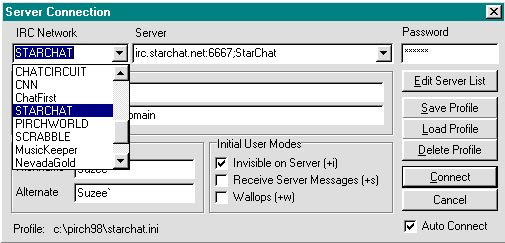
That is the Network I mostly chat in. You make your
choice from the pulldown menu.
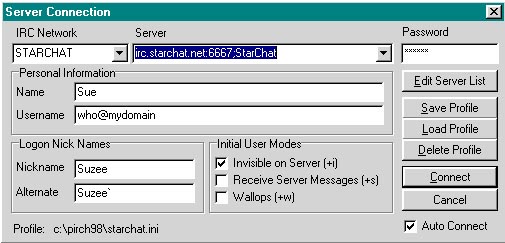
Once you decide on the Network and server, click Connect
always being sure that Auto Connect is checked.
You have to have something in Username, be sure to have the @ sign in there.
Downloading and Installing
Setting prefs Page One
Setting Prefs Page Two
How to Copy & Paste
Aliases and Popups
How to group popups
How to make Events
How to load aliases from
another file
How to load popups from
another file
Combining popups and
aliases
How to add Networks and
their servers
Adding Server addresses
You are
visitor Number
