

Using the Insert Function Dialog
Using the Insert Function Dialog box can help you to find and enter the appropriate function and function arguments in your worksheet.
 To
enter a new function in your worksheet, select the cell in which you wish
to display the
result. Click the Insert Function button
To
enter a new function in your worksheet, select the cell in which you wish
to display the
result. Click the Insert Function button
 on the Formula
Bar to display the Insert Function dialog box. In the Search for a function:
text box, enter what you would like the function to do and then click the
Go button. When you do, Excel will give you a list of functions that have
something to do with the entered request. In the sample to the right, I asked to
find a function that would allow me to find data in a table. The functions
listed are all functions that can be used to find data using various methods.
Clicking each function individually will display the function syntax and
description below the list. In this sample, VLOOKUP is the selected function,
with its information displayed.
on the Formula
Bar to display the Insert Function dialog box. In the Search for a function:
text box, enter what you would like the function to do and then click the
Go button. When you do, Excel will give you a list of functions that have
something to do with the entered request. In the sample to the right, I asked to
find a function that would allow me to find data in a table. The functions
listed are all functions that can be used to find data using various methods.
Clicking each function individually will display the function syntax and
description below the list. In this sample, VLOOKUP is the selected function,
with its information displayed.
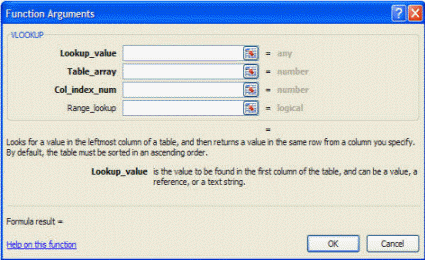 Once
you have selected a function, clicking OK will open the Function
Arguments Dialog box for that function. As you click in the text box for
each function argument, the dialog box will give you a description of
what is expect for that particular argument. You can use the mouse to
select the appropriate cell or range of cells to have it entered into
the argument text box. Move from argument to argument with the tab key
or by clicking with the mouse. Function arguments labeled with bold text
are required arguments. Function arguments that are not listed in bold
are optional arguments, often with default choices that will be applied
if left blank. If the information given in the dialog box is not clear
(and sometimes it's not very), click the Help on this function
link in the bottom left corner of the dialog box to open the Help topic
for that function, which will give more information, including samples
of the function used in various ways.
Once
you have selected a function, clicking OK will open the Function
Arguments Dialog box for that function. As you click in the text box for
each function argument, the dialog box will give you a description of
what is expect for that particular argument. You can use the mouse to
select the appropriate cell or range of cells to have it entered into
the argument text box. Move from argument to argument with the tab key
or by clicking with the mouse. Function arguments labeled with bold text
are required arguments. Function arguments that are not listed in bold
are optional arguments, often with default choices that will be applied
if left blank. If the information given in the dialog box is not clear
(and sometimes it's not very), click the Help on this function
link in the bottom left corner of the dialog box to open the Help topic
for that function, which will give more information, including samples
of the function used in various ways.
Once you have entered all arguments, the dialog box will display the information being used to perform the calculation and display the result of that calculation using those arguments. The sample below has all arguments entered and is displaying the result of 1,854 which will be the value displayed in the cell containing the completed function.

Click OK to have the completed formula entered in the selected cell.
If you select a cell that contains a function, clicking the Insert
Function Button
will open the Function Arguments dialog box for that function. If you
inherit a worksheet that contains functions with which you are not
familiar, this is an excellent tool to help you figure out what that
function is doing.

