
Uploading to Angelfire
1. Go to Angelfire's web page https://www.angelfire.lycos.com/
2. Click on "login " 
3. On the next page, enter your Member name and password and click "Login"

4. On the left side of the page, click on "Web Shell"

You will be logged into your main Directory. Select, "New Subdirectory"---> type the name of the subfolder you created. Example: family----> Click on "Create" to create the subfolder

5. Scroll down the list and highlight the subdirectory and click "Open" to open that directory. You can tell a file from a subdirectory because a file has a "/ "in front of the name.
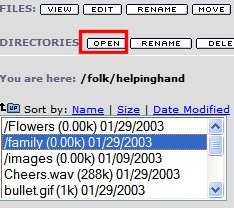
6. Now you will see you are in the
correct directory 
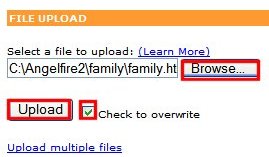
7. Scroll down and put a check on, "Check to overwrite"---> Click on "Browse" and browse to C:\Angelfire\Family folder. Double click on the ,"family.html" file and click "Upload"
8. Highlight the family.html file---> Click on "View" to view the web page

9. While on the Web Page, Highlight the web page address---> Right click and select "Copy".

Minimize the Web page --> open FPExpress---> File---> Open ---->Browse to C:\Angelfire and double click on the
" index.html" file to open it. Click on the Bullet for "family". You will see 6 black squares around the bullet. Go to "Insert"--->"Hyperlink " remove the Hyperlink there and right click and Paste the correct Web page address. Click "OK"
10. Now we want to make a New
SUBDIRECTORY for the Next Bullet but first we have to go back to
the main directory. Click on, " up"  to go back up to the main
directory
to go back up to the main
directory 
11. Repeat steps 4- 7 to Create a new Subdirectory and Upload the next .html file to that directory as in step 7.
12. Repeat step 8 to view the file--->Highlight the web page address---> Right click and select "Copy". --->Minimize the web page. While in FPExpress, click on your second bullet that you want to hyperlink to that web page--->Insert---->Hyperlink--> paste the correct Web page address...Click "OK"
13. Repeat the steps to continue creating subfolders for each Bullet on your index.html file until you are finished linking the bullets.
14. Now we need to Upload our main
index.html file, banner image, bullets, Divider bar, music file
and e-mail image. We need to first go back to the Main Directory.
Click on "UP" until
you are in the Main Directory. Since we are going to Upload More
than one file, scroll down and click, "upload multiple files"
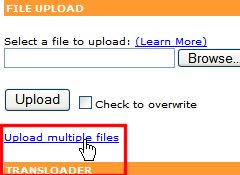
15. I always get in the habit of
checking, " Check to
Overwrite". Click on each "Browse" button and Browse to C:\Angelfire to select each
file. At the bottom, click on "Upload" 
16. Once all your Files are uploaded, click on "Date Modified". Scroll to and highlight the , " index.html " While it's highlighted, click on "View" to your your New Web page :-)
For your next web page, Go to, "Let's Create a Table"
Let's create a Table in FPExpress
Back to Beginning Web Page Tutorial
Questions?
