
Using Graphics with AOL Mail
We have taught you how to do a few things with graphics and PSP..you don't have a webpage so now what do you do with your finished graphics? Admit it when we make something truly awesome we want to dazzle our family and friends with our talents. Emails with an embedded image is your answer. If you are on AOL you can send embedded images to other AOL mail users. You may send animation's in AOL 7 and they will animate when they are opened. Last I knew sending from AOL to Outlook does not work but I am not sure if other email programs will accept the embedded images from AOL so give it a try.
I have zipped 3 Backgrounds (1 plain, 1 bordered, 1 animated background), 1 Page Head and 2 Snowglobe Animation's (NOT MADE BY ME) to use with this Tutorial. Start by emailing to yourself until you get the hang of embedding images.
Outlook (Express) People Clck Here
Add email Stationary.
Open a new email in AOL mail

Right Click one time on the inside of your email page. Left click on add Background Picture and browse to the background you would like to use. You can use both a plain graphic background or a background with a border. If you would like AOL to just put in one of its colors as your background to save on the time it takes to open an email use Background Color instead.
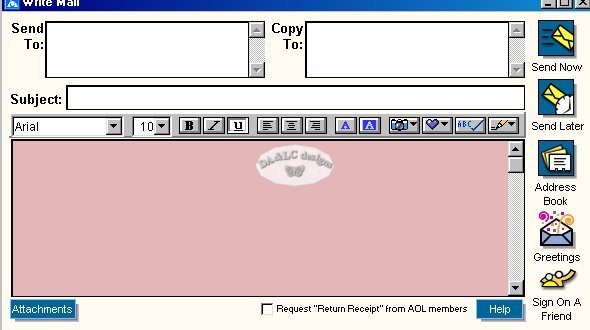
Plain or a Bordered Background
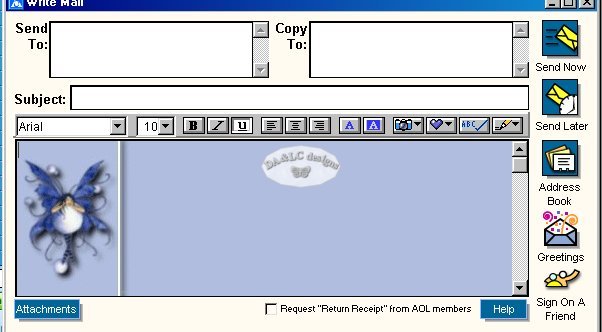
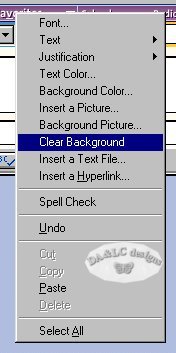
Don't like that background? You can change it to something else by right clicking one time and Clear Background and picking another.
There are 2 ways to add a Graphic to your email so when someone opens that email the graphic will be visible and you will not have to send as an attachment or they will not have to download anything. This feature is the reason why we can make our own Email Stationary. Email Stationary is more popular with Outlook Express but it can be done with AOL's mail too.
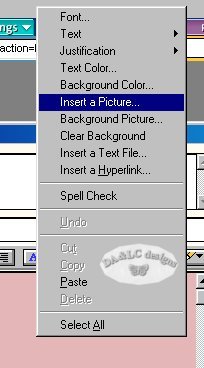
First Right Click on your email and choose "Insert a Picture" browse to the folder where your picture is kept and left click on it.
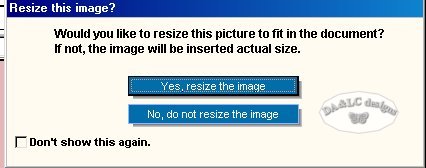
If your Graphic is a little big this box may pop up...make your choice to resize or not and left click on that choice.
To center your email go to the top Tool Bar and choose the center setting.

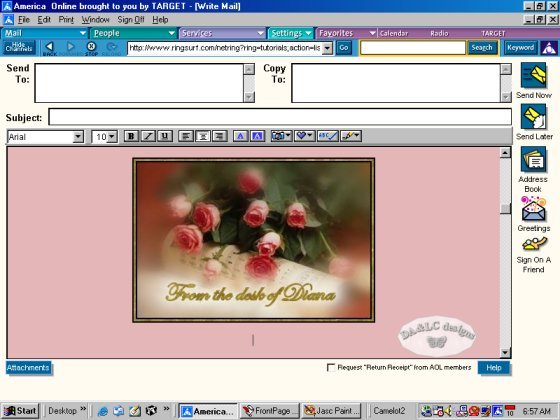
NEXT way to add a graphic in AOL email
All Tutorials and Graphics on this site ©byDiana/Laura 2000 do not use without permission.
