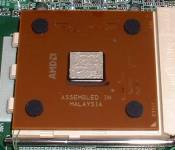
Installing a processor is quite a simple process. Although it may be simple,
extreme caution should be used. Processors are expensive, and installing them
improperly can easily ruin them.
First, you need to decide what type of processor you need. These instructions
are designed for mostly socket A processors. If you’re running an AMD system,
then you need an AMD processor. If you’re running an Intel motherboard, then
you’re going to need an Intel processor. Check your motherboard manual for the
specific speed and type of processor your motherboard can handle. Once a
specific processor is chosen it is time to install. First, you need to open the
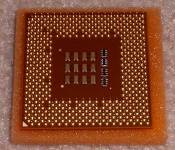
case. Then, you need to orient where pin 1 is on the processor. Usually there
will be corner or arrow indicating pin 1. This is also true for where to put it
on the motherboard. Gently, place the processor on the motherboard. Gravity
should let the pins fall in place. Do not force the processor in! If you do,
you probably just wasted a lot of money. Once the processor is in place, clamp
it down by pushing down on the lever next to it. Another important part of
running a processor is getting a heatsink and fan on it. I highly recommend
using a performance heatsink like a Volcano 9.
<-Volcano 9
With a low processor temp, the
computer should run more stable, last longer, and be able to be overclocked. To
put on the heatsink, simply place a dab of heat compound on the center metal
piece on the processor. Gently place the heatsink over the cpu and giggle it a
bit to make sure there is good contact. Now, simply click each side of the
heatsink in place by using a flathead screwdriver. You may have to get a bit
forceful here. This is always the part where I cringe. Sometimes your
screwdriver may slip and hit the motherboard. Usually this isn’t a big problem,
just try to be careful. Once it is in place, just connect the fan to the
connector located next to the processor. Now, turn on your computer and be
ready to turn the power off. If that fan isn’t turning, you could seriously
burn your processor. To check if the temperature is within standards, go to
your bios screen and check the “pc health” section or something like it. If
it’s above 50 degrees Celsius, you may have not put the heatsink on quite right.
Try jiggling it a little to give it better contact. If this doesn’t work,
reapply new heatcompound and try again. Now just put your case back on and
enjoy



 <-Volcano 9
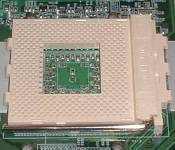 <-CPU
Socket (socket A)
<-CPU
Socket (socket A)
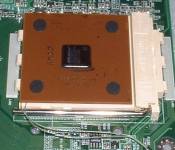 <-the
processor inserted correctly
<-the
processor inserted correctly