|
The Sims Imagination. 2002
There are small pictures that you can click to bring up the full size pictures. Use these pictures when you don't know what to do.
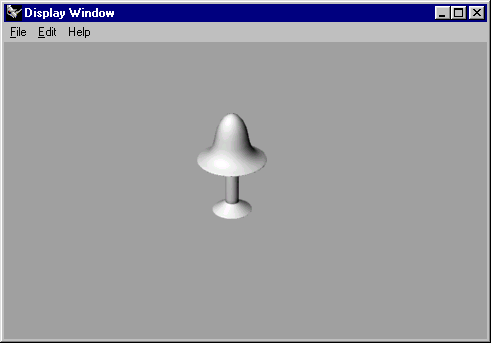
Now that you've aligned your lamp correctly. Click on the "Perspective"
view and go to Render > Render and you should see a picture like the
one on the left (the background color may be different so don't worry).
You've made a 3D model of a lamp! Congratulations :D. You might want
to add some colors or textures to it. This is how you do that.
Now click out of the picture and select the part of the lamp that you
want to color. Now go to File > Object Properties and a window
like the one on the right should appear.
Click on the "Material" tab at the top of the window and a new window
should appear. It should look like the one on the left. This is the window
that we will use to color the lamp and I'll explain the features on the next
step of this tutorial. Click on the "Basic" bullet under the "Assign By" section on the top left. After doing this, you can move on to the next step.