|
The Sims Imagination. 2002
There are small pictures that you can click to bring up the full size pictures. Use these pictures when you don't know what to do.
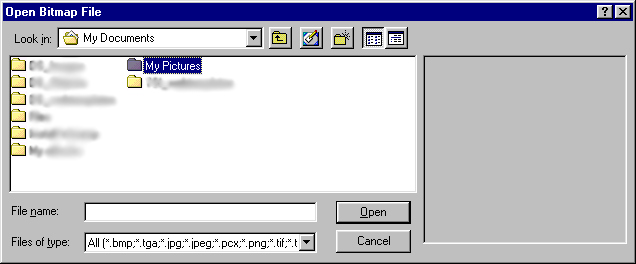
By clicking on the "Color" button, you'll see a window like the one on the left. You can choose any color you want to decorate your model. The bar next to the "Color" button adjusts how shiny or dull you want your model to be. By clicking on the "Metallic" button and sliding the bar all the way to "Glossy" you'll make your model very shiny in a metalic sort-of way. If you click on the "Plastic" button and slide the slider all the way to "Glossy" you'll make your model very shiny in a plastic sort-of way. The slider under that determines how transparent your model is.
There are two other options, "Texture" and "Bump". You can choose
a texture to decorate your model if you don't want a plain color. "Bump"
is a bit more complicated. The bump of the model further defines the
model's shape and how the texture will go onto it. Play around until
you like the way your lamp looks.
You should use the zoom button on the top toolbar to make your
model bigger or smaller. This is handy when you need to make
your model look the same size as the object you are cloning. I
mean, a table lamp probably wouldn't be as big as a Sim.