There are 2 parts to animation; the first part is to create the frames in Paint Shop Pro; the second part is to load those frames into Animation Shop and apply effects like timing and looping. You will be using the picture you made in Part I as a repeating frame in Animation Shop.
For this tutorial, we will either keep a white background, or color the background to match the web page you plan to put it on. You will then make 5 more copies of it (in Paint Shop Pro); varying the number and placement of lights in each. This will be done either by adding a layer to the picture and rotating the frame after you place lights in it, or you will simply make copies of the first picture and cut and paste the lights into each.
The first 4 steps of this tutorial are done in Paint Shop Pro. When you get to step 5, the one that says Animate, you will start using Animation Shop.
Open your previously saved picture; increase colors to 16 million.
Save it as a new picture with a different name so your original picture stays the same.
*In the saved copy, right click in layers box to add new layer; use default settings.
Add small light circles that fit between outer and inner frame.
Download (right click and save as) the "light" on the right, or use anything similar you've found online.
Variation: If you are comfortable using tubes, I have a couple of good tubes that make really great looking lights. Click here to see the tutorial and download the tubes for this step.
Copy it and paste it between the frames. If it is too large or small, resize it to fit.
When it is sized to fit, paste 3 to 6 of them in the circle.
Move lights around in different areas of the frame.
Rotate layer 20degrees, 4x.
Save each step (Save copy as…picture2.gif, picture3.gif, etc.). Sharpen if necessary.
*Note: If your circles weren't perfect, or weren't aligned right in the middle of the canvas, this method won't work. If you try to rotate, and your lights are all crooked, then you'll have to paste the lights directly into the circles. Save 5 copies of the original picture, do not add a new layer; copy and paste the lights into each, varying the placement and number of lights, as in the images below.
Animate.
Open Animation Shop.
Method 1: Using Animation Wizard.
Select File/Animation Wizard.
..Same size as first image frame, Next>.
..Transparent, Next>.
..Centered in the Frame/.. With the canvas color/.. Scale frames to fit, Next>.
Looped/.. 1/100 of a second, Next>.
Click on Add Image. Open the folder containing the picture files you just did.
Alternate pictures; the one with no lights will alternate with the other four…. Picture1.gif, Picture2.gif, Picture1.gif, Picture3.gif, etc.
Next> and Finish.
Method 2: Creating from New.
You should have the pictures you want to work with open in PSP. Use View/Image Information to see what the size of your picture is. Make sure all the pictures you're going to use are the same size for this animation.
File/Create new animation.
Put in the width and height and choose Canvas Color/Transparent. OK.
You have a frame the size you have selected open on the Animation Shop desktop now.
Copy the 1st image on your PSP desktop.
Edit/Paste into selected animation frame.
Alternate copies of the graphic with the lights and without the lights. (If you keep lights in all the frames, the lights will seem to chase each other around the frame; you may want to try this as a variation). Like this….
When you have about 10 frames, the animation should be ready to run.
Click on the 3rd icon from the right to run the animation. Click x in right corner of animation to close it.
Now you may need to edit.
If the effect is too fast, go to Edit/Frame Properties. Default is usually 10 one hundredths of a second. That makes a pretty fast effect. Each frame can be set separately. Alternating times makes for a more natural effect. Try 10 for one frame, 50 for another, etc. and keep running the animation and experimenting with the timing.
Use Edit/Animation properties to set how many times you want the animtion to run. For this type of effect, you want to repeat indefinitely. Set Canvas color to transparent.
If you think one light frame would look good with just one light, copy a blank one from the animation to PSP and copy the light into it, then copy and paste it back into whichever frame you want to replace. I changed the animation so that almost e very frame had a different number of lights, then I varied the times.
Test run the animation until it looks the way you want. When ok, click save as and give it a name that you will recognize as being an animated copy; I usually preface them with A or an, as in AnSpike.gif.
Put it on your web page and show off your photo or drawing!
Questions? Problems? Did I leave out a vital step? Email me at JJJPEMom@aol.com. I'll respond as quickly as possible.
If you liked the frame at the end of Part I, and prefer not to put lights in it, here's a variation on Part I finishing it as a keepsake frame.



 Download (right click and save as) the "light" on the right, or use anything similar you've found online.


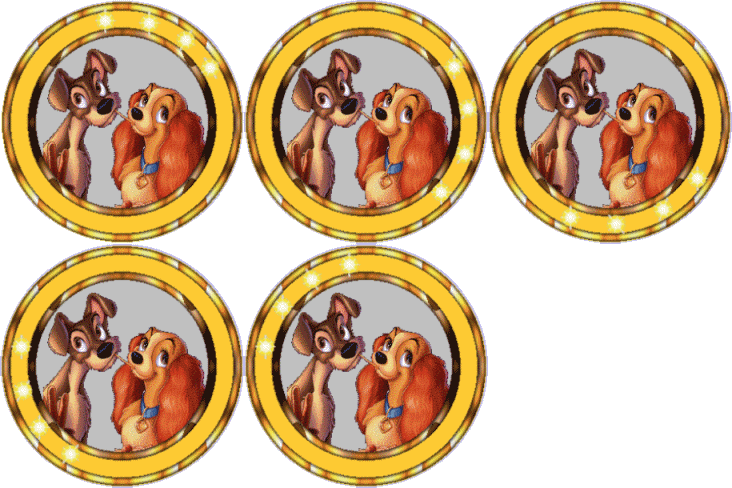 Alternate copies of the graphic with the lights and without the lights. (If you keep lights in all the frames, the lights will seem to chase each other around the frame; you may want to try this as a variation). Like this….