Here are three sample tubes I downloaded from KandyKizzez -Tubes 2. She has a lot more sparkles and flares in different colors and styles, if you would like to experiment.
For now, I used the Twinkle Yellow on the right for this variation. Download the tube to your Program Files/Paint Shop Pro/Tubes file.
Open the file from Paint Shop Pro. You can select the Browse function and go over to the tubes section to see all the tubes you have currently in your tubes directory.
Double click on the yellow twinkle to open it.
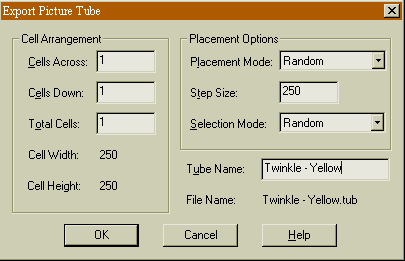
Select File/Export/Picture Tube. This tube only has one picture in it, so 1 down and 1 across are correct for the cell arrangement. Leave the other settings as is, but type in a name for the tube so you'll be able to find it easily. Since I downloaded a lot of colors, I used Twinkle - yellow, Twinkle - purple, etc so similar tubes would all be in a row. Now click ok.
Open the five copies of your framed picture.
Right click on the tube tool to open it; select the Twinkle - yellow, or whichever flare/twinkle you are using.
Experiment with your tube size; using the twinkle with the picture above, 32% came out as the optimum size for my tube. Yours may need to be adjusted if your picture is a different size or if you chose a different twinkle/flare/starburst effect.
Once the size is right, you can easily put the lights into each picture in a random pattern.
Save these pictures and open them in Animation Shop as with the regular light procedure.
Return to Part II for the Animation Shop portion of the Tutorial.