
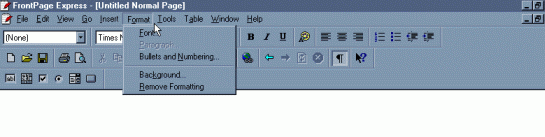
First thing you may want to do is format your background and font. Click on "format" and chose font or background..
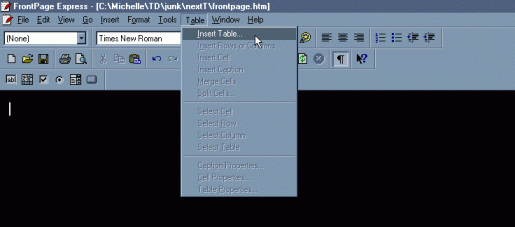
To create a table.Click on "Table" at the top. Then "insert table"...
You will get a box like this...
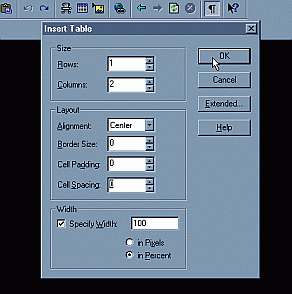
Be sure to make it 1 row and 2 columns (to make it like mine). Under layout..align it center, and and no border, cell padding or spacing. Then make the width 100 percent of page. If you want your table different just change to your needs, but for now I am only going over the table that I use for my rules page.
Ok, now you should have this. Put your cursor in the cell that you want to add a graphic to and click on the "add picture" icon.
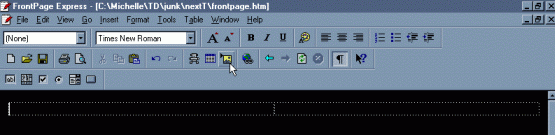
A box will pop up and ask you to find file. Find your graphic on your computer and add it. To put your graphic in the place you want it, right click on the graphic and click "cell properties" and you will get this box...
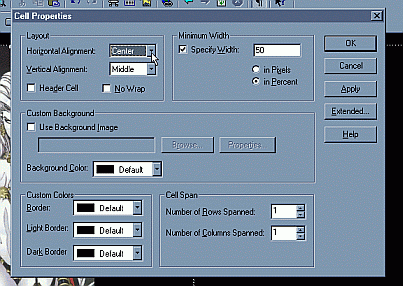
I centered my picture in the cell (which is one of the boxes on your table).
Ok, next step. As I said on the other page, if you want your rules in special font, you have to take a few extra steps. If you want help on that step Click here!
Now you can either add that graphic or type in your rules.
To edit html in Frontpage you are going to have to do it differently. Open up notepad under programs, then accesories. Click on open and be sure at the bottom to make it open all files (not just text files). Hightlight all the text that I have highlighted and right click and copy.
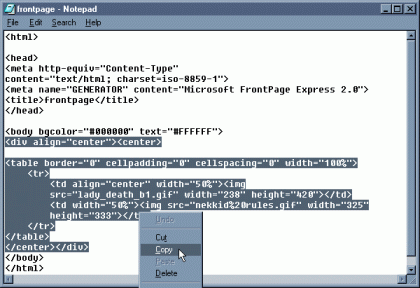
Go to your Tournament Administer page and under "Customize Tournament Rules" paste this into the big box and click submit.
That should do it! As always, if you have any questions feel free to
ask me or e-mail me at LadiDeth@excite.com
