
Bruceee's Sandpit
Web Design with SiteSpinner
Web Design with SiteSpinner

home
home
home

Bookmarks
This page gives a step-by-step guide to making bookmarks using SiteSpinner.
Linking from Within the Page
Now we have an anchor -- something to link to. Let's make a link to that anchor which simply says 'Top of Page'.
Start a new text object which says 'Top of Page'. I have done one just below.
From within the text editor set:
Link Type: -blank-
URL : #top
The image below shows my Link Editor settings.
Now we have an anchor -- something to link to. Let's make a link to that anchor which simply says 'Top of Page'.
Start a new text object which says 'Top of Page'. I have done one just below.
From within the text editor set:
Link Type: -blank-
URL : #top
The image below shows my Link Editor settings.

Use a Bookmark Rather than a Page Link
If linking to the top of the page always use a bookmark. You can also just use a regular page link, but depending on the user's browser settings, and the site, this can be no faster and is often much slower than a bookmark.
Here again is a bookmark to the Top of Page.
Just for comparison, here is a normal page link to the top of page.
Hover to See the URL
As with any link, hover your mouse over the link and look at your browser status bar to see what the browser thinks it leads to. This is a very useful thing to do if the link to your anchor is not working.
Bookmarks are Case Sensitive
Opera 7.23 thinks that an anchor called 'Top' is different to one called 'top'. For this reason, I suggest you avoid tempting fate and always use a consistent style -- e.g. always use lower-case anchor names. However, you can adopt any standard you like, so long as you can apply it consistently to both the anchor name and the link URL.
If linking to the top of the page always use a bookmark. You can also just use a regular page link, but depending on the user's browser settings, and the site, this can be no faster and is often much slower than a bookmark.
Here again is a bookmark to the Top of Page.
Just for comparison, here is a normal page link to the top of page.
Hover to See the URL
As with any link, hover your mouse over the link and look at your browser status bar to see what the browser thinks it leads to. This is a very useful thing to do if the link to your anchor is not working.
Bookmarks are Case Sensitive
Opera 7.23 thinks that an anchor called 'Top' is different to one called 'top'. For this reason, I suggest you avoid tempting fate and always use a consistent style -- e.g. always use lower-case anchor names. However, you can adopt any standard you like, so long as you can apply it consistently to both the anchor name and the link URL.
Why Use Bookmarks?
A bookmark is useful for navigation within a page. It takes you directly to any part of the page. Often it will be to a paragraph heading, or perhaps an image. Bookmarks are particularly useful where a single page extends over two or more screens.
A common bookmark takes you back to near the top of the current page -- I have used one on this page. Look above in the left hand margin for the red 'top'. Normally bookmarks will be invisible on the published page, but I have fiddled this one so you can see where it is.
A bookmark is useful for navigation within a page. It takes you directly to any part of the page. Often it will be to a paragraph heading, or perhaps an image. Bookmarks are particularly useful where a single page extends over two or more screens.
A common bookmark takes you back to near the top of the current page -- I have used one on this page. Look above in the left hand margin for the red 'top'. Normally bookmarks will be invisible on the published page, but I have fiddled this one so you can see where it is.

Parts of a Bookmark
A bookmark consists of two parts:
A bookmark consists of two parts:
- The anchor or bookmark itself. If the object you are bookmarking is text, embed the anchor right in the text. You can also use any object as an anchor -- without having to set a specific anchor. If the object is something like an image, you can also make an anchor and place it alongside the image. If you make an anchor, it must always be in a text object of some kind.
- A link to the anchor. This can be either from the current page or from any other page in your SiteSpinner project. Or indeed from any page anywhere on the web.
Making an independent anchor
You can instead make your own anchors -- we'll do that here. Let's use a small text object that will bookmark whatever place you drag-and-drop it to. This anchor needs to meet these requirements:
To make the anchor, take the following steps:
You can instead make your own anchors -- we'll do that here. Let's use a small text object that will bookmark whatever place you drag-and-drop it to. This anchor needs to meet these requirements:
- It should be visible on your workpage, but invisible on your published page.
- It should bookmark objects other than text. By placing the anchor alongside say an image, you can effectively bookmark the image.
- It should work with IE6, Netscape and Opera.
To make the anchor, take the following steps:
- Make a text object consisting of just two spaces. While still inside the text editor, insert a link. There are a number of ways to do this. One way is to right click on the text editor window then select 'Create Link'. You will see the link editor window appear. (See image above)
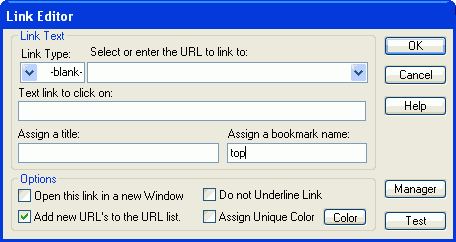
- The only thing you need to enter is the name of the bookmark -- here I use the name 'top' all in lower case. Leave the link type -blank- as I have done. The image above shows my Link Editor settings.
- Click OK on the Link Editor, then the Save and Close button on the Text Editor.
- Move the text object to the left of the object you want to bookmark. Because the visible part of the text object consists of just spaces, it will be invisible when you preview or publish the page. I have made mine visible at the top of this page -- just so you can see where it is.
Linking to an Anchor on Another Page
Linking to an anchor or bookmark on another page is almost as easy, except that this time you also have to specify a page name.
Link Type: -blank-
URL :mypage.html#anchor
In the example below, my page name is 'buttons.html' and the anchor name is 'delete'.
Linking to an anchor or bookmark on another page is almost as easy, except that this time you also have to specify a page name.
Link Type: -blank-
URL :mypage.html#anchor
In the example below, my page name is 'buttons.html' and the anchor name is 'delete'.
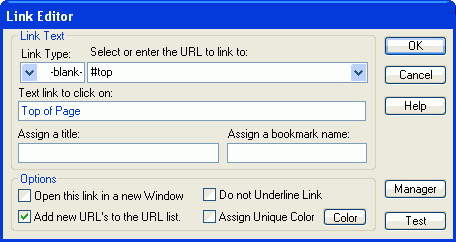
Notice the hash (#) ahead of the anchor name. All links to anchor names must have this prefix. I have positioned the resulting 'Top of Page' text link just to the right of the image. Click on it and you should go -- guess where?
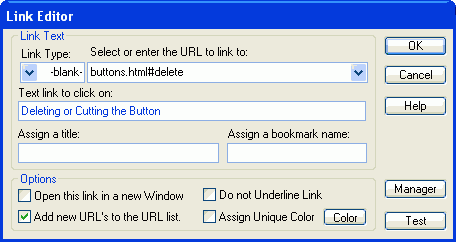
The image shows a working example to another page on this site. Again, the link is to the right. Click on it to see the result.




Haaalp! -- My Bookmark Don't Work
If you find that your bookmark does not work, here are some points to double check:When making an anchor, do not place a # ahead of the anchor name. myanchor is a valid name for an anchor, but not #myanchor. The hash goes only in links to the anchor
The Link type must be always -blank-
If linking to an anchor on the current page, the link URL has this form: #myanchor
If linking to an anchor on another page, the link URL has this form: mypage.html#myanchor
Include the file extension .html after the page name
If you make an independent anchor, make sure you really did make it. You should see its location on your workpage marked with at least a little box.
If you find that your bookmark does not work, here are some points to double check:
- If you are using an object name as an anchor, remember to include the upper case letter 'O' prefix. Your anchor name should be like
site map
site map
site map
navigation
navigation
navigation
Making the Anchor Readable
If you have a number of independent anchors, it can be hard to remember the name you used for each one. In the text editor I set a small 8pt font and select "Make HTML Links Visible". Such anchors are still of course invisible on your published page. But sizing the anchor so that, when in workpage view, you can see the name makes it easier when you later want to make link to that anchor.
If you have a number of independent anchors, it can be hard to remember the name you used for each one. In the text editor I set a small 8pt font and select "Make HTML Links Visible". Such anchors are still of course invisible on your published page. But sizing the anchor so that, when in workpage view, you can see the name makes it easier when you later want to make link to that anchor.
Using objects as anchors
All objects have unique names. The default is a name like 'obj408' -- you will see this as you work on your page. When the code is published, this object is identified in the published code as 'Oobj408' --always identical to the object name, but with the addition of an upper case letter 'O' prefix. Save yourself some work, and use these identifiers as the anchors.
Click on the object you want to use as the anchor. The drop-down object list at the top of the workpage tells you the object name. You can also find the name by looking in the Quick Editor or the Object Editor. Your object will have a name like 'obj408'. The corresponding name for the anchor will be 'Oobj408'. You may wish to identify objects used as anchors by giving them a special name. e.g. 'anchor1'. In this case the anchor name will be 'Oanchor1' -- add the upper case letter 'O' prefix.
Remember this anchor name with the 'O' prefix -- you will use this when you make the link.
All objects have unique names. The default is a name like 'obj408' -- you will see this as you work on your page. When the code is published, this object is identified in the published code as 'Oobj408' --always identical to the object name, but with the addition of an upper case letter 'O' prefix. Save yourself some work, and use these identifiers as the anchors.
Click on the object you want to use as the anchor. The drop-down object list at the top of the workpage tells you the object name. You can also find the name by looking in the Quick Editor or the Object Editor. Your object will have a name like 'obj408'. The corresponding name for the anchor will be 'Oobj408'. You may wish to identify objects used as anchors by giving them a special name. e.g. 'anchor1'. In this case the anchor name will be 'Oanchor1' -- add the upper case letter 'O' prefix.
Remember this anchor name with the 'O' prefix -- you will use this when you make the link.
Placing an anchor in your text
Normally you will bookmark a paragraph. So my bookmarks are often just ahead of the paragraph heading or the opening word of the paragraph.
While inside the text editor, start as you would if you were making a link. There are a number of ways to do this. One way is to place the cursor just ahead of the anchor point and press CTRL+i (Insert Link). The link editor window should appear -- see the next image:
Normally you will bookmark a paragraph. So my bookmarks are often just ahead of the paragraph heading or the opening word of the paragraph.
While inside the text editor, start as you would if you were making a link. There are a number of ways to do this. One way is to place the cursor just ahead of the anchor point and press CTRL+i (Insert Link). The link editor window should appear -- see the next image:
- Leave the 'Link Type:' field -blank- as I have done
- Make sure the other field at the top -- 'Select or enter the URL to link to:' -- is blank
- Enter the bookmark name in the 'Assign a bookmark name:' field. I used the name 'top' all in lower case.
- Click OK on the Link Editor, then the Save and Close button on the Text Editor.
Anchor Summary
As detailed above, there are three ways to make anchors:
As detailed above, there are three ways to make anchors:
- Use the object name with a capital 'O' prefix
- Embed a special link in your text
- Make a special invisible text object and embed a special link in that
Link Tangles
Sometimes you can get into a tangle with links. If that happens, select the main menu Options > Expand Hyperlinks or the toolbar icon 'Make HTML links Visible' This will make everything visible so that you can easily delete any junk.
When expanded, a valid anchor will look like this:
<a name="top"></a>
A valid link to a bookmark will look like this:
<a href="#top">Top of page</a>
Sometimes you can get into a tangle with links. If that happens, select the main menu Options > Expand Hyperlinks or the toolbar icon 'Make HTML links Visible' This will make everything visible so that you can easily delete any junk.
When expanded, a valid anchor will look like this:
<a name="top"></a>
A valid link to a bookmark will look like this:
<a href="#top">Top of page</a>
Watch for Overlayed Links
Check that your link is not hidden behind other text objects. This is easy to do -- the background of text objects is usually set to 'no color' -- transparent. If you have a link under the transparent background, it will look normal. But while it will work in some browsers, it won't work in others. You can hover your mouse over the link, but you will not get the cursor symbol that denotes an active link (usually a hand).
There are three fixes -- either move something, or bring the link to the top. If that does not work, try redoing the link again from the beginning.
To demonstrate, here is a 'top of page' link that I have placed deliberately under some blank lines at the end of this text object. It will work in IE6, but not in some other browsers. (Firefox, Netscape and Opera.)
Check that your link is not hidden behind other text objects. This is easy to do -- the background of text objects is usually set to 'no color' -- transparent. If you have a link under the transparent background, it will look normal. But while it will work in some browsers, it won't work in others. You can hover your mouse over the link, but you will not get the cursor symbol that denotes an active link (usually a hand).
There are three fixes -- either move something, or bring the link to the top. If that does not work, try redoing the link again from the beginning.
To demonstrate, here is a 'top of page' link that I have placed deliberately under some blank lines at the end of this text object. It will work in IE6, but not in some other browsers. (Firefox, Netscape and Opera.)