Color Reduction
By reducing the number of colors used in gif or png8 images, you can seriously reduce their file sizes, at the same time making very little difference to their appearance.
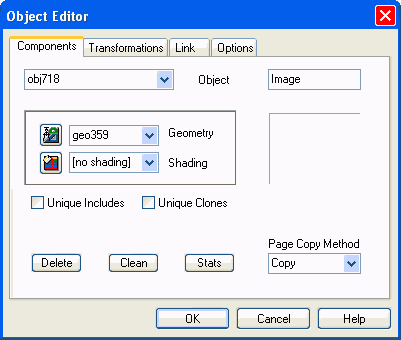
Here is a screen image, reused from elsewhere on this site. I'm saving bandwidth here -- better practise what I preach! By reducing the number of colors, I have been able to drastically reduce the file size of the image from what it was at first.
Png produces excellent quality on photos, but it results in files that are 5 to 10 times bigger than the equivalent jpg. For this reason, never, never use it for thumbnails. On the other hand, png has better quality for titles and line drawing. Often there is not much visible difference between that, png 8 and gif. In that case choose the format that gives the best appearance for the least file size.
Png8 Whenever you can, use png8 in preference to the other formats. This is likely to be the most compact. Because it is limited to 256 colors, you will not get the smooth graduation of color that png gives. If you can use png8, it will likely give an image that is at least 50% smaller in terms of file size than the equivalent png.
This does not seem to happen though if you allow SiteSpinner to create the png8. There, it always seems to set a 256 color palette, and that can often be worse than its native png format. (SiteSpinner V2.50f)
Bmp Do not use bitmaps unless you have a special reason for doing so. They are extremely inefficient in terms of file size.
Jpg Quality Reduction
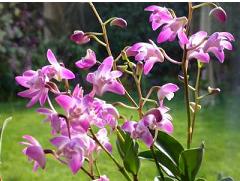
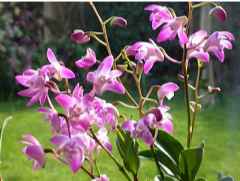
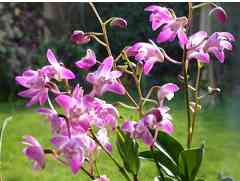
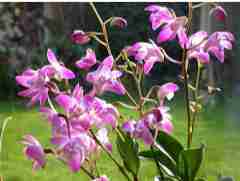
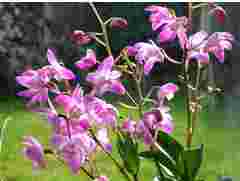
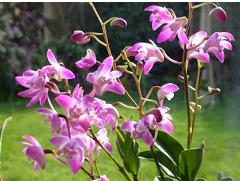
The following sequence shows the effect of reducing the jpg image quality on file size.
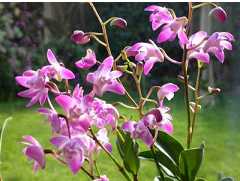
Also I made an image of the same dimensions in each of the following formats. In terms of appearance each one looked identical to the 75% quality jpg above. Repeated on the right.
png 90.4K
gif 37.8K
png8 33.3K
By comparison the equivalent jpg is 13.5K.
Transparency
All images are rectangular in shape, but you can disguise that by using transparency. If you want transparency, you must use either gif or png8 formats.
The examples below show the effect of designating a transparent background. To illustrate, here is the little 'you are here' arrow used on this site, On the left, the arrow has white as the designated transparent color. On the right, is the re-rendered image without transparency. Opaque white superimposed on white looks fine, but not so good on a variable color background.
Image Viewer/Editor
If you don't already have a good image viewer/editor, I recommend the freeware Irfanview. This has many capabilities that I will never use, but most of those I do use. e.g.
- Screen Capture
- Cropping
- Format Conversions
- Palette Reduction
Gif Optimizer
There are many gif optimizers on the web, but not many free ones. Here's one that I find adequate: Trout's Gif Optimizer. I find the scrolling banner irritating, what the heck, it's free -- although the author would like to receive some money. If you know of a better one, please let me know. I do find that reducing the number of colors with Irfanview, gives the best reduction. But a gif optimizer can quite often shave off a few more bytes.
JPG Cleaner
Jpg images may have text and other information in them. This may include details such as camera exposure and the like -- all very useful stuff for the photographer but it will seldom be useful on the web. When you reduce the size of an image, the image processor may copy that extra information into the smaller image. There should be a setting to control that. A file I looked at taken with a Nikon Coolpix 4500 camera was 1.3Mb in file size. The junk occupied 34K. You do not want that same 34K of overhead when you reduce that image to say 50K! Fortunately, if SiteSpinner does the image reduction, it automatically removes the junk -- however this is a trap to watch for in images you create externally.
I have seen images on the web with this junk in them, so if you are reusing such images, be aware that it may be present.
Jpg Cleaner is a useful utility to clean up or check such images, and guess what? It's free too!
It started life as a screen capture, and the initial save was as a png at about 22K file size. I progressively reduced the number of colors to get the final image, now a png8 in 16 colors, with a file size of 3.66K. Although there are noticeable color differences compared to the original, I feel they are acceptable.
This little arrow is in 2-color gif format. Although I tried png8 format, I found it to come out larger -- about 190 bytes compared with 168 for the gif. From that and a few similar examples, I conclude that gif gives better results for small images with a very limited range of colors. (Like 8 or less)
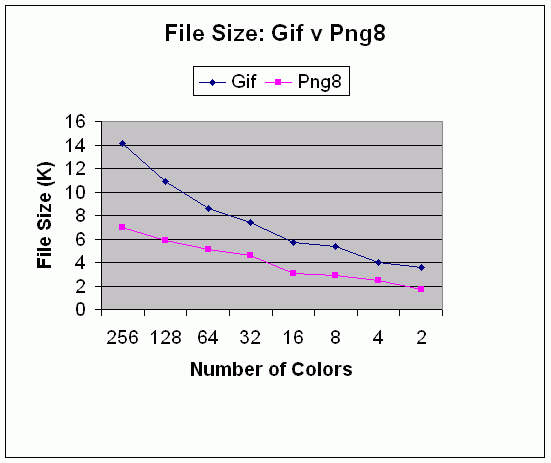
The above graph shows the effect of reducing the number of colors on file size. I started with a png with 256 colors, very similar to the Object Editor screen shot above, and progressively reduced the number of colors, saving the image in both png8 and gif formats at each stage. Of course, by 8 colors and less the appearance was seriously degraded -- but for this test, I ignored that fact.
The graph shows that, at least for images like that, png8 gives significantly smaller file sizes than the equivalent gif.
Format for Titles
Don't forget that simple text can make a quite acceptable banner, with very little overhead. What little there is, is in the html of the published code. And there is of course no image file. There is a simple text banner at the head of this page.
For the following examples, I have made rendered titles, although simple text would be a better choice. We'll start with the biggest file size and work down to the smallest. All these images were made within SiteSpinner.
580 bytes Gif reduced to 8 colors
676 bytes Gif reduced to 16 colors
545 bytes Png8 reduced to 16 colors
438 bytes Png8 reduced to 8 colors
On my browser, the title in text looks the sharpest of them all. The reason for this is that operating systems like Windows XP often use anti-alias for font display. (Depends on your Windows settings.)
You can make substantial further reductions in the rendered titles by reducing the number of colors. For example, a png8 like the one above has 256 colors in its palette, including red and lime green -- many colors which do not even show in the actual image! SiteSpinner does not do any optimizing here.
So I have taken the png8 and run it through my image editor with the following additional reductions
My conclusion is that for this particular image, 30% quality gives the best reduction for the least destruction. That is, it gives a good reduction in file size without impacting too much on the image quality. Your images will be different, so don't rely too much on the 30% arrived at here.
359 bytes Png8 reduced to 4 colors
225 bytes Png8 reduced to 2 colors, unacceptable
322 bytes Gif reduced to 2 colors, unacceptable
478 bytes Gif reduced to 4 colors
For these examples, the 2 color versions are unacceptable because the jaggies become excessive. Remember the way anti-alias works to smooth the edges on a black and white image is to place shades of grey along the edges. Obviously when you allow just two colors, black or white, those greys disappear and with them the anti-alias.
My preference on these examples is to settle for the 8 color png. Compared to the original png, the filesize is one third of what it was before but without any loss of quality.
Conclusions
Choose the correct format for the images you want to display. Applying all the factors above, you can arrive at images which are perhaps a tenth the file size they might have been otherwise.
- Jpg is a clear best choice for photographs
- Png8 is a clear best choice for rendered titles that you massage yourself
- Don't rely on SiteSpinner to produce compact png8 images
- Where your title has more than 256 colors, Png, or possibly jpg can be a better choice.
- Gif is the only choice for animation.
- If you use Png8, consider reducing the number of colors in the palette.
- Don't overlook the use of text objects for plain titles.
Grouping and Re-rendering
If you end up with a banner which consists of several objects, consider making a permanent group of all those objects. Try re-rendering. This will make a single large image out of all the bits and pieces. You may be able make some further small savings. If you have not already optimized the individual images, optimizing after Grouping and Re-rendering should give large savings.
1.04K Jpg quality 10%, Unacceptable
0K Text creates no image file