Saving as a Transparent GIF in MS PAINT
Ah, yes, I am finally sharing my secret. The supply list for this tutorial is fairly short, all you need is:MS PAINT
A Doll
Please note that throughout this tutorial, I have zoomed in at 2x. Also, if you are not familiar with the tools in ms paint, please go here to see what is what!
STEP 1
Now, to get started, first thing you have to do is make the background of your doll all one color, like so (i'm using a doll I made with my teenie drag and drop, but usually I am doign this with hand drawn dolls):

I used 100% green, or lime green, to fill in the background, because I didn't use that color anywhere on the doll. Fill in all parts that you want to be transparent.
STEP 2
Save the Image as a GIF:


Go to "File" and then select "Save As." When the box comes up, make sure that the option selected underneath the file name is "gif" (as shown). Some versions of MS Paint do not allow the saving of GIF images, if yours doesn't, stop here becuase this tutorial won't help you. Saving as a gif will most likely mess up the colors, but there is nothing to do about that.
STEP 3
The actual Transparent Background:
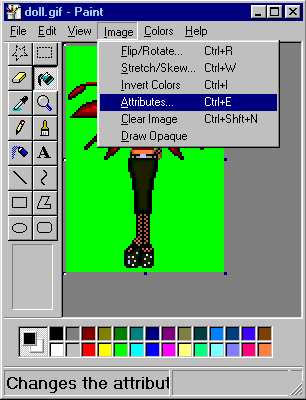
Click "Image" And Select "Attributes"
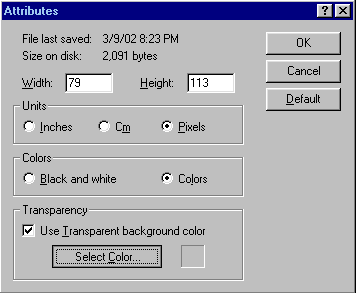
Check "Use transparent Background" and then click "Select Color."
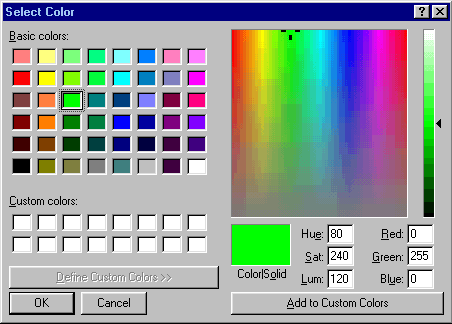
Select the color you used to fill in the background of the doll. I chose the Lime Green (100% green) because that is the color I used. Click "OK" when you're done. This will take you back to the Image Attributes screen. Click "OK" here as well.
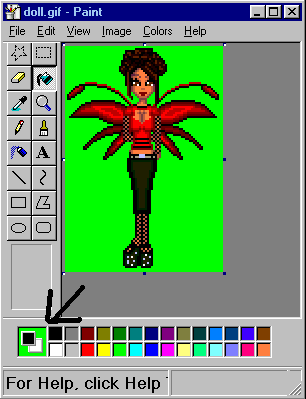
The background color that you used will appear behind the colors, as indicated by the arrow. Save the image again, and you should end up with this:
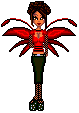
If you did all this right, you should be all set!!!!!!!!!! I do not use this particular method anymore, but it worked at first. I would edit the gif- changing the skin color after I'd saved it as a gif, and that would work sometimes so t hat it didn't look so ruddy. Now I use Ultimate Paint to save my gifs before I make them transparent in paint. I hope this tutorial helped!!!! If it did, feel free to link me ;)
This page and all its content is © Tudor Doll Company. Unauthorized use of its contents is prohibited!

