- Removing & Advanced Options
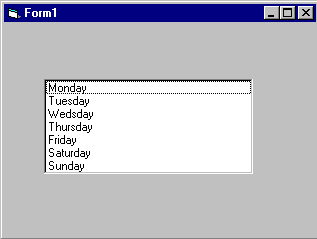
Note: They appear in the order they were typed if you changed the properties window by changing sort order = true then they will go into alpaetical order. List items can be added and deleted all the list is counted as the order they are in so for exapmple if you wanted to delete "Tuesday" you would type
list1.RemoveItem 1
And to add to the list in a paticular order just add
list1.additem "My Day", 5
This will be added after saturday.
And finally to clear the lisbox type
List1.clear This will completly clear the contence of the listbox.
Note: The property ListCount stores the number of items in a list, so list1.ListCount can be used to determine the number of items in list box list1.
The property ListIndex gives the index of the currently selected list item. So the statement list1.RemoveItem List1.ListIndex removes the currently highlighted list item.
Adding an item can be accomplished very neatly using an input dialog box. Try this:
list1.AddItem InputBox("Enter a day", "Add a Day")
This will open a message box and prompt you for a new day to enter this will then be added to the list index at the bottem unless you specify were it should go.
Combo boxes are of three types (0,1 and 2), setting their properties/styles determines the type. Combo boxes (style 0 and 2 ) are a good choice if space is limited, becaue the full list is displayed as a drop down list, it does not occupy screen space until the down arrow is clicked.
Picture of combo box style 0
The user can either enter text in the edit field or select from the list of items by clicking on the (detached) down arrow to the right. The drop-down Combo box, list is viewed by clicking on the down arrow. This type of combo box does not have a down arrow because the list is displayed at all times. If there are more items than can be shown in the size of box you have drawn, vertical scroll bars are automatically added. As with previous type, users can enter text in the edit field.
Drop-down List box (Style=2)
It is slightly confusing to find this control under combo box. This control behaves like a regular list box except that the choices are not revealed until the down arrow is clicked. The user can select only from the choices given, there is no text entry facility.
Note: Combo boxes of style 0 and 2 cannot respond to double click events
ÓBy Jahanzeb Khan Nartopa (Hazro)Attock