LINKS
You know what a link is right? Those are the little underlined phrases that take you to a different site or page when you click on them. You can change the colors to them with the color codes I just taught ya. Change the coding in the green boxes that say link near them...
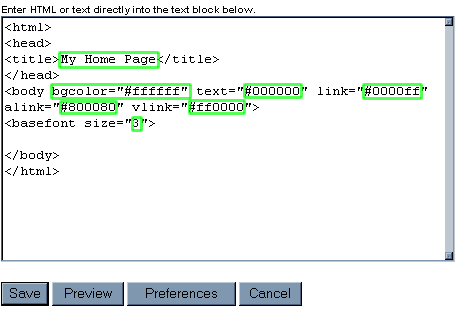
By the way, the second green box surrounds the code for the normal text's color- like what you're reading now. I changed that to #FFFFFF to make it look like this. I could've also done white, but.. didn't. Anyway, the third area surrounded by the green box is just for a regular link. The fourth and fifth areas surround the color code for active links and visited links.
Active links are links that you just clicked on. When you change the color code for that, the link turns a different color when you click on it. You'll notice my active link color is yellow. Visited links are to places you've already been. If you change the color code for that, someone who's already been to part of your site now sees that text as grey- for example whenever they see it again. But it's color still changes temporarily when it's clicked on, as an active link. Get it? *whew*
BUT REALLY, now I'll show you how to make a link instead of just rambling about it.
<A HREF="http://www.insertaddresshere.com">Insert Title of Site You're Linking to Here</a>
That's it. You might wanna have a text file in your computer you can copy and paste that from if you can't remember. And remember the </a> is extremely important. That ends the linking, so if you didn't have the </a>, the rest of your text and pictures would link to that one site. YIKES! But we'll talk about pictures and backgrounds later, now for some little text tricks..
Simple Text Tricks 
