Glitter Tutorial - Page 4
Glitter Tutorial - Page 4
Choose the folder that you would like to save this animation. Give it a name. I used the color code number as the name (#0000C0).

Click on the save button and the following dialog box will open up. Choose the quality of your animation. I usually keep it on a better quality.
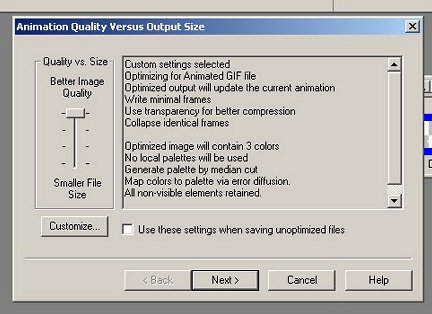
Click on the next button and you will now see the optimization process.
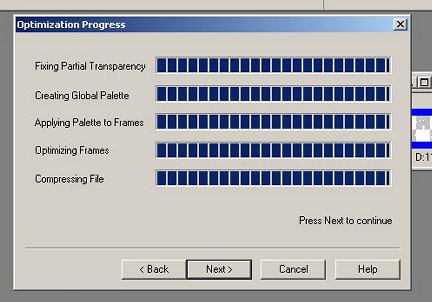
Click on the next button and you will now see your animation moving. Click on the finish button and you will now have it saved.
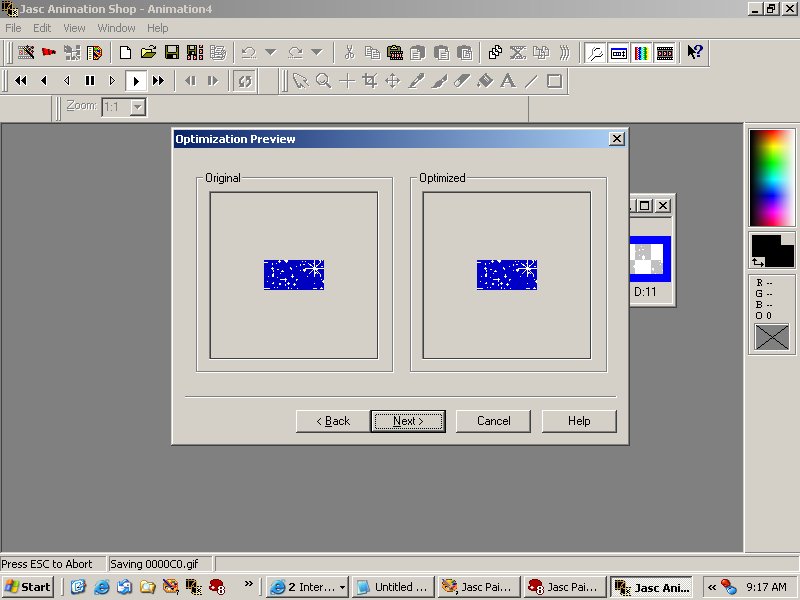
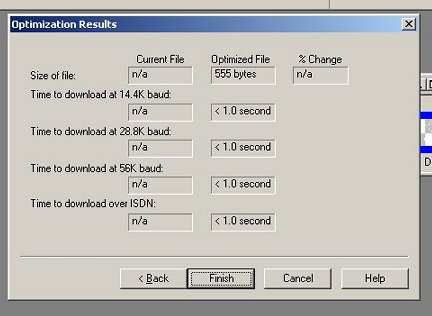
You can now see the animation that you just saved in the workspace.
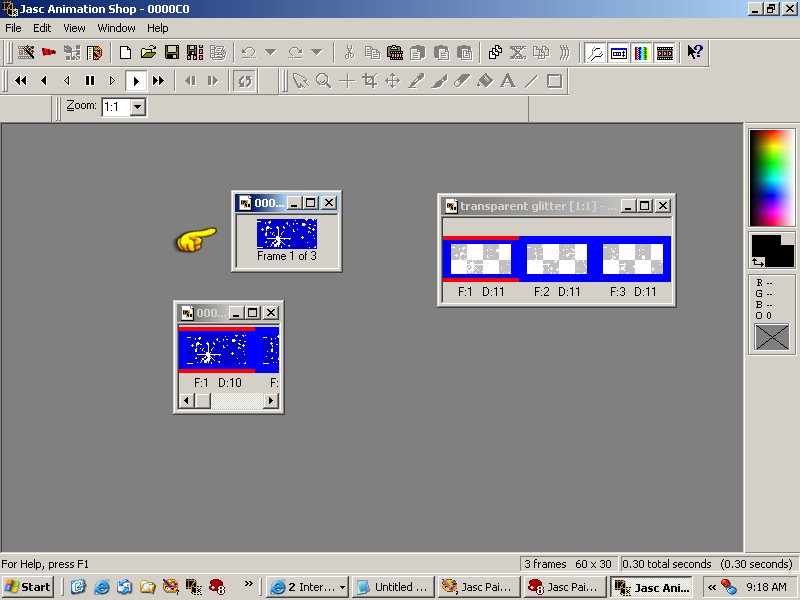
Congratulations! You just completed your first glitter animation! Now your creativeness can go wild!
Shortly I will expand the glitter animation tutorial to explain how to add a gradient background. Please come back soon.
Home

E-Mail Me

