
Now you are ready to add the text to the animation. With the text name frames active, hold down the CTRL key while pressing on the "A" letter key to highlight all frames. Now hold down the CTRL key while pressing on the "C" letter key to copy these frames to the clipboard. Now that you have done this, make the animation the active frames. Hold down the CTRL key while pressing on the "A" letter key to highlight all the animation frames. Now hold down the CTRL key while pressing the "E" key to paste these text frames to the animation. Move it to the desirable location and when you are satisfied let go of the mouse!
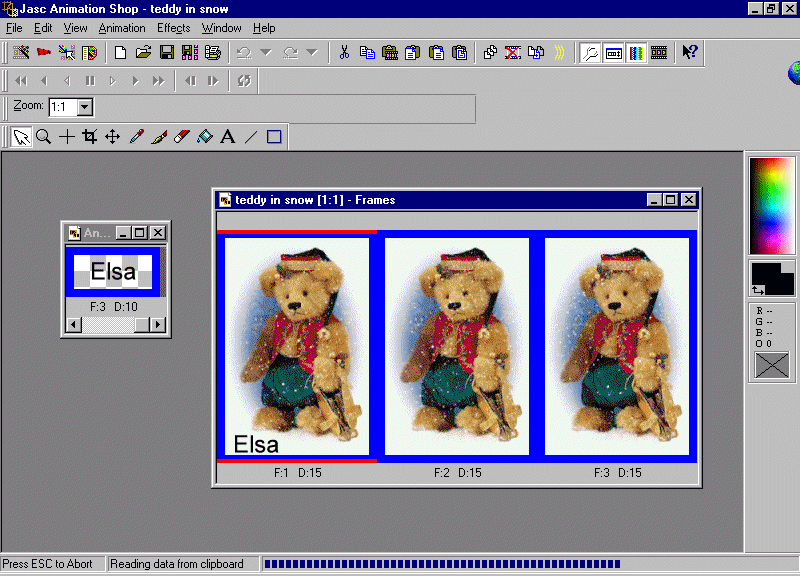
At first you will only see the name in the one frame, as above but when it completes the action the name will now be visible in all animated frames.
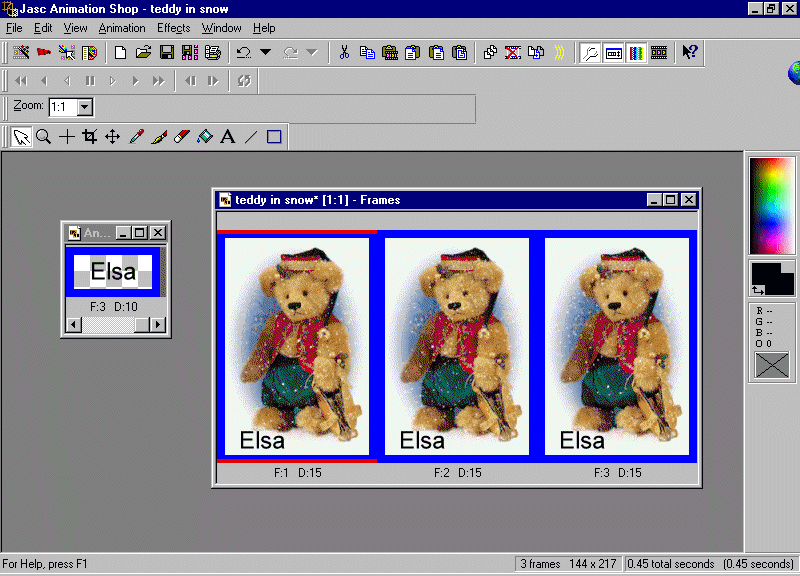
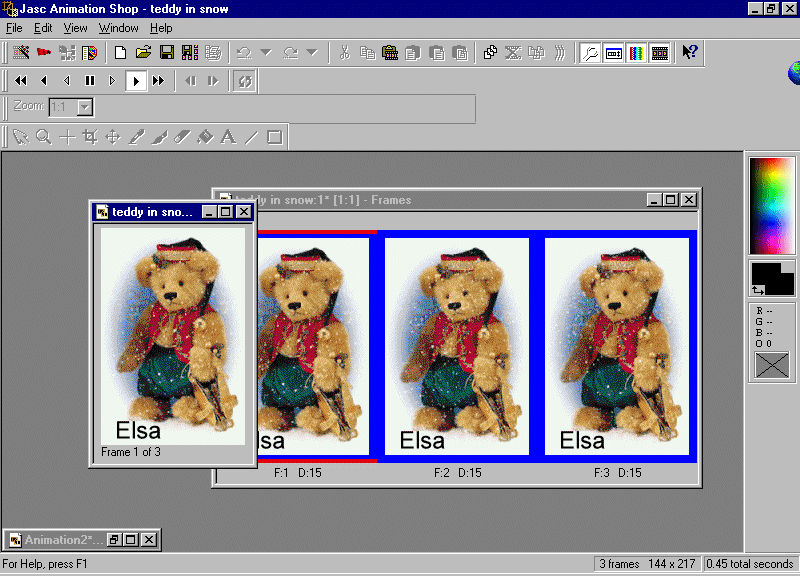
You are now ready to view the completed animation. Click on the "View Animation" icon button located on the menu bar on the right. It looks like a film strip and it is located to the left of the question mark.
From the menu bar, click on "File" and then scroll down to "Save As". When the dialog box opens up give it a name and then click the "OK" button.


