Site hosted by Angelfire.com: Build your free website today!
J-Script 2.1
[Main] [Features] [Download] [Help]

In responce to helping far to many people set up some settings in their J-Script... I made this page.  IŽve placed here some basic tips for mIRC, and some tips for J-Script, as well. Enjoy!

~Jerry

First... what you see when you open J-Script.

view of mIRC Options window
Channels right-click view

ok, youŽre on. if you right-click on the button here, youŽll get this. just chose the channel you want to join. If you left-click, you can edit the channels, and add more. the button to the right of this, is the server channel list, to get the current list from the server.

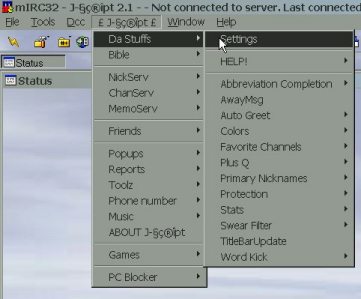
path to settings

After setting up the basic mIRC options.. you should set up the J-Script settings. Where the mouse is, now contains a collection of settings, and below it are other settings you can set.

View of Settings Dialog

This is what youŽll see, if you click where the mouse is selected, in the image above. The Primary and Alternate nick boxes are used to send your nickname password to the server, to speed up log-in time. The kick channels tell J-Script which rooms it can kick in, for flooding. And, the favorite channels, are your "quick join" channels.  just hit the F2 key and, youŽll join them.

Path to Color choices

Here are the "talkers"... you can specify a default color for your text, without having to always type the control codes. The rainbow option gives every letter a different color.. a rainbow effect (duh).

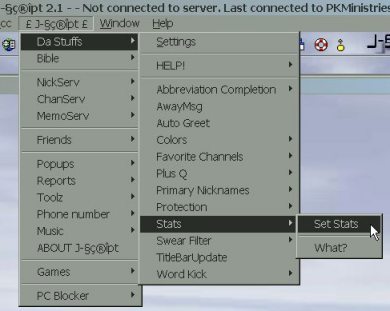
Menu to set stats
Swear Filter

Another feature of J-Script, is the "Say Stats" popup. In this menu, you can set the stats that J-Script will say.  (right-click in a room or chat and click on "Say Stats" to use this)

Another feature of J-Script (not found in any other script), is the Swear Filter. You can tell J-Script to replace swear words with ***. Sometimes it can be too sensitive, and over-react. Here is where you can turn it off.  The default setting is ON.

Menu to Abbreviation Completion

Here, you can add triggers for the Abbreviation Completion feature.  The "Color Schemes" choice allowes you to change the colors J-Script will use.

Abbreviation Completion Triggers

In the smaller box, put in the trigger.  And, in the larger box, insert the text to use. Then, click on "Add/Save".  You can edit existing abbreviations, by double-clicking in the listbox on the left.

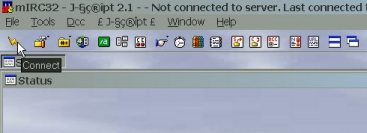
Quick Connect

If, for some reason, you get disconnected. You can click on this button to connect. When youŽre connected, the button will split into two parts. You can click on it, to disconnect, as well. The button on the right is the mIRC Options window.

mIRC Options window - Logging

By default, mIRC keeps logs of your chats. You can go back and look at them, at any time, or, turn off the logging, though the mIRC Options window.

URL List

This handy little button is the list of webpage and email addresses seen while you are chatting. Useful, if you close a window, and forget an email address. It resets the URL list, everytime you close mIRC, so.... check it often. :)    You can set it to never reset the list, though.  open the url list, right-click.. and open the Options.    ---  Oh, and the red and white circle button is the mIRC Help.  very, very useful!

All text and images ©2001 by Jerry Horn ALL RIGHTS RESERVED