
Angelfire Uploading Part 2: Creating a web folder in your computer
* Part 2 only has to be done ONCE. Thereafter, whenever you need to upload changes made to your project web, just go straight to Part 3.
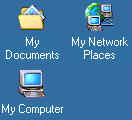
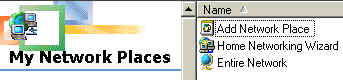
1. Double-click My Network Places 2. Double-click Add Network Place
* If your computer does not have "My Network Places", try double-clicking "My Computer" instead. Then, click
on the black triangle. You should be able to see "Add Web Folder" after doing these.
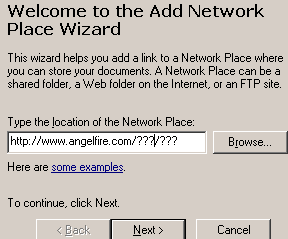
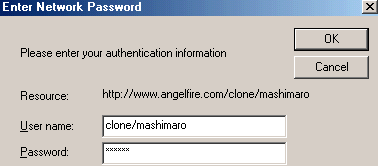
3. Type in your own website address and click Next 4. Type in your own user name and password. Then, click OK
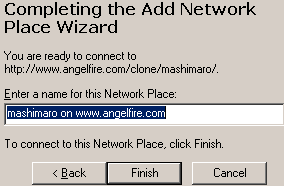
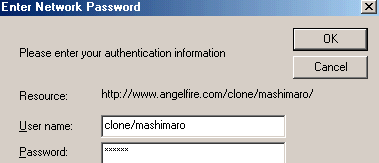
5. Click Finish 6. Type in your own user name and password. Then, click OK

7. Close the window by clicking on the X


