1) First, get rid of the default figure and choose one of the female characters.
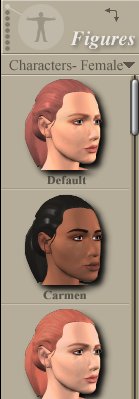
2) Now we need to get a close up of the face because this is the area we are going to apply the morphs. To do this, click on the "Face Cam" icon.

3) Double click on the face of your figure.
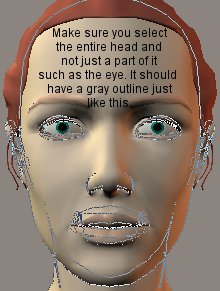
4) A new window will pop up. Click where it says "Add Morph Target".
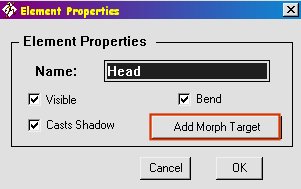
5) Now we'll need to locate the morph we want to use. Click "Locate".
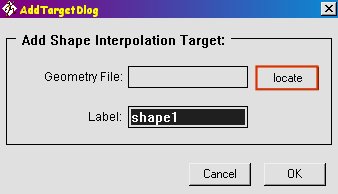
6) Look for the folder you unzipped your morphs into earlier. Choose the morph called "FemN_Dimples", and open it. Your geometry file should now show the morph name that you chose. You need to change the name of the label to reflect what the morph is. So, where it says "Shape1" type "Dimples".
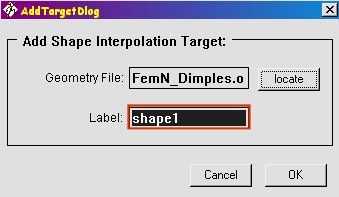
7) This is what it should look like now.
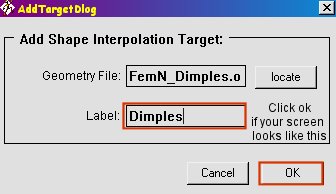
8) Now that we've told the program where to find the morph, click "OK".
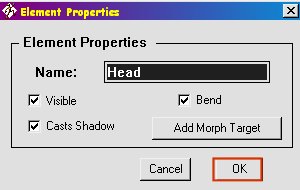
9) You should now have a new dial named "Dimples".
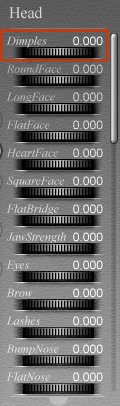
10) Put your cursor over the dial and ***slide it just a little to the right. If you slide too far, your figure will become distorted. I turned my dial to about 0.520, but you can slide it until you're happy. If you go too far, you can start over by sliding your dial back to the left until you reach 0.000
***(If you have trouble getting your dials to slide to a certain number, just double click on the percent number that is shown to the right of the dial. A small box will appear and you can type in the number that you want. You can also double click on the dial itself or right above it, and a larger box will appear. Here, you will just want to enter in the value same as you would in the small percent box that I just described.)
11) To continue adding morphs to your figure, repeat steps 3-5.
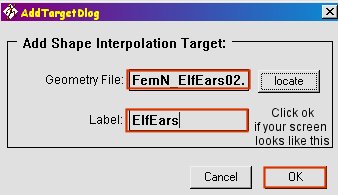
12) Follow step 6, but this time choose the morph called "FemN_ElfEars02". Change the name of the label to "ElfEars". (Don't put any spaces between the words). This is what it should look like:
13) Follow steps 8-10 and play with the new dial you just created.
14) Now just follow steps 11-13 until you've used all of the morphs that you want.
Page 3

