
Configure your Newsgroups with N.S. - Lesson4
Newsgroup setup continued
 is the icon bar you will need to identify at the bottom right corner within
Netscape. The icon we are going to be using is the Callout bubbles
is the icon bar you will need to identify at the bottom right corner within
Netscape. The icon we are going to be using is the Callout bubbles  ,
which will in turn bring up the Newsgroup configuration section for Netscape
Navigator.
,
which will in turn bring up the Newsgroup configuration section for Netscape
Navigator.  Open this collapsed area if need be, then click on Newsgroup Servers . If
you see this section appear on your screen fine job, otherwise try it again
by following the steps above.
Open this collapsed area if need be, then click on Newsgroup Servers . If
you see this section appear on your screen fine job, otherwise try it again
by following the steps above. on the right side of the open dialog box currently viewing. You will then be
asked a series of questions starting with naming the News Server as shown in
this next shot.
on the right side of the open dialog box currently viewing. You will then be
asked a series of questions starting with naming the News Server as shown in
this next shot.  This is where you would enter the name of your ISP's news server. I will
apply the new.golden.net for demonstrating this configuration with Netscape.
Please contact your ISP if you are unsure of the name they use to their news
server.
This is where you would enter the name of your ISP's news server. I will
apply the new.golden.net for demonstrating this configuration with Netscape.
Please contact your ISP if you are unsure of the name they use to their news
server.  Entered
within the field.
Entered
within the field. ,
which can remain this number. If your ISP would require a different port
number they should inform you of such a number change.
,
which can remain this number. If your ISP would require a different port
number they should inform you of such a number change. Now click OK
  and
you should see the server appear on the left-side of your screen.
and
you should see the server appear on the left-side of your screen. Highlight Subscribe to Newsgroups and another window should appear
showing/displaying a list of all the Newsgroup categories allotted on this
named server.
Highlight Subscribe to Newsgroups and another window should appear
showing/displaying a list of all the Newsgroup categories allotted on this
named server. showing
all related newsgroups, which have been actively subscribed with. It is
possible to click adjacently under the Subscribed title the newsgroups you
wish to activate and clicking again will deactivate the selected group.
Checkmark on or checkmark off.
showing
all related newsgroups, which have been actively subscribed with. It is
possible to click adjacently under the Subscribed title the newsgroups you
wish to activate and clicking again will deactivate the selected group.
Checkmark on or checkmark off.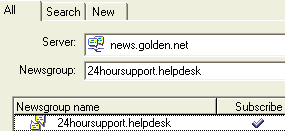

 ,
which you could also use to activate or deactivate categories of interest.
You select either method you wish to use.
,
which you could also use to activate or deactivate categories of interest.
You select either method you wish to use.On to Lesson 5
Lesson3 
 Lesson5
