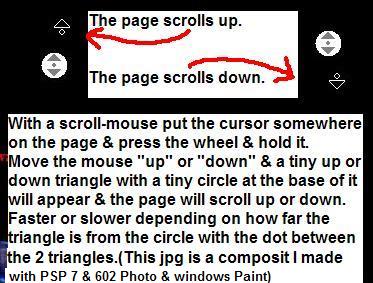
Release the wheel & the tiny triangles will go away.
This works on a maximized window & on a not-full-sized window.
It works in textareas too.
This picture below shows where the page will not go up or down.
Once you click & release the wheel once, move the mouse,on your mousepad, to the right or left a little bit to get the 2 triangles with the tiny circle between them to appear.
When these 2 tiny triangles with the circle between are to the right or left of the circle the page will not scroll.
Try it now.Press the wheel & release it & move the mouse to the right.
The page doesn't scroll.
Then up (forwards or away from you) or down (backwards or towards you).
The page scrolls up or down.
Then press the wheel & release it again to get rid of the scrolling feature.
(Or just roll the wheel one notch.)

In a full-sized window that fits your screen you can press & release the wheel to get the image below.
Notice it is darker.

When you just press and release the wheel the scrolling function becomes automatic.
Just move the triangle above or below the circle to scroll the page up or down.
Press & release the wheel again to get rid of the scrolling function.
{Or just roll the wheel one notch.}
In a not-full-sized window the circle will have 4 tiny triangles.

The instructions above work with a not-full-sized window too, except now you have 4 diagonal directions to move in plus right & left directions & the up & down directions.
8 directions to move in.
The picture below shows the bottom-right diagonal movement.
Notice the bottom scrollbar is all the way to the right and the up & down scrollbar is all the way to the bottom.

The picture below shows the top-left diagonal movement.
Notice the position of the scrollbars.
{ I Love my scroll-mouse :) }

The picture below shows the top-right diagonal movement.

Play with your scroll-mouse to get familiar with these functions.
I have a Microsoft Intellipoint 4.0 scroll-mouse & wrote these instructions using it as an example.