
|
SimsPegasus Beds Tutorial-2 - Page 5 Tutorials home |
|||
| Goal: How to insert more than one animation to your Heartbed template and make them be shown in a menu pie | |||
| What you are going to need: | |||
|
1-IffPencil 2 |
|||
|
2-Animation Alchemist |
|||
| 3-Amorphis Xmas animations , (or some animations you have , but you must know each animation name and action in this case.) | |||
| Previous Tutorial | |||
| Beds with adult animations are one of the most wanted objects so we decided to help you attach more than | |||
| one animation to them and make the object show the animation options in a menu pie in the game. | |||
| We made this tutorial with only one mail goal in mind: To help all sims players to make their own love beds. | |||
| C) Using Iffpencil 2 to make room for our animations - continues from page 4 | |||
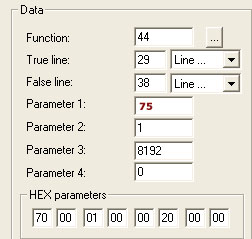
| Click on line 27
where you see is the call to animation ID 75 Take a look at the Parameter
input boxes on your right column, see ? where it says
75 you must write
112, if you take a closer look, you'll realize
it's calling line 29 (true line) and it's vibration finish, the other call
it makes to the false line goes to line 38 (we won't mess you up here by
telling you what it does lol) Ok, have your change the value to 112? Good, now you need to do the same to line 28 (where the call for animation id 85 goes) and you must change the value for parameter1, write 113 replacing the 85 you had there. Once you've done it click the OK BUTTON |
 |
||
| 9-Double click on your #4219 "vibrate interaction " and this is what you get: | |||
|
|
|||
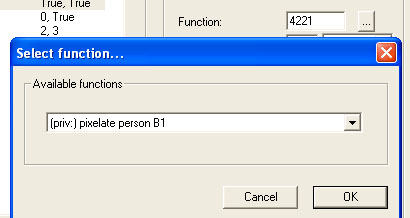
| Line 8 must be
changed, it must call to our "pixelate person B1" Click on line 8, then click on the assistant like you've done before , it's next to the function input box, you must select "pixelate person B1 " from the list . Once it's changed on the left column then you can click on the OK BUTTON,And of course click the other Ok button to get out of vibrate interaction1 and get back to the BHAV's screen. |
 |
||
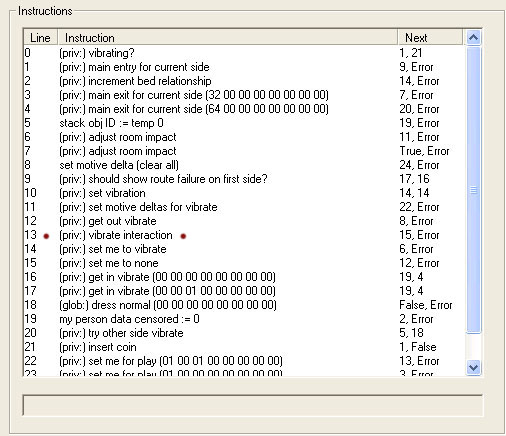
| 10-Double click on #4220 , your Interation vibrate 1 and this is what you'll get: | |||
 |
|||
| Click on line 13 , you must change this call to "vibrate interaction" to "vibrate interaction 1" | |||
| Use the assistant next to the function input box in order to get the list where to select this function., Once you've got the vibrate interaction 1 , you can click on the Ok button. And of course click the other Ok button to get out of pixelate person B1 and get back to the BHAV's screen. |
 |
||
| 11- One more to go! , double click on your #4221 "Pixelate person B1" and you'll see this: | |||
 |
|||
| We've pointed in red here lines 27 and 28 , remember we've done something similar before? | |||
| Click on line 27,
change the parameter1 value and write 112 replacing the 75 you have now.
You also need to change for line 28 click on line 28 , the parameter 1 value to 113, come on' do it!, well done!!!. Ok button please? |
 |
||
| Good news!, you're some steps from the end of the tutorial!!, Now we have to set our menu pie, if you've done all we are teaching you here , then the menu thingy is a piece of cale, hold your breath and join us going to our next page. | |||
| Previous Page | Back to SimsPegasus | ||

