Windows Paint Tutorial
There will be lots of screenshots in this tutorial.For ease of studying it,right click each picture link and choose,"Open in New Window".
If you are ever in a library where there is no link to Paint & you have a thumb drive you can use the online text editor on my Index Page to create an html file that will give you access to Paint.Here is the code:
<html> <body> <a href="C:\WINDOWS\system32\mspaint.exe">PAINT</a> </body> </html> Save it as paint.htm
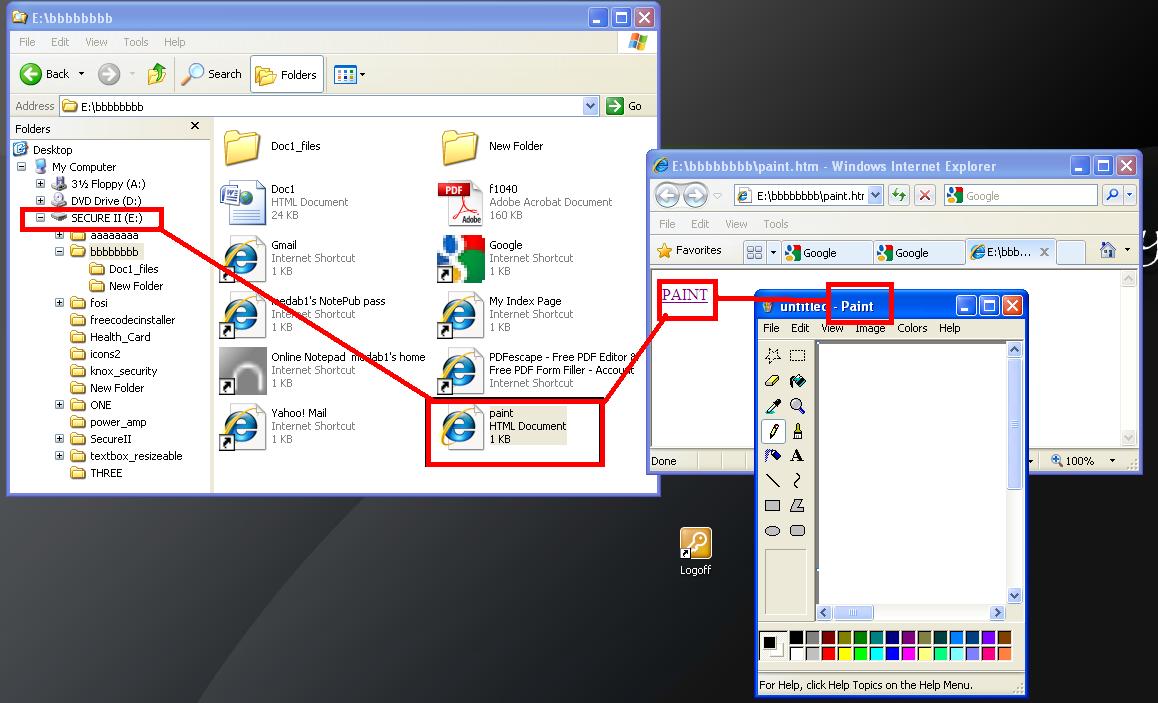
Download ACTUAL shortcuts (.lnk) to Paint and Notepad and a Notepad Batch file here
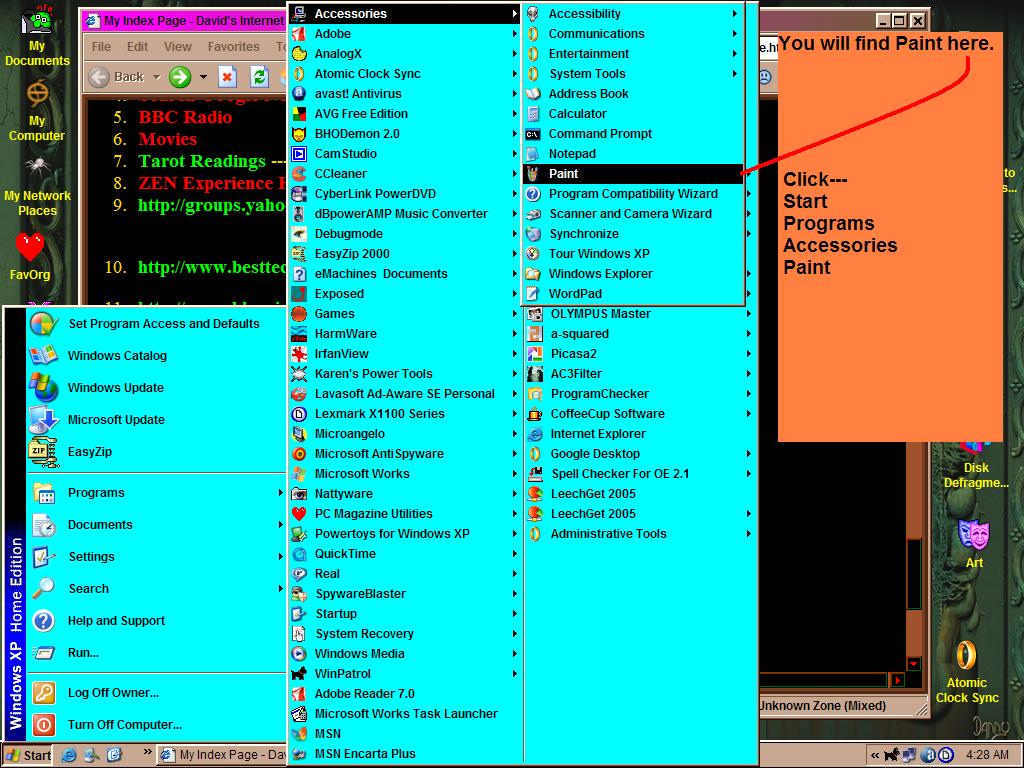
- Click Here To See How To Find Windows Paint
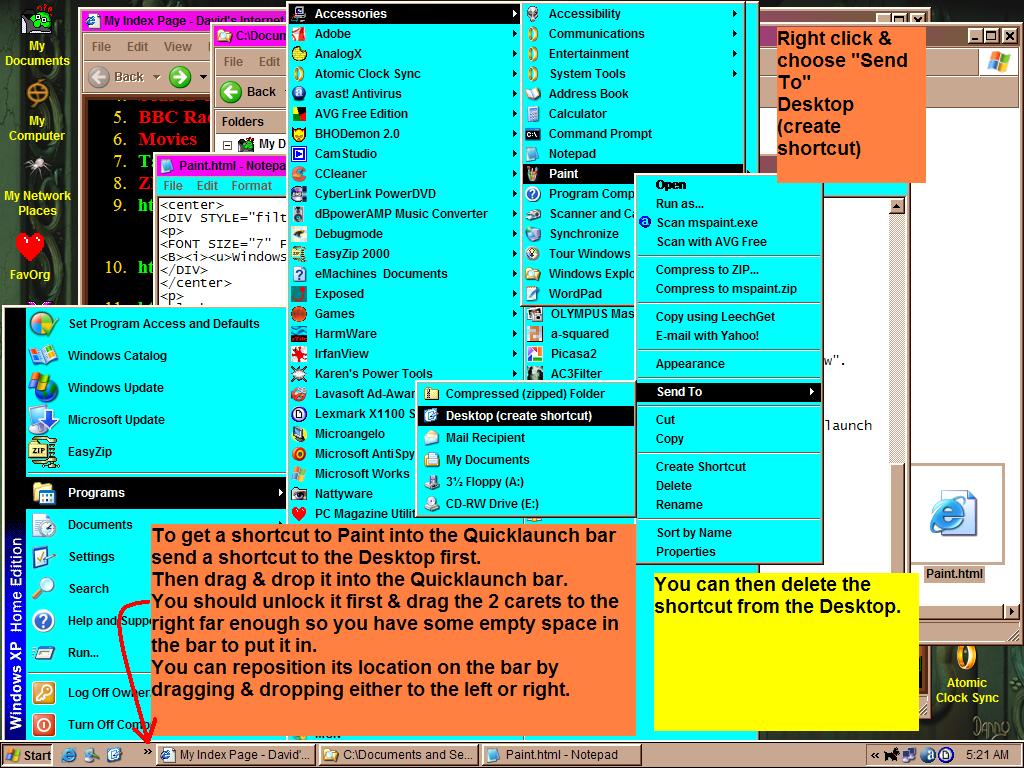
- Click Here To See A Shotrcut To Windows Paint In The Quicklaunch Bar
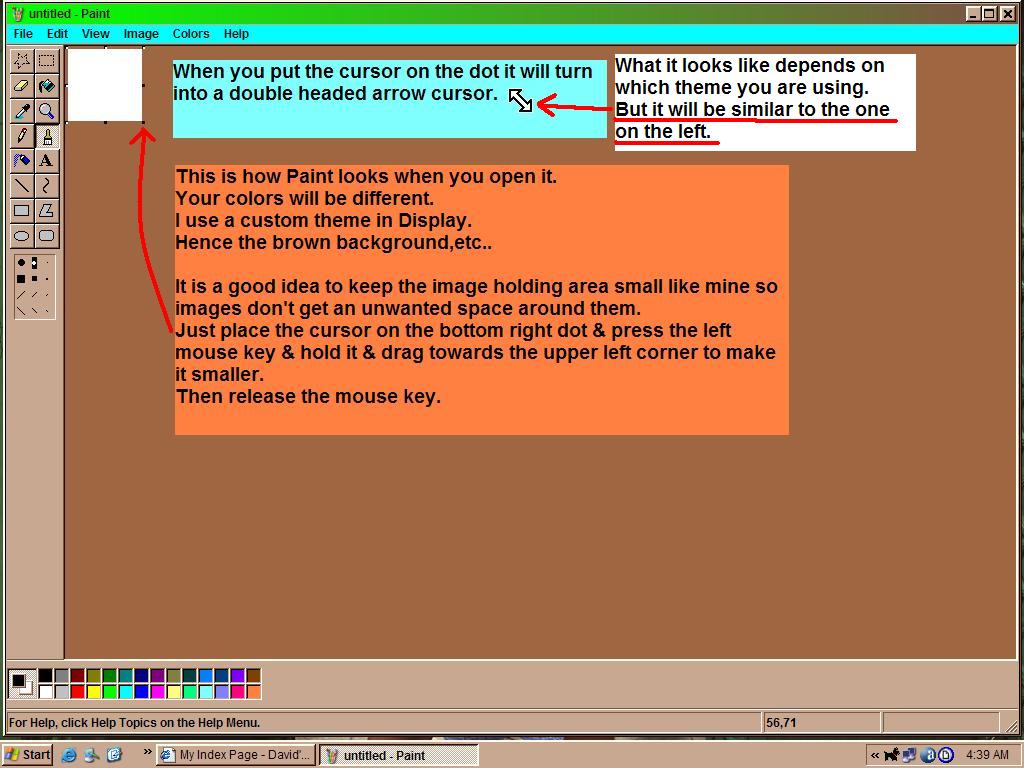
- Click Here To See How To Resize The Image Holding Area
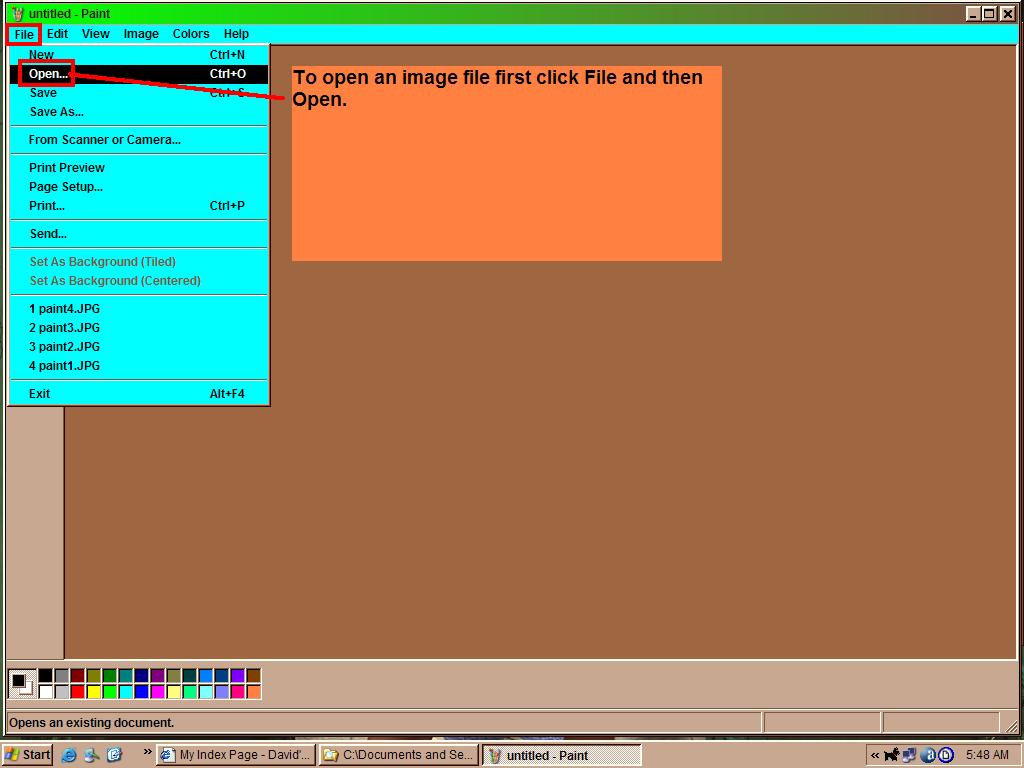
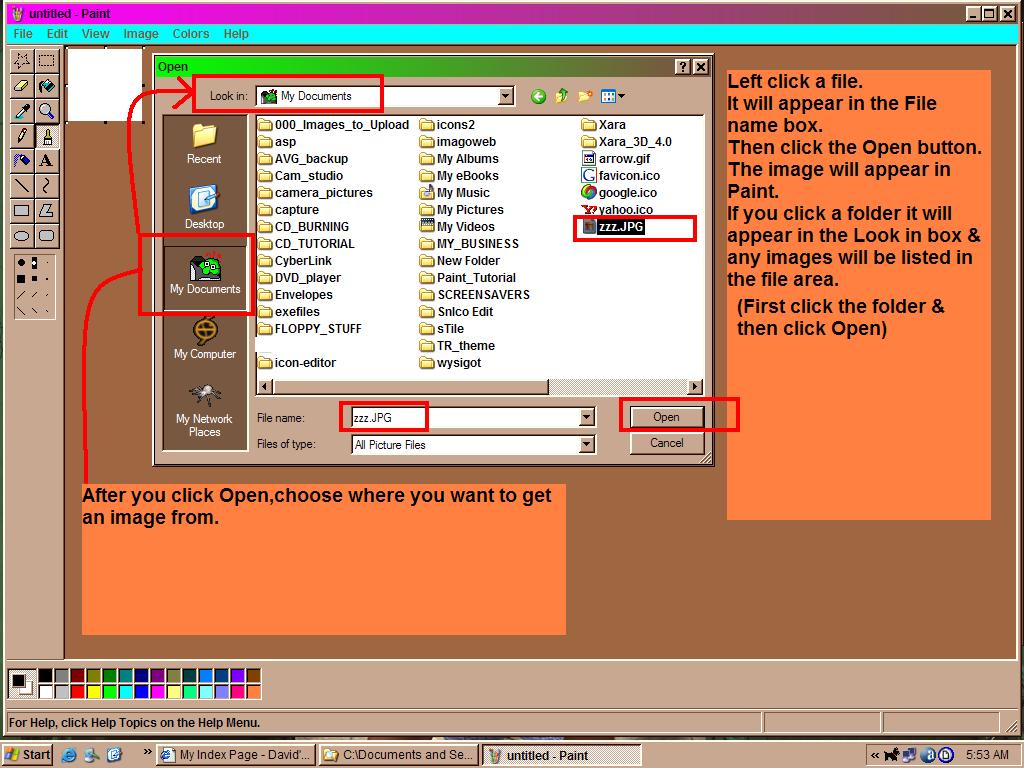
- Click Here To See How To Open An Image File
- Click Here To See The Next Step In Opening An Image File
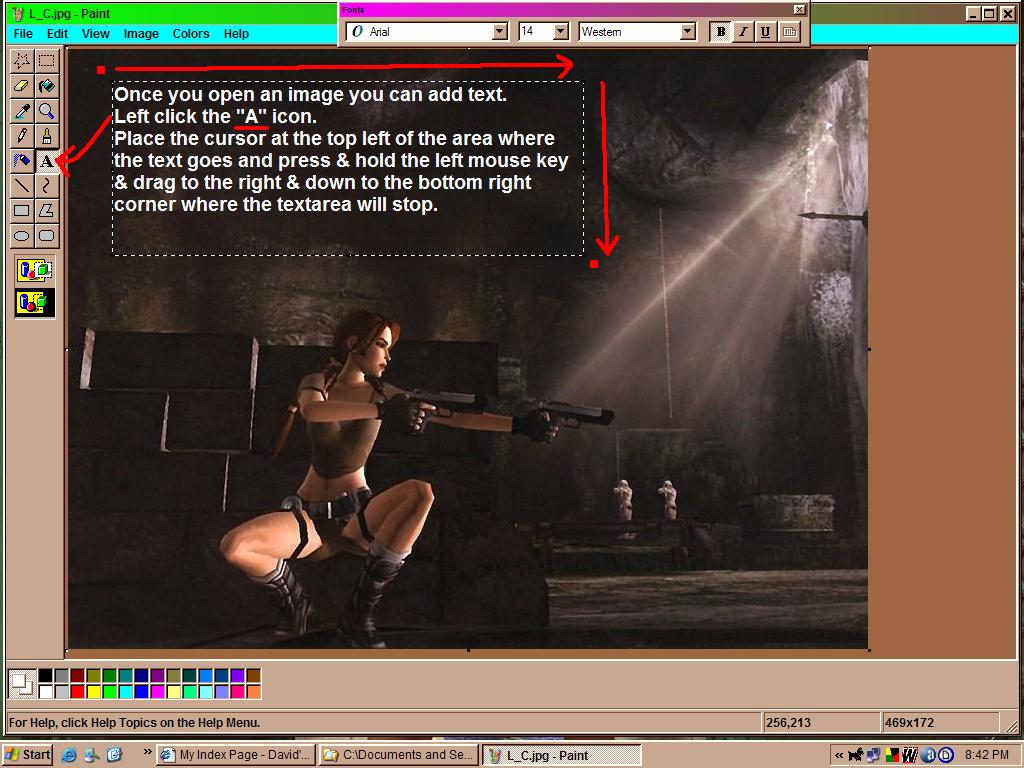
Adding Text
- Click Here To See Selecting The Textarea
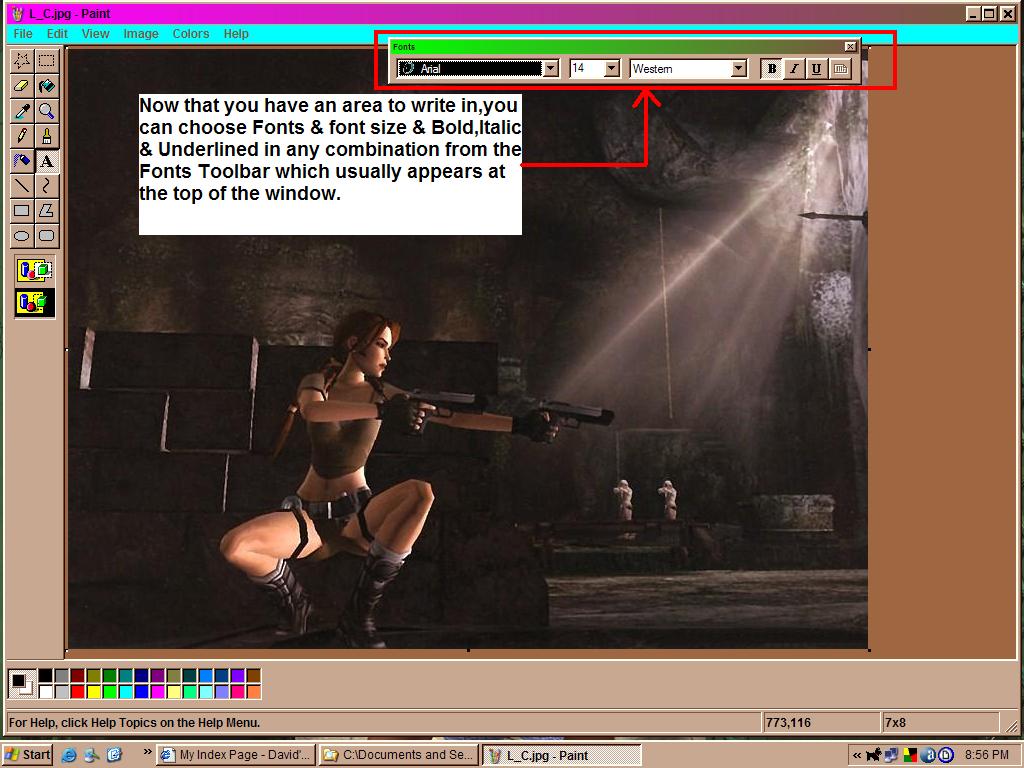
- Click Here To See Choosing Fonts
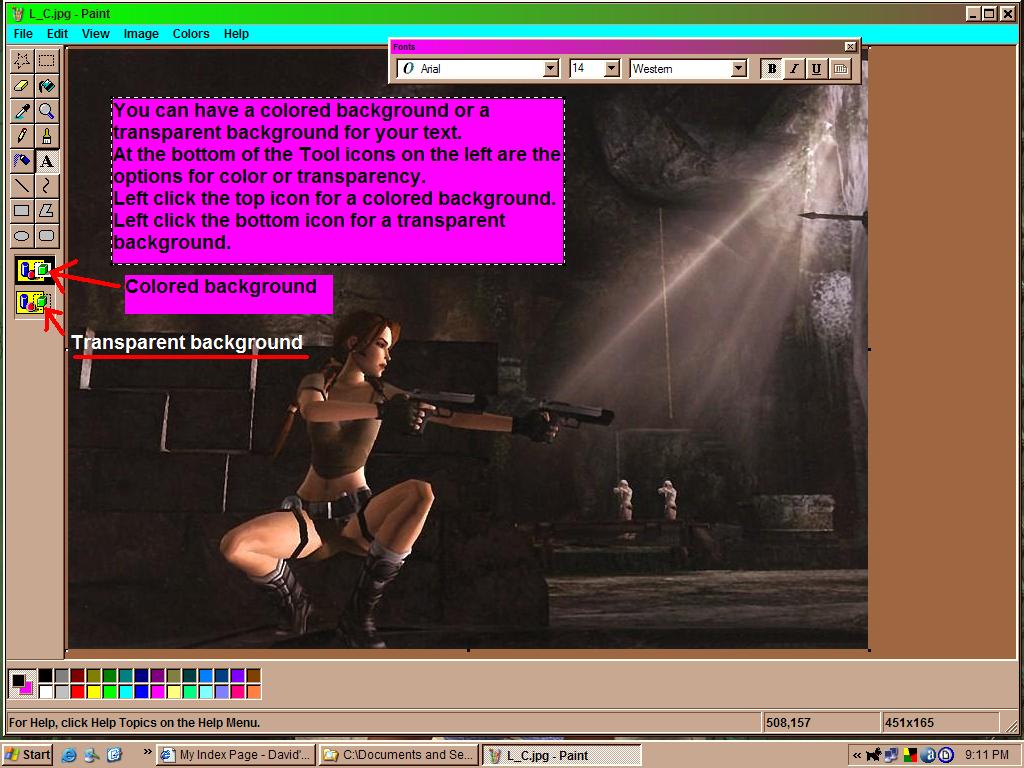
- Click Here To See Choosing A Colored Or Transparent Background
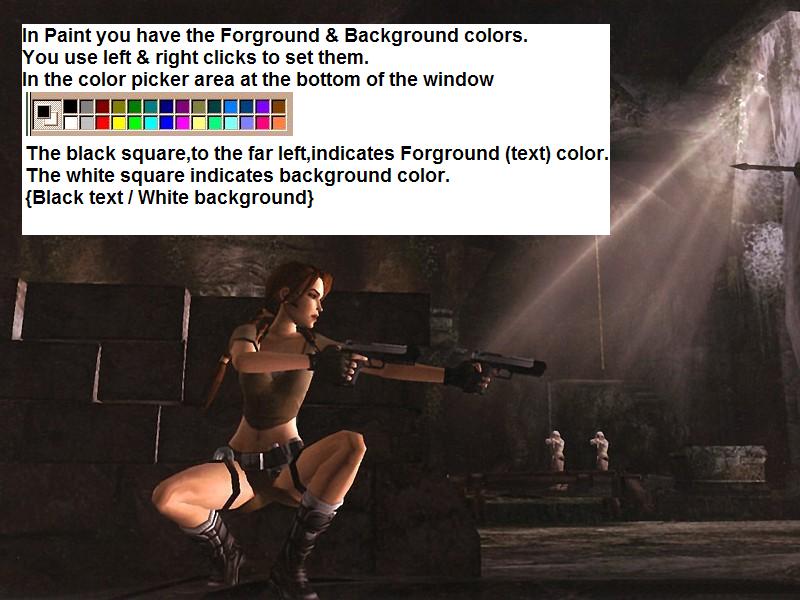
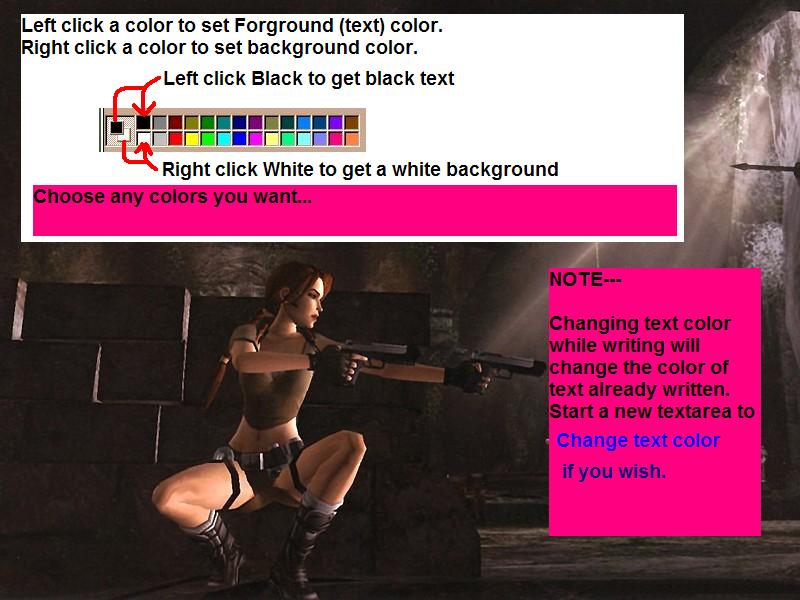
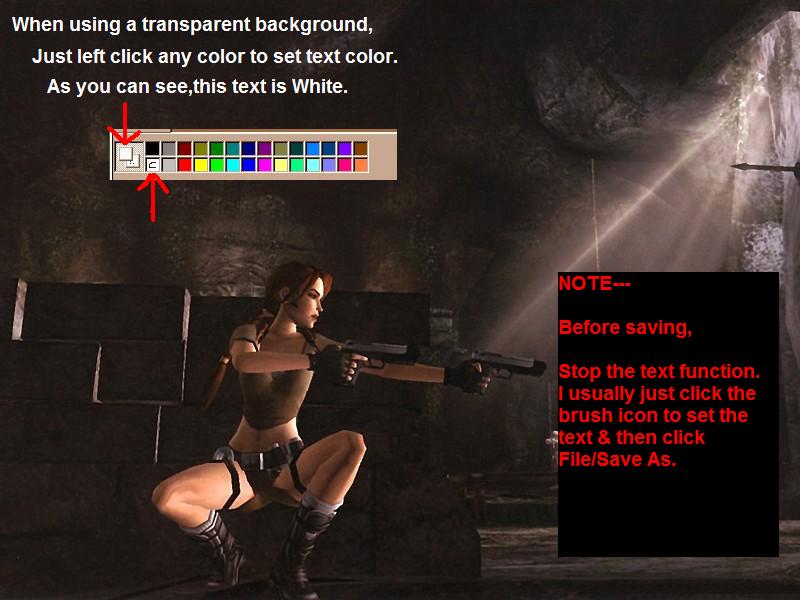
Selecting Text And Background Colors

- Click Here To See Forground & Background & Color Picker
- Click Here To See Setting Text & Background Colors
- Click Here To See Setting Text Color With A Transparent Background
Drawing Lines & Shapes
- Click Here To See A Little Bit About Drawing Lines & Shapes
I will add more later to this tutorial when I get time.