
Understanding Front Page Express
Howdy Folks, Nice to see you back wif me. Do y'all know you have completed half da task of havin a web page? You sure enuff Have!! We have three more parts to go and You are on da net!! Dis part is learning some basic stuff yer' in FrontPage Express and da next part is gonna be Creating Your web page in Front page Express. Da last part is Uploading it to Angelfire :-)
I know y'all are anxious in gettin starting but let's make tings just a heap easier by makin a shortcut on da desktop for FPExpress. Relax darlin, cus dis can be done in less dan 5 minutes and it will save ya time later.
Create a shortcut for FPExpress:
1. Right click on da
desktop---> Select, "NEW"--->
Select, "Shortcut" 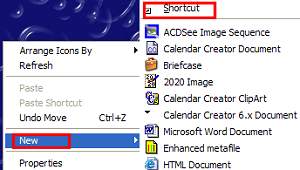
2. Click on "Browse" 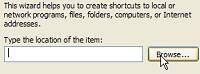 Click on the "
+" in front of, "My Computer". Click on
the, "+" in front of," C:| "and
browse to," C:\FPExpress". Click on the the, " +
" in front of," FPExpress" and click on the
folder, "Bin" to open the folder. Now, double click on,
"FPExpress"---> Click, "OK"
Click on the "
+" in front of, "My Computer". Click on
the, "+" in front of," C:| "and
browse to," C:\FPExpress". Click on the the, " +
" in front of," FPExpress" and click on the
folder, "Bin" to open the folder. Now, double click on,
"FPExpress"---> Click, "OK"
3. Now you will see the target
path for FPExpress. Click, "Next" 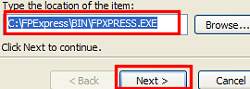
4. Type the name, "FPExpress" and click "Finish" 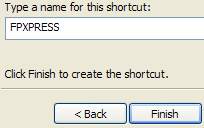
5. On Your Desktop, you will see
the Shortcut for FPExpress 
Using Front Page Express
Preparations:
For our First Webpage, we want
the page to be as simple as possible so the page will load fast.
We need to get organized by having the files we need for the main
webpage in the folder, "C:\Angelfire\Index".
Here is what you will need:
A. Muted background image
B. Wav for your music
C. Email image
1. Click on the Shortcut to Open FPExpress
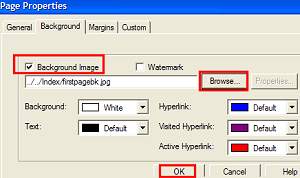
2. Background Image : To insert a background image, go to Format--> Background-->Select the tab, "Background". Put a check by, "Background Image" and click on "Browse". Browse to the folder, "C:\Angelfire\Index". Select the Muted background image. Click, "OK" to select it.
*** Optional***
You can change the "Background, Text, Hyperlink, Visited Hyperlink and or Active Hyperlink colors to match the Color Scheme of your web page. You can also "watermark" the background image by placing a check by, "watermark"
3. Adding Text: If you can use Outlook Express, you can use FrontPage Express because the Tools are basically the same :-) Just Highlightlight the text and make the changes for the Font, size, and Style. If you type some text and you want a word larger, highlight the text and select the on icon to increase the Text Size (#3)
 |
| 1.Change Style: 2.Change Font 3.Increase Text Size 4.Decrease Text Style 5.Bold 6.Italic 7.Underline 8.Text Color 9.Align Text to left 10.Alight Text to Center 11.Align Text to Right: 12:Numbered List 13.Bullet List 14.Decrease Indent 15. Increase Indent |
Well darlin, y'all know as well as I know, there is a bunch more to learn about FrontPage Express than what I showed ya here but we are gonna learn more on the next step where we are gonna create our First Webpage :-) Why don't ya git up a spell and stretch dem muscles and git yurself sumptin ta drink while you tink about whatcha gonna put on your Main Web page?
To go to da Next step, click on the link below to Create Your First Web Page
EMail me if you need help Undertstanding the Basic Tools in FPExpress
