
 |
||||||||||||||||||||||||||||
 |
 |
 |
||||||||||||||||||||||||||
 |
||||||||||||||||||||||||||||
 |
||||||||||||||||||||||||||||
|
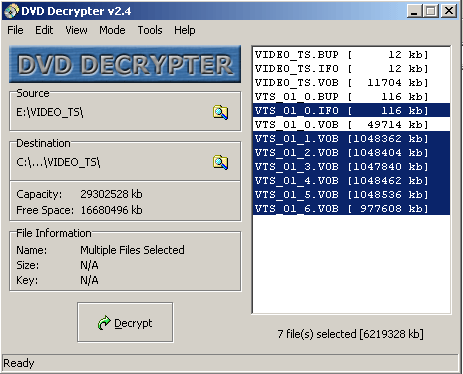
Step 1 Decrypting. (Copying the contents of the DVD to your Hard Disk aswell as Decrypting them). Nice and easy just place your dvd into the drive open up DVD Decrypter chose the destination (where you want to store the DVD files) and hit Decrypt. It couldnt be any easier. The length of this process depends greatly on the speed of your DVD Drive. If you are running Windows 2000 or XP you may need to firstly install an Aspi. This can be found here. |
||||||||||||||||||||||||||||
 |
||||||||||||||||||||||||||||
| Step
2. Converting with FlaskMPEG
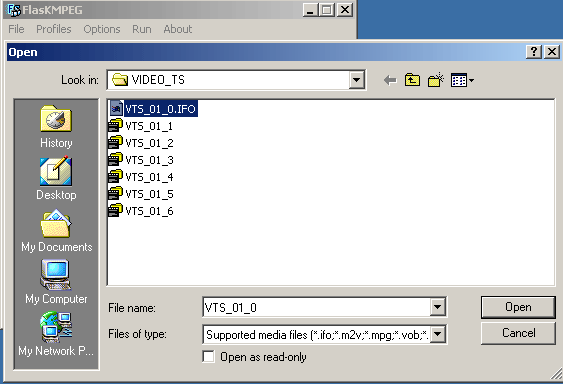
Firstly open up FlaskMpeg and click on FILE OPEN. Select the main IFO file for your movie (there should only be one there) and click on open. If you are ripping directly from the DVD (without decrypting) then you may be prompted for a disc key. |
||||||||||||||||||||||||||||
 |
||||||||||||||||||||||||||||
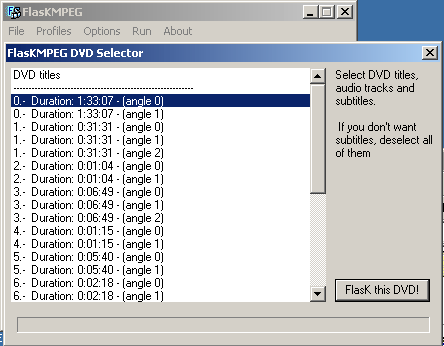
| Next you will have to select the movie file it will be the one with the longest duration. If you see more than one of the same thing then just click on the first one. While you are here take note of the movie duration as you will need to know this later. | ||||||||||||||||||||||||||||
 |
||||||||||||||||||||||||||||
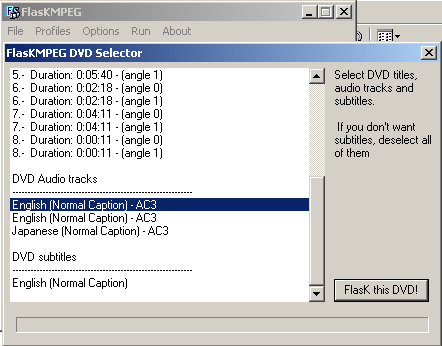
| You will then need to chose an audio track.(the language which you want your rip to be in) there may also be a choice of subtitles where possible. (if there isn't a choice of subtitles then dont worry the film will work just without subtitles) | ||||||||||||||||||||||||||||
 |
||||||||||||||||||||||||||||
| Take special
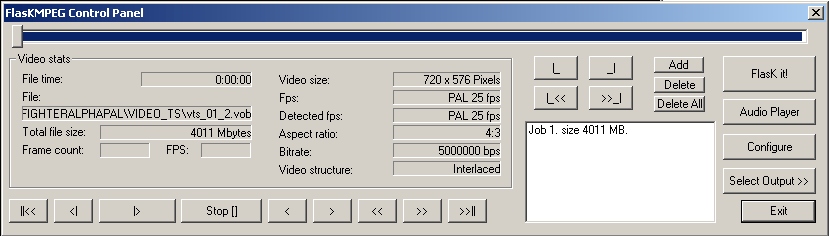
note to the Video structure and the Detected fps If you have a PAL DVD (European and Australian DVD's are all PAL) then nothing other than 25fps is acceptable. NTSC releases (e.g American DVD's are NTSC) are 29.97fps but the detected fps may not necessarily be the same number If this is reported incorrectly then dont worry as we will be able to change this later. |
||||||||||||||||||||||||||||
 |
||||||||||||||||||||||||||||
| Step 3 Bitrate
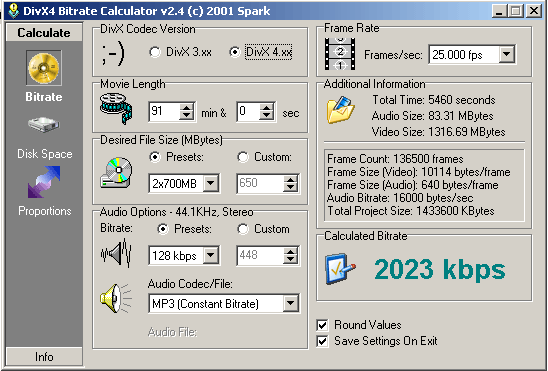
Calculator All you need to do here is to choose the DivX codec.Next you need to enter the movie length which is why itold you to note it down earlier. Pick a frame rate 25.000fps for PAL and 29.970fps for NTSC. (You can find out which region your DVD is by looking on the back on the case) Make sure you note down the Calculated Bitrate (in this case 2023kbps) as you will need this later. |
||||||||||||||||||||||||||||
 |
||||||||||||||||||||||||||||
| Back in FlaskMPEG
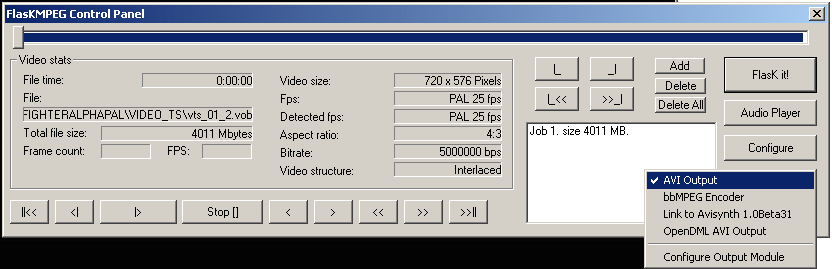
you will need to click on the Select Output icon and select AVI Output if it isnt already selected. |
||||||||||||||||||||||||||||
 |
||||||||||||||||||||||||||||
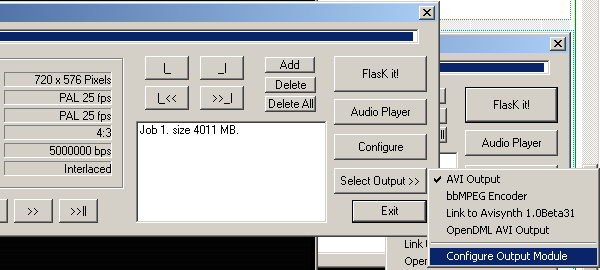
| After choosing the AVI Output you will then need to select Configure Output Module. | ||||||||||||||||||||||||||||
 |
||||||||||||||||||||||||||||
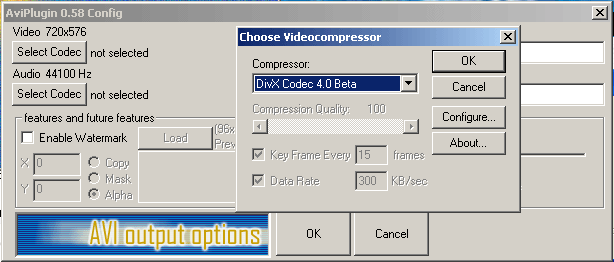
| Under Video you
will need to Select Codec this will be the DivX Codec you installed. if
there isnt one on your list then then you havent got one installed. If you dont have it Click Here to download it. |
||||||||||||||||||||||||||||
 |
||||||||||||||||||||||||||||
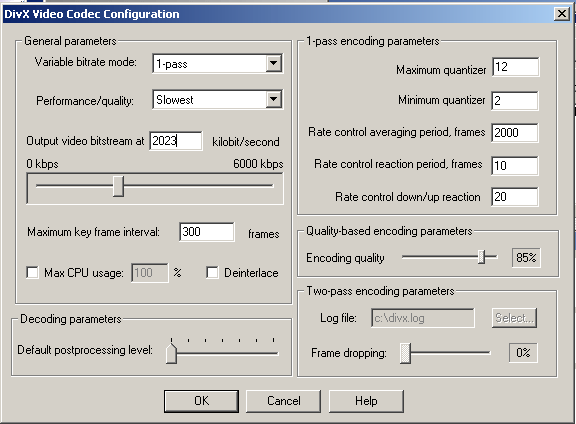
| After choosing the video codec you will need to click on the configure button. All you need to do here is to enter the bitstream number in the Outstream Video Bitstream box. (The number i told you to note down earlier with the Bitrate Calculator). | ||||||||||||||||||||||||||||
 |
||||||||||||||||||||||||||||
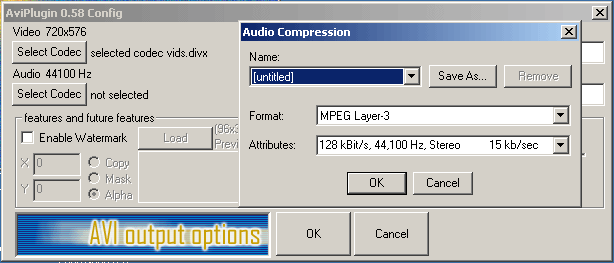
| The same applies
to the Audio Codec if MPEG Layer-3 is not on your list then Click Here to download it. The audio compression settings should be set up EXACTLY as you see them here. (Format= MPEGLAYER-3 Attributes= 128 kbit/s Stereo) Then click on ok and ok again. |
||||||||||||||||||||||||||||
 |
||||||||||||||||||||||||||||
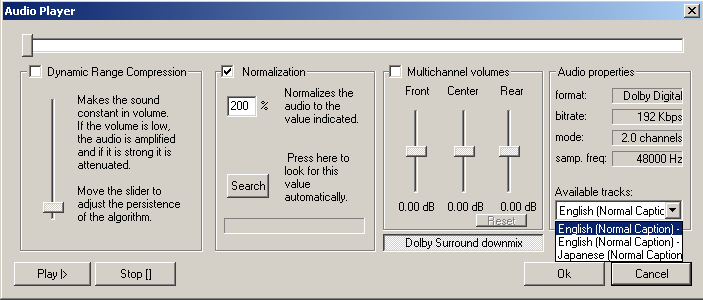
| On the main FlaskMPEG
menu select Audio Player. Here you will need to chose the language of your
rip using the Available Tracks option. You may also want to set the Normalization
(level of sound). You may either do this yourself by clicking on play and
listening to the level of sound or you can click on search and it will be set automatically. When your done click on OK. |
||||||||||||||||||||||||||||
 |
||||||||||||||||||||||||||||
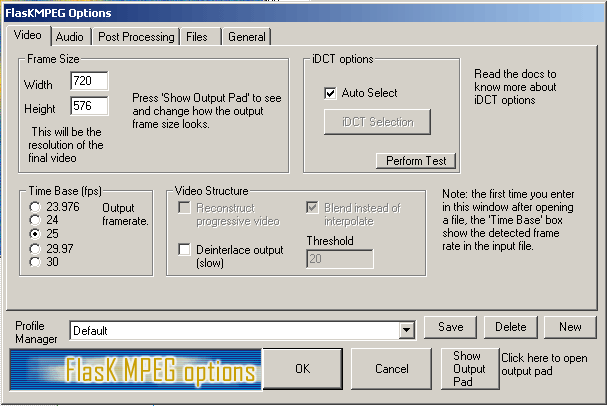
| Next click on the configure Button and you should see something like this. Firstly select the Video tab. | ||||||||||||||||||||||||||||
 |
||||||||||||||||||||||||||||
| In the Video tab you do not have to alter anything as FlaskMPEG automatically configures it for you. Just be sure to check that the fps matches the reigion of the DVD. 23.976 and 29.97 are region 1 and 25 is region 2. if you are using a region 1 film and the time base is 23.976 then make sure that you do check the Deinterlace box. | ||||||||||||||||||||||||||||
 |
||||||||||||||||||||||||||||
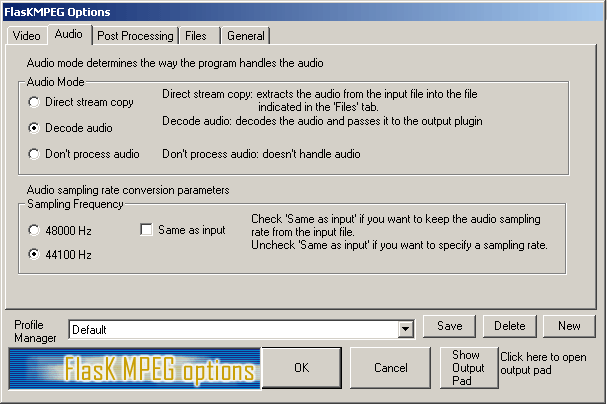
| Nothing here
needs to be changed just make sure that Decode audio has been selected then move on to Post processing. |
||||||||||||||||||||||||||||
 |
||||||||||||||||||||||||||||
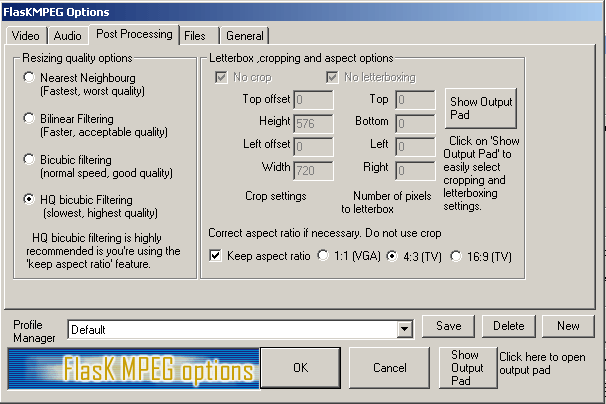
| Nice and simple juat make sure that the HQ bicubic Filtering and the Keep aspect ratio boxes are checked and then on to Files. | ||||||||||||||||||||||||||||
 |
||||||||||||||||||||||||||||
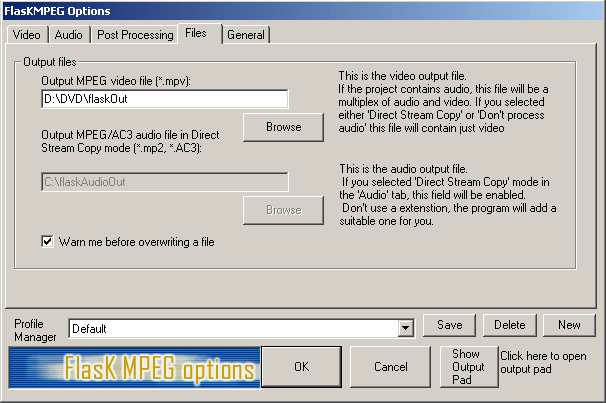
| Just chose were you want the DivX movie to be stored. | ||||||||||||||||||||||||||||
 |
||||||||||||||||||||||||||||
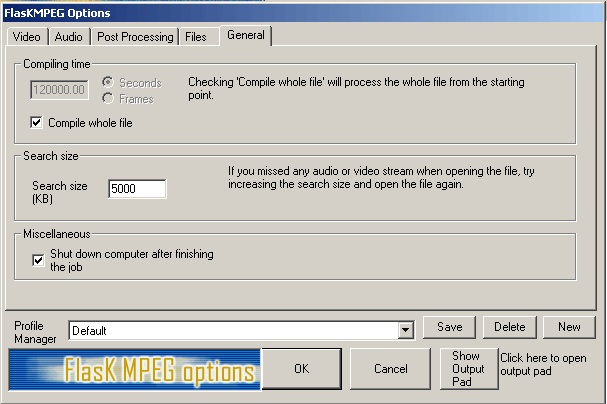
| Couldnt be any easier dont change anything just click on ok. | ||||||||||||||||||||||||||||
 |
||||||||||||||||||||||||||||
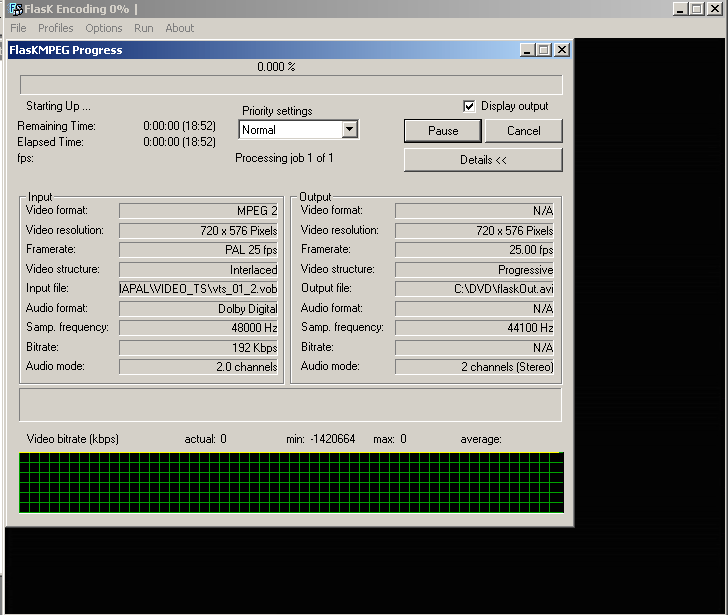
| Finally at long last you may hit the Flask it button and i would recommend you do this overnight as it takes LONG!!. If you want to speed things up a little uncheck the Display Output box. Now we wait. | ||||||||||||||||||||||||||||
 |
||||||||||||||||||||||||||||
