
How do I complete lessons and exercises and take Quizzes?
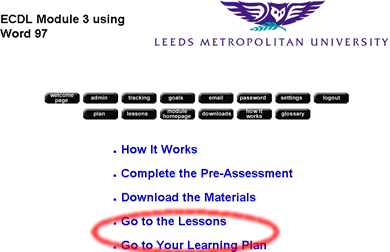
You can get to the lessons and exercises from two different links from the main module page, these are by clicking 'Go to the lessons' or 'Go to your learning plan' (as highlighted in red below). If you have taken the preassessment and have created a learning plan it is suggested that you take this option. If you have not taken the preassesment and created a learning plan it is stronly advised that you do so. The example given on this page is for those following the learning plan route, if you decide not to take this route and wish to go straight to the lessons click the 'Go to the Lessons' option highlighted in red below, for instructions on what to do after this click here.
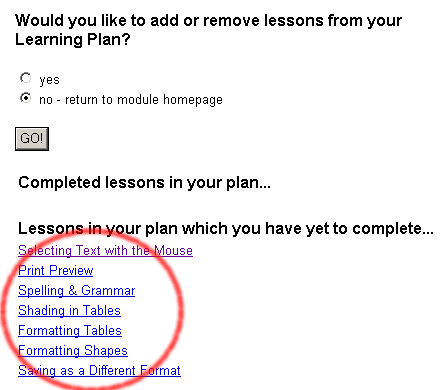
If you choose to go to your learning plan, the subject areas within your learning plan will be hyperlinked, as circled in red below.
Clicking on a link resizes your internet Explorer browser to approximately a third of the width of the screen, and should align the browser to the right of the screen, this then gives you the opportunity to open the software package that your lesson relates to and resize the window in which it is in, so as both the software package and the lesson fit the full size of your screen, as featured in the diagram below.
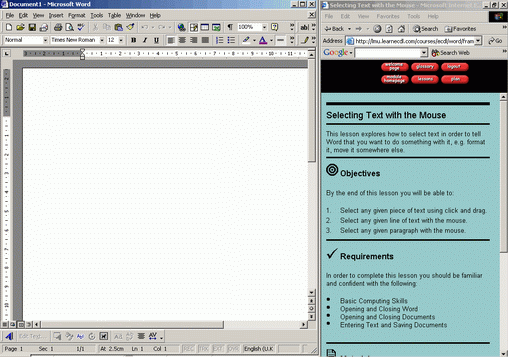
The diagram above shows, a copy of Word open to the left of the screen, and a copy of the lesson open to the right. In order to complete the lesson successfully fully read and follow the instructions within it. The lesson may require you to open a sample document, if so please click here for instructions on how to do this. The lessons ask questions, about the subject area being covered - see if you know the answers - at this point this is not a marked quiz, after you have done this you have the opportunity to grade the lesson so far, as below.
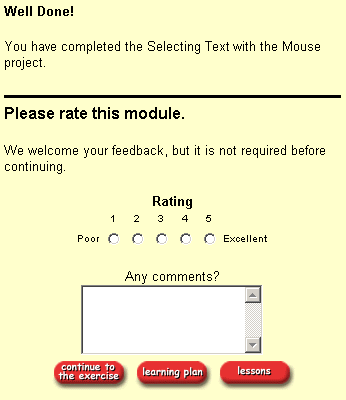
When you have graded the lesson, press the 'Continue to the exercise' button, this will give you a short exerice on what you have just learned as below.
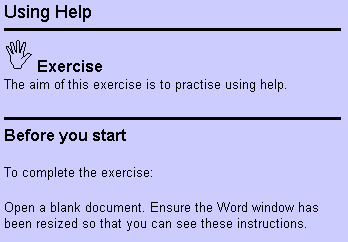
Follow the instructions, and complete the exercise. An example of Exercise tasks is given below.
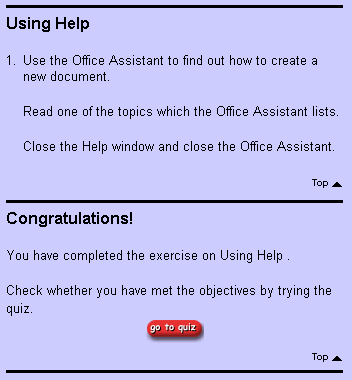
After completing the exercise it is then time to take the quiz, by clicking on the 'go to quiz' option. The quiz will feature several questions that may require either a typed response, or you to click on a certain area of the screen, as in the example below.
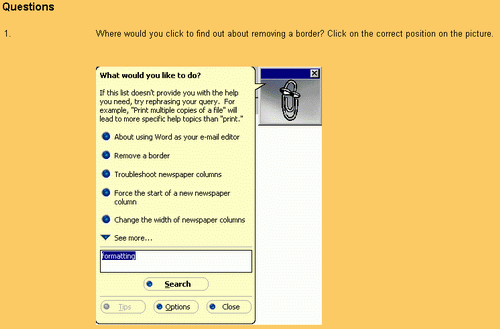
After you have completed your quiz, click on the 'Score my quiz' button which is beneath the quiz, your quiz will then be marked with feedback as below.
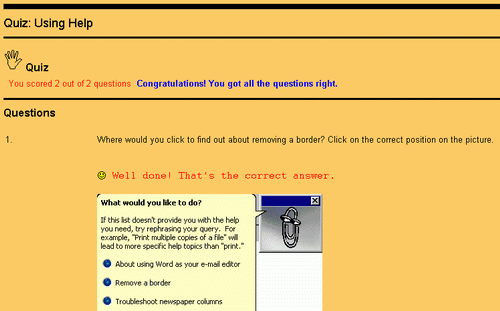
If you got all the questions correct and are happy that you have learned what you needed to know in this lesson, move on to the next lesson. This is a process that you should repeat until you have taken all the lessons, exercises and quizzes that are required of you. When you are satisfied that you have done this. Go back into WebCT and take your post test in this module. If you score 80% or above move onto the next module, e.g. Excel. If you score less than 80% have a look at the areas at which you failed, make note of them, and repeat the lessons that relate to those subject areas in LMU LearnECDL by clicking the 'Go to the Lessons' option from the Module main page. Click here for an example of how to do this.
