|
NP Computer Hardware page ROM BIOS, Flash
ROM, POST |
ROM BIOS
ROM BIOS is a group of programs permanently stored on a
ROM chip or chips on the systemboard that manages the most fundamental communications
between software and hardware. The two functions of ROM BIOS are to: 1.
Gather configuration information and initialize the
computer when it is first turned on 2.
Provide software to communicate directly with various
hardware components when the OS is functioning Configuring And Initializing The Computer
When you turn on the power to a PC, the CPU begins the
process of initialization by turning to the ROM BIOS for instruction. The
BIOS runs a series of complex programs called the Power-On Self Test (POST),
which performs several tasks including the following: ·
Testing the CPU itself ·
Testing RAM ·
Inventorying the hardware devices installed on the
computer and comparing that inventory to configuration information ·
Configuring disk drives, hard drives, keyboard, monitor
and ports ·
Configuring other devices installed on the PC, such as a
CD-ROM or sound card ·
Assigning resources to computer hardware devices in
preparation for the OS to complete and coordinate these assignments ·
Setting up hardware devices to go into "sleep
mode" to conserve electricity ·
Running CMOS setup if requested ·
Loading into memory and turning control to the OS Providing BIOS Services
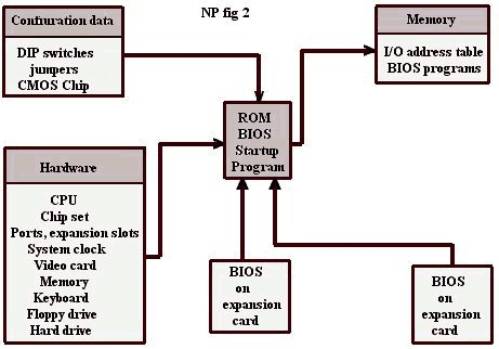
ROM BIOS on the systemboard includes the BIOS startup
program (see NP fig2) that is used
only when the PC first boots. However, there are also portions of ROM BIOS
programming that are stored in memory and used to support hardware devices
when you run applications programs. Recall, this is sometimes called System
BIOS.In NP fig2, System BIOS is
labeled "BIOS on systemboard." For example, the keyboard is
controlled by a BIOS program stored on the systemboard that is copied into
memory by the ROM BIOS startup program. In this figure you see ROM BIOS playing two roles. First, the startup
BIOS is in control, configuring the system, The keyboard BIOS is copied from
the ROM BIOS chip on the systemboard into memory and is later used in its
second role, to service the keyboard. The startup BIOS is no longer used
after it turns control over to the OS, but other system BIOS programs
continue to be used during computer operations. While some if the system BIOS services are provided by
the one or two ROM BIOIS chips on the systemboard, other system BIOS services
are provided by chips on a supporting circuit board. This portion of system
BIOS is called on-board BIOS. An
example of on-board BIOS is the software on a video card. The BIOS on the
video card is part of the total BIOS services for the entire system. When the
computer is first turned on, the BIOS on the systemboard and the BIOS on the
video card cooperate to provide part of the total BIOS services for the
system. (Also, recall that rather than being controlled by BIOS programs,
hardware is sometimes managed by device drivers, which are programs stored as
files on the hard drive.) When the CPU needs to display something on the monitor
screen, it depends on the video BIOS to instruct the monitor. The CPU knows
where to find the BIOS software for the monitor because its location is
determined during the booting process. When you press a key on the keyboard,
the CPU is told that the "keyboard needs attention" and also
interprets the data from the keyboard. The BIOS programs to do all this are
assigned memory addresses and are matched up with the correct peripheral
device during the booting process. These programs are permanently stored on
ROM BIOS chips on the systemboard and supporting circuit boards. For example, sometimes a disk drive is controlled by a
system BIOS program that is a part of ROM BIOS on the systemboard. During the
booting process, startup BIOS assigns memory addresses to the system BIOS
program that controls the disk drive. This program takes control and
initializes the disk drive. During the operation of the PC, when an
application must read from or write to disk, the request is passed to the OS
which, in turn, passes the request to the system BIOS program that controls
the disk drive.
Flash ROMFlash
ROM is a type of memory chip that permanently retains programming code
without being electrically charged, but can also be overwritten by new code.
With Flash ROM, you can upgrade ROM without having to install a new ROM BIOS
chip, which is the more difficult and more expensive ROM update procedure.
You can upgrade BIOS in Flash ROM by overwriting existing BIOS code with new
BIOS code stored on disk or downloaded from the internet. As you add new
devices to your system, you can continue to easily and inexpensively update
ROM BIOS to manage these devices. Technically speaking, Flash ROM is called EEPROM
(electronically erasable programmable read-only memory), which means you can
change the programming on the chip through software on your PC. The updated
programming will be retained-even when you turn off your PC for long periods
of time-until you change it again. Flash ROM allows you to upgrade system
BIOS without having to replace the ROM chip. As more devices become Plug-and-Play-compliant,
Plug-and-Play BIOS will become more sophisticated. Expect to upgrade to
Plug-and-Play BIOS over time. Additionally, makers of BIOS code are likely to
change BIOS frequently because it is so easy for them to provide the upgrade
on the Internet. You can get upgraded BIOS code from manufacturers' Web sites
or disks from third-party BIOS resellers' Web sites or disks. To upgrade Flash ROM, follow the directions that came
with your systemboard and the upgrade software itself. Generally, you will
perform these tasks: ·
Set a jumper on the systemboard telling the BIOS what to
expect ·
Copy the upgrade software to a bootable disk ·
Boot from the disk and follow the menu options to
upgrade the BIOS ·
Reset the jumper, reboot the system, and verify that all
is working *** Be very careful that you
upgrade the BIOS with the correct upgrade. Upgrading with
the wrong file could make your system BIOS totally useless. If
you're not sure that you're using the correct upgrade, don't guess. Check with
the technical support for your BIOS before moving forward. Before you call
technical support, have the information that is written on the BIOS chip
label available. POST (Power On Self Test) When you first turn on
your computer, the CPU looks for instructions in the ROM BIOS Startup
Program. The first process executed is POST, which first checks that the CPU
is working. The CPU then sends signals over the system bus checking various
chips, ports, and expansion slots. It then checks the system clock making
sure timing is working properly. Because the CPU has not yet checked the
video system, errors encountered up to this point are communicated to you by
a beeping sound. Short and long beeps indicate an error. Next, POST checks
the video controller card, sometimes called the display adapter. After the
video controller passes inspection, POST can use the monitor to display its
progress. POST then checks RAM by writing and reading data. A running count
of RAM is displayed on the monitor during this phase. Next, the keyboard is
checked, and if you press any keys at this point, an error occurs. Secondary
storage, including disk and hard drives, is checked. The hardware that POST
finds is checked against the data stored in CMOS chips, jumpers, and/ or DIP
switches to determine that they agree. |